> ## Documentation Index
> Fetch the complete documentation index at: https://docs.graphext.com/llms.txt
> Use this file to discover all available pages before exploring further.
# Sharing an interactive project
> Package and share your analysis in an interactive environment
All Graphext proyects can be made into **publications**, read-only views of the
project that have their standalone urls and can be shared safely to anyone.
This allows for very easy replication of results or further investigation on
the same data.
As an example, this is a publication of one of our projects,
the [FIFA Player Stats for the 2022 Season](https://dev-embeds.graphext.com/bc4c7002692219be/index.html). You can
view and interact with all the data, but edits are not allowed.
## Creating a new publication
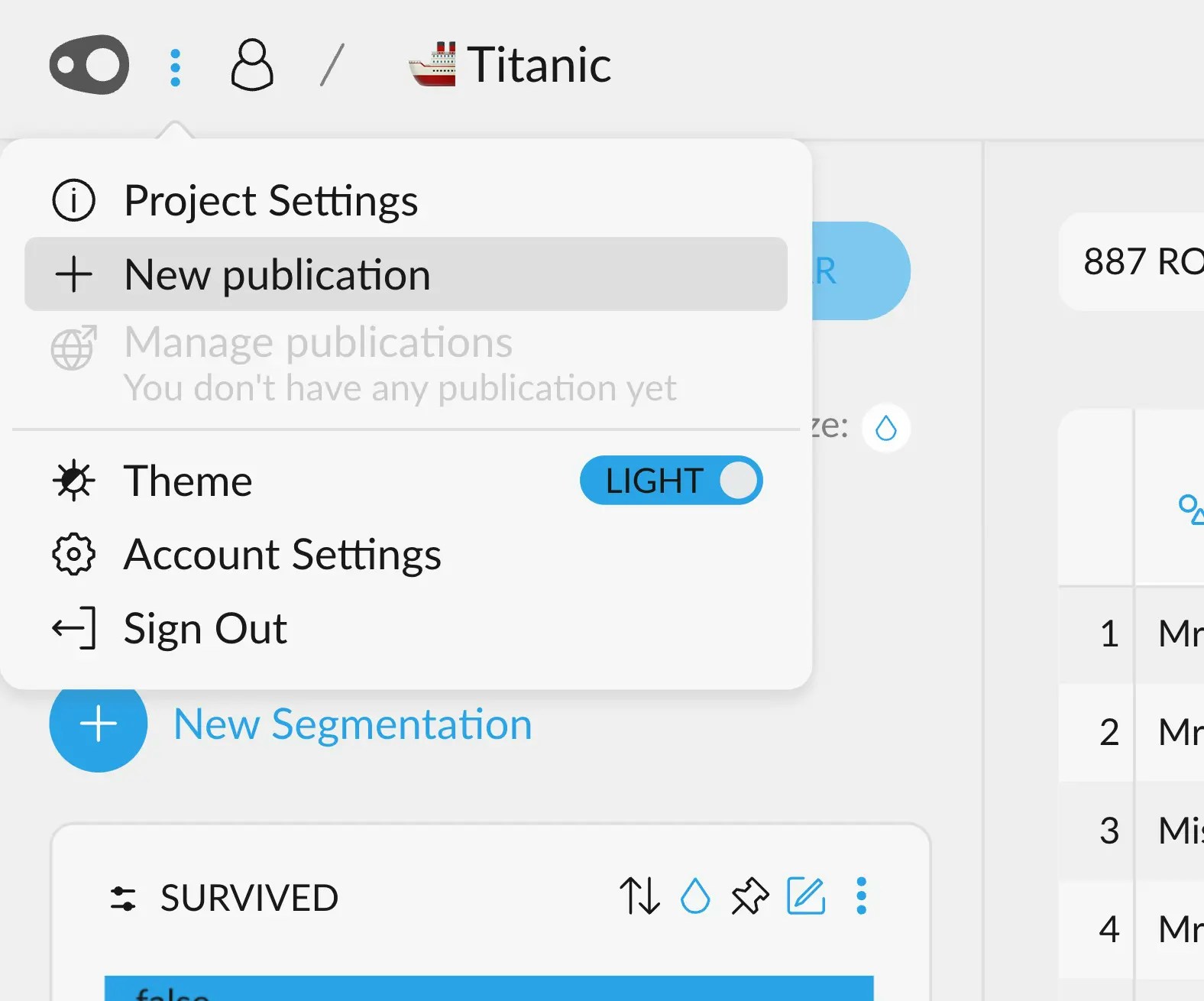
To create a new publication of your project, click the options **button in the
upper left corner** and select "New Publication".
 This menu will pop up, which allows you to customize the environment you are
about to create.
This menu will pop up, which allows you to customize the environment you are
about to create.
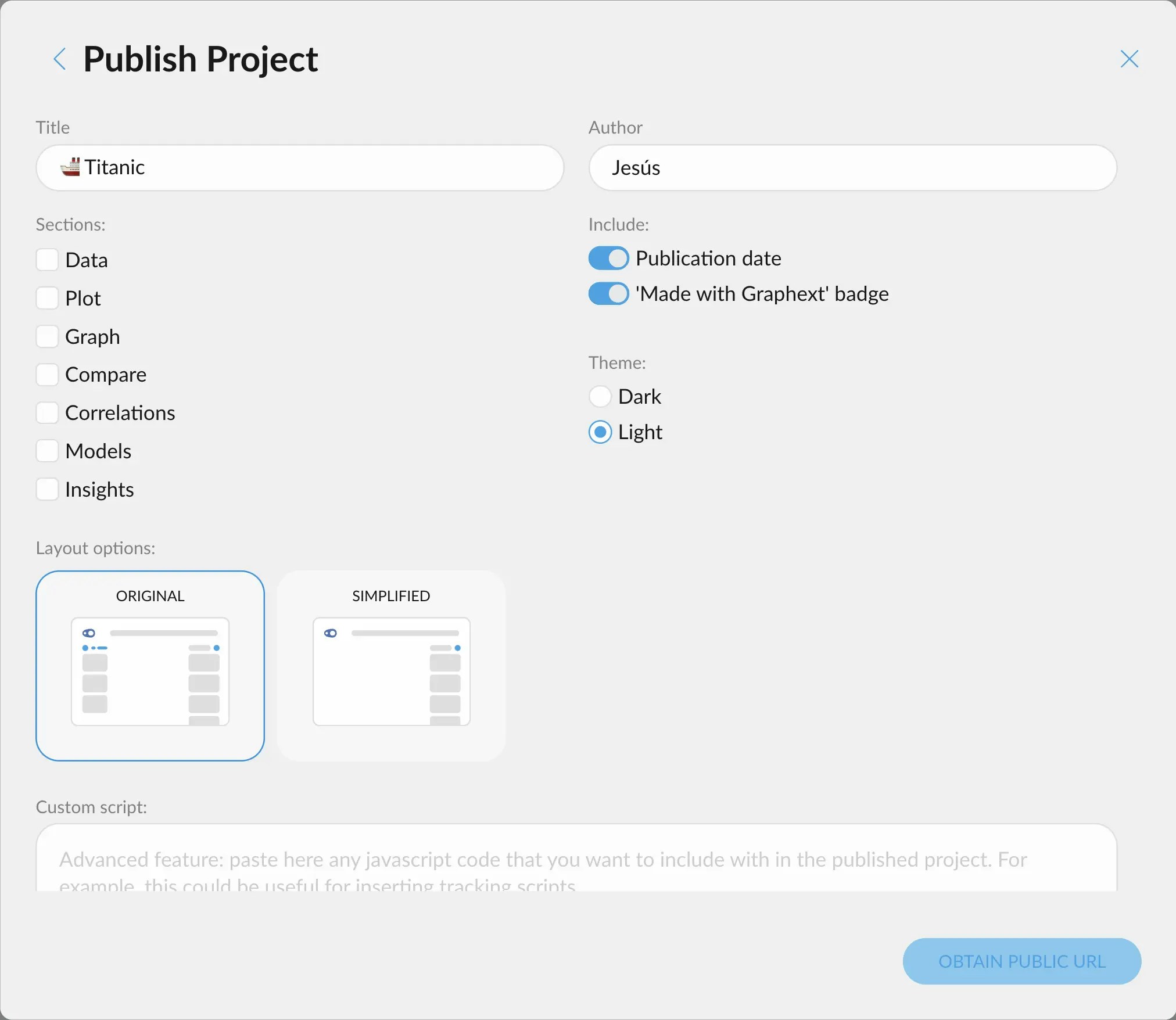 You can change:
* the title the project will display
* the author name
* what sections (tabs) you want the environment to display, which can be any of the following:
* data
* plot
* graph
* compare
* correlations
* models
* insights
* publication date and a Graphext watermark
* the theme of the publication
* whether the layout will be the same as the original project, or a simplified one with no left sidebar
* lastly, a custom Javascript input that will execute upon loading. You may need to scroll to see this.
## Modifying an existing publication
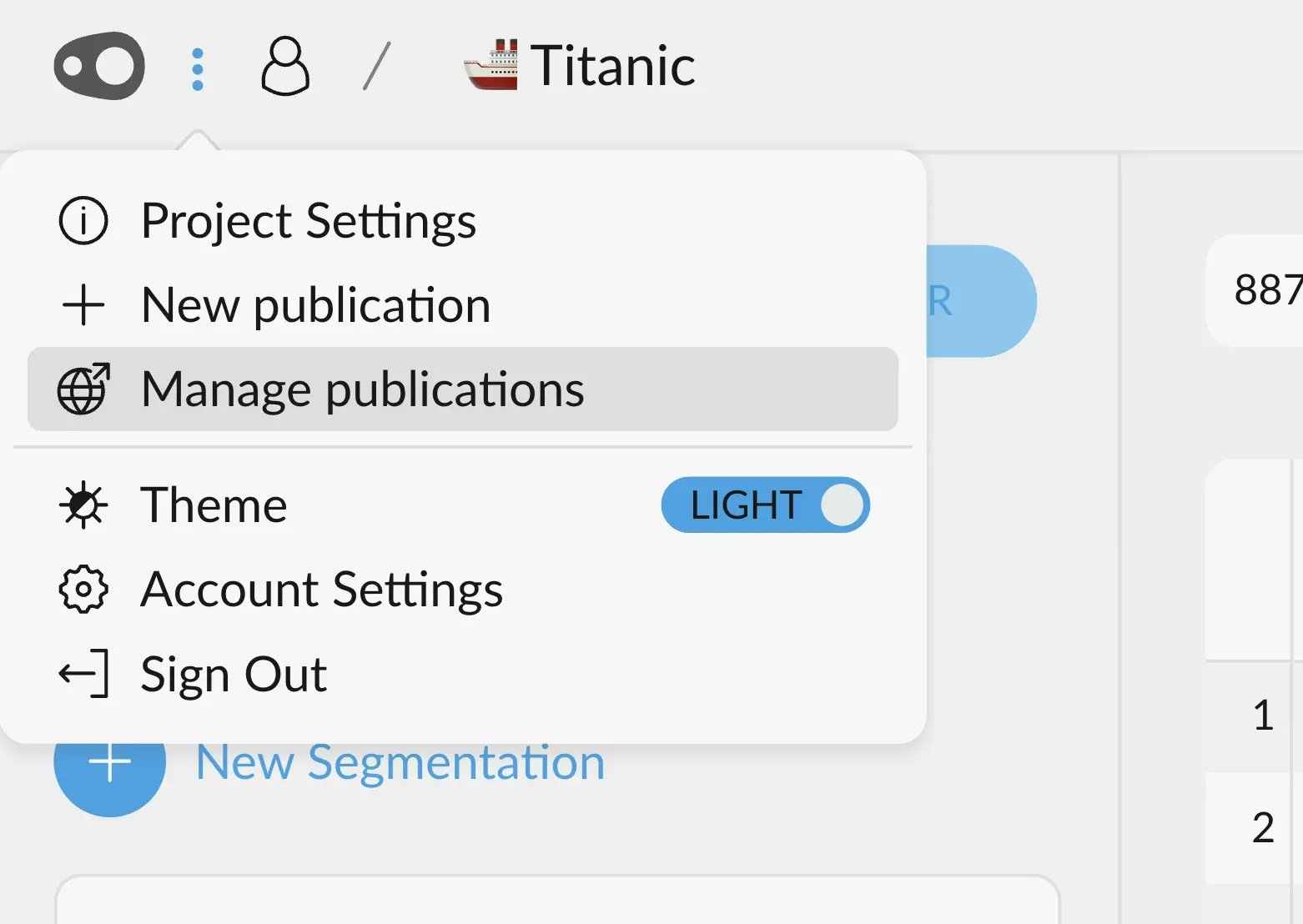
After creating a publication, you can edit it by going to the "Manage Publications" button, below the
"New Publication" one.
You can change:
* the title the project will display
* the author name
* what sections (tabs) you want the environment to display, which can be any of the following:
* data
* plot
* graph
* compare
* correlations
* models
* insights
* publication date and a Graphext watermark
* the theme of the publication
* whether the layout will be the same as the original project, or a simplified one with no left sidebar
* lastly, a custom Javascript input that will execute upon loading. You may need to scroll to see this.
## Modifying an existing publication
After creating a publication, you can edit it by going to the "Manage Publications" button, below the
"New Publication" one.
 You'll be presented with this menu, in which you can view all the publications made for this project,
edit them, delete them, or create a new publication.
You'll be presented with this menu, in which you can view all the publications made for this project,
edit them, delete them, or create a new publication.
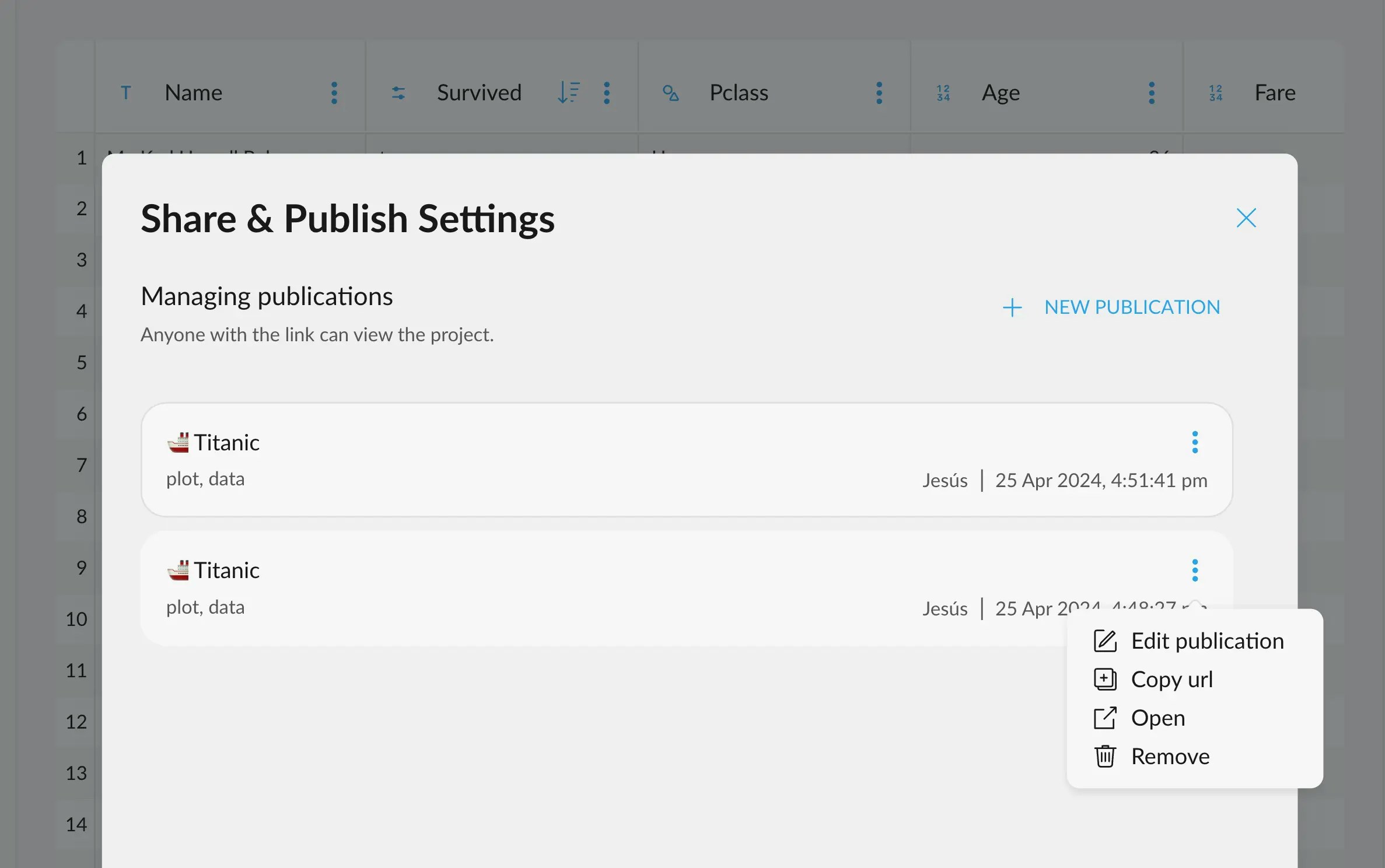 When editing or removing a publication, changes may take a few minutes to
propagate.
When editing or removing a publication, changes may take a few minutes to
propagate.