> ## Documentation Index
> Fetch the complete documentation index at: https://docs.graphext.com/llms.txt
> Use this file to discover all available pages before exploring further.
# Account Settings
> Manage your account preferences and much more
 Account Overview is the place where you'll manage the information associated with
your account, and its preferences, configure the plan you are subscribed to, and
sign out.{" "}
In this documentation you'll learn to:
1. How to view and edit your **personal information**
* Change your name
* Change your profile picture
* Change the account password
2. How to customize your **theme**
3. How to manage your **subscription plan**
* How to add, remove, or edit seats in your subscription plan
4. How to configure **notifications**
5. How to **sign out**
## How to view and edit your personal info
This is where you can edit your username, change your profile picture, and reset your account password.
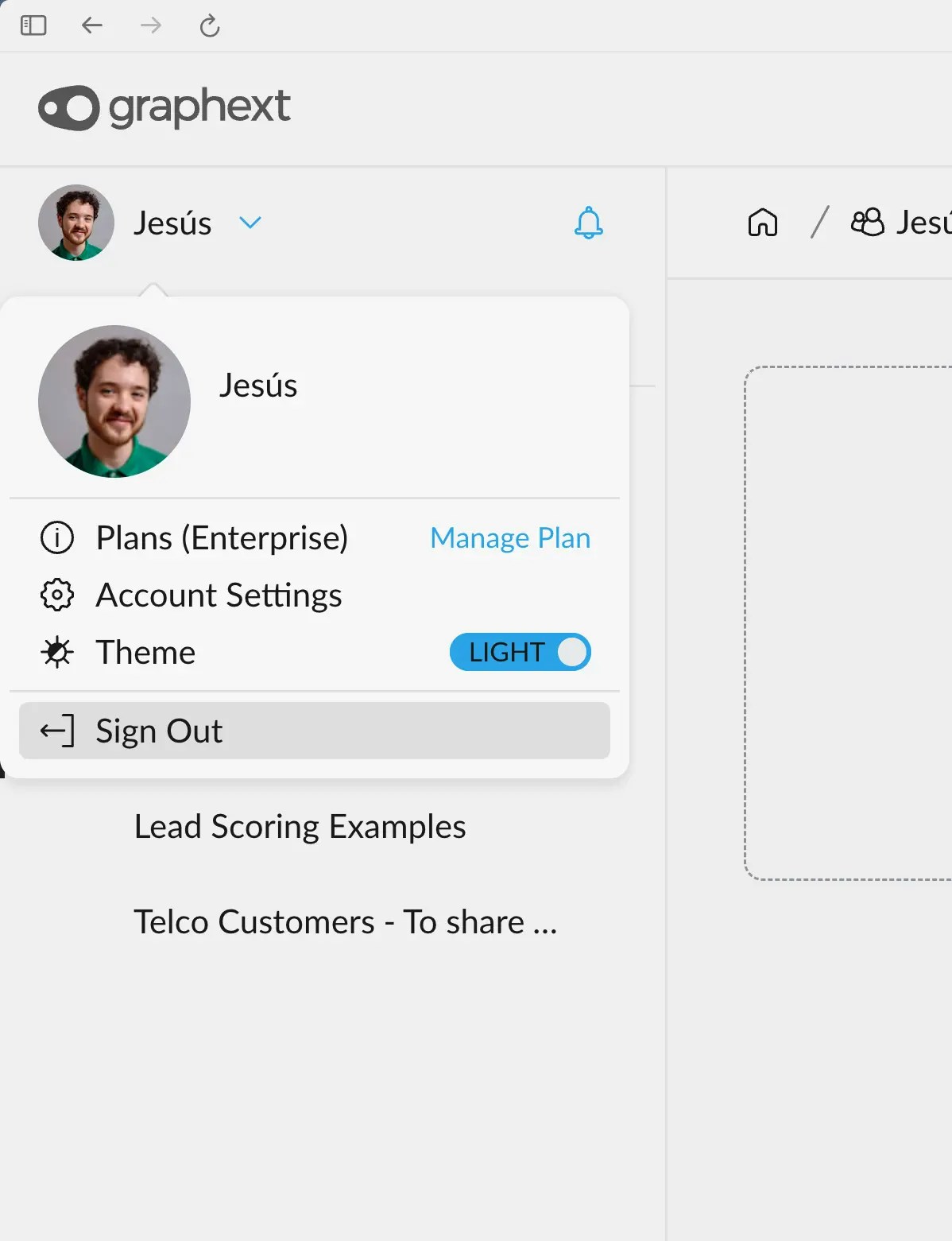
Click the **Account** dropdown menu in the navigation bar
Account Overview is the place where you'll manage the information associated with
your account, and its preferences, configure the plan you are subscribed to, and
sign out.{" "}
In this documentation you'll learn to:
1. How to view and edit your **personal information**
* Change your name
* Change your profile picture
* Change the account password
2. How to customize your **theme**
3. How to manage your **subscription plan**
* How to add, remove, or edit seats in your subscription plan
4. How to configure **notifications**
5. How to **sign out**
## How to view and edit your personal info
This is where you can edit your username, change your profile picture, and reset your account password.
Click the **Account** dropdown menu in the navigation bar
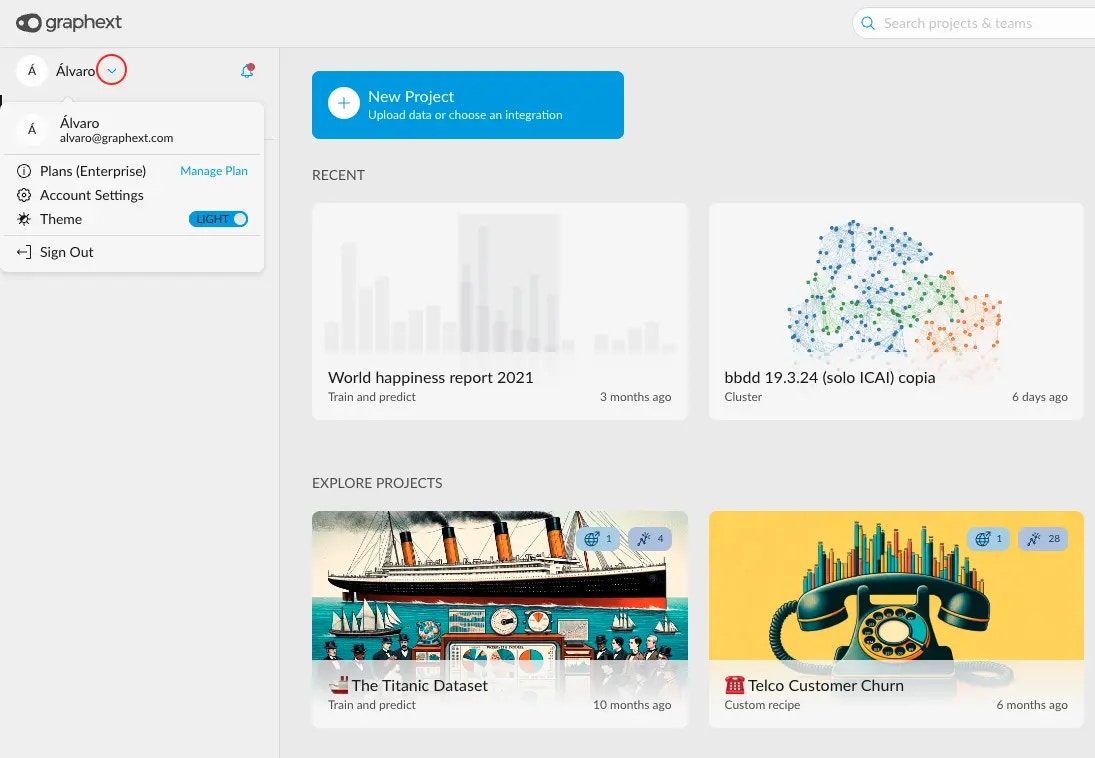 Open **Account Settings > Manage Account**
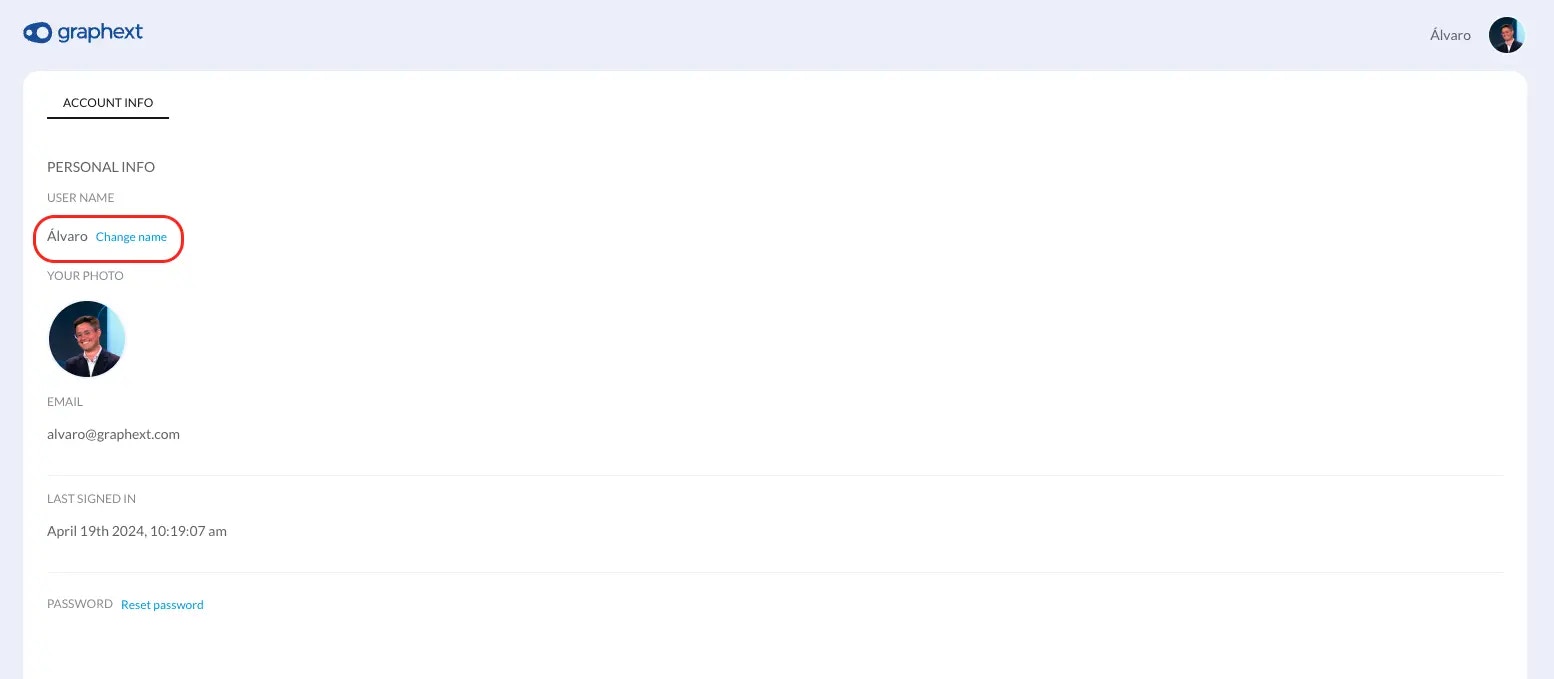
 Click on the **Change Name** button
 Edit it in the **dialogue**
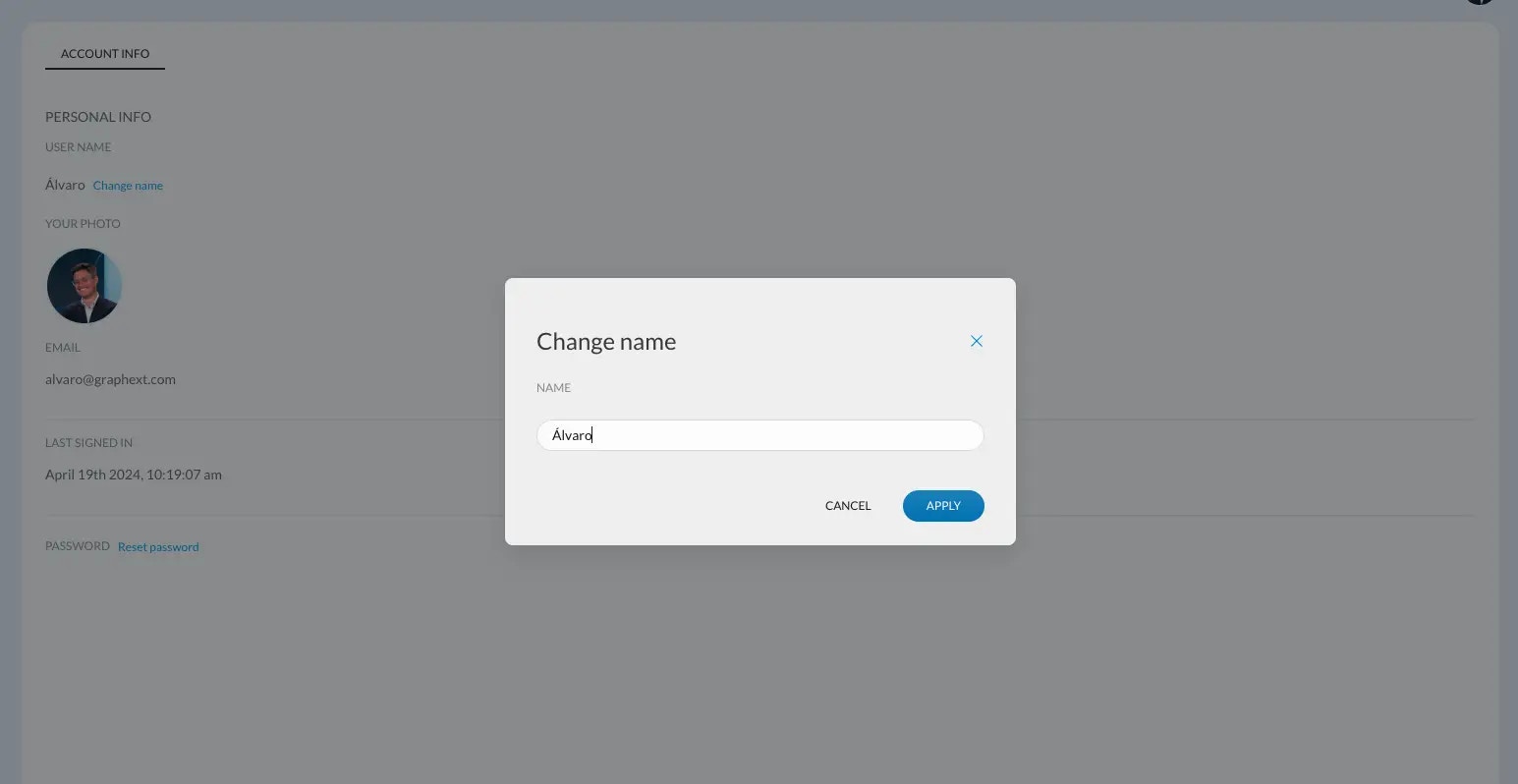 Apply changes. A banner will notify you that the changes have been
applied.
COMING SOON
Click the **Account** dropdown menu in the navigation bar
Open **Account Settings > Manage Account**
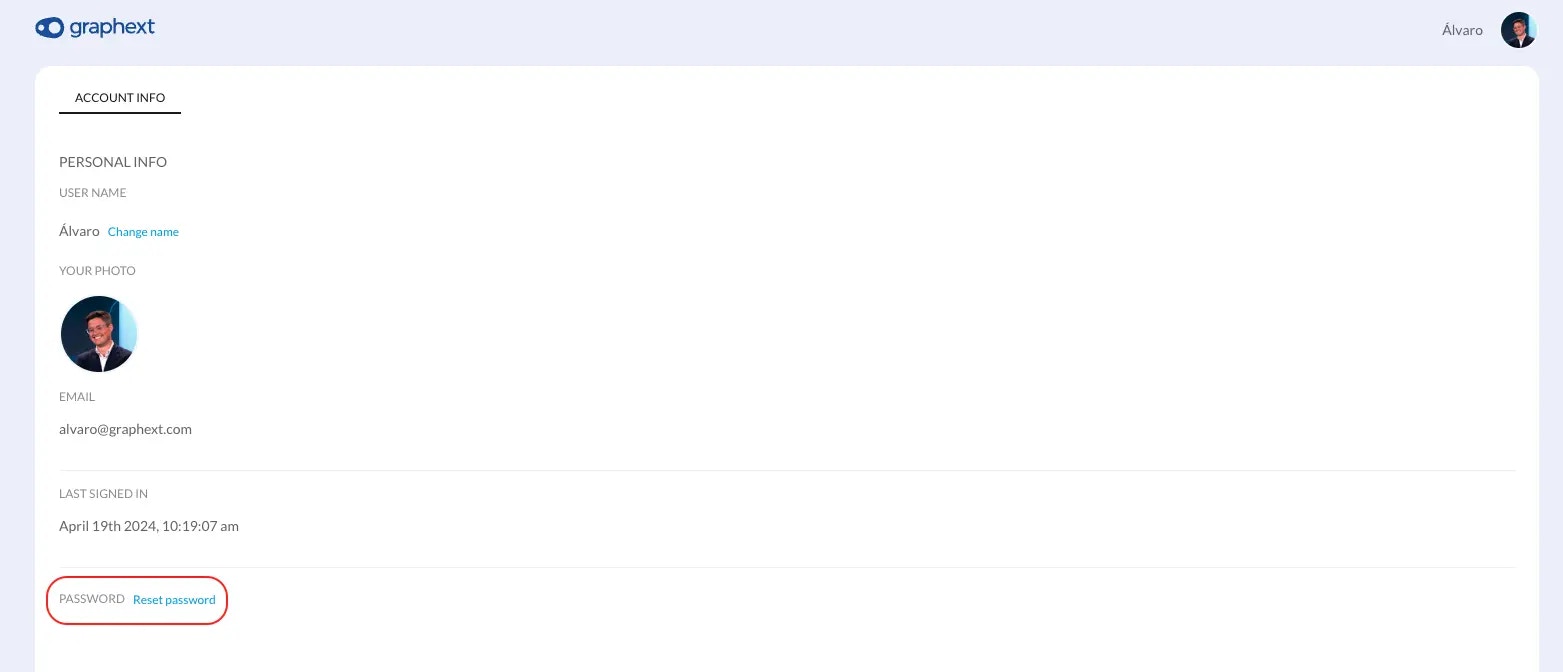
Click on the **Reset password** button. An email will be sent to the
email associated with your account.
Apply changes. A banner will notify you that the changes have been
applied.
COMING SOON
Click the **Account** dropdown menu in the navigation bar
Open **Account Settings > Manage Account**
Click on the **Reset password** button. An email will be sent to the
email associated with your account.
 Open the email and click on the **Reset Password** button or copy and
paste the URL link in the browser
Enter your new password in both inputs and click on the **Reset
Password** button. Make sure you follow the requirements.
## How to customize your theme
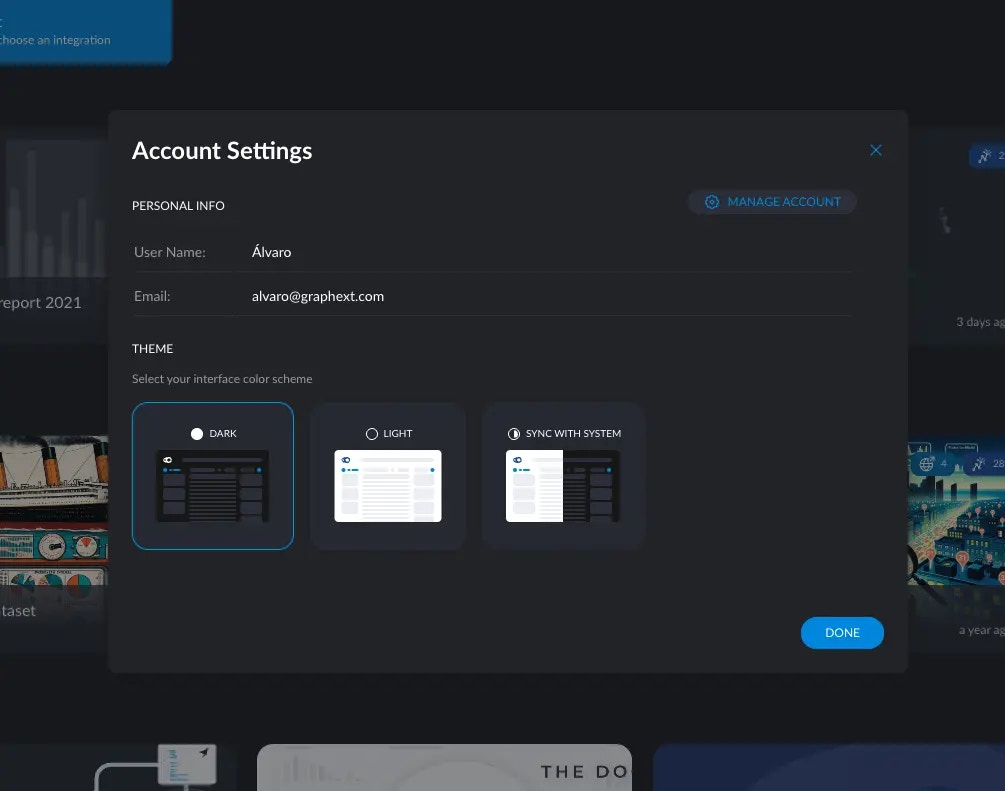
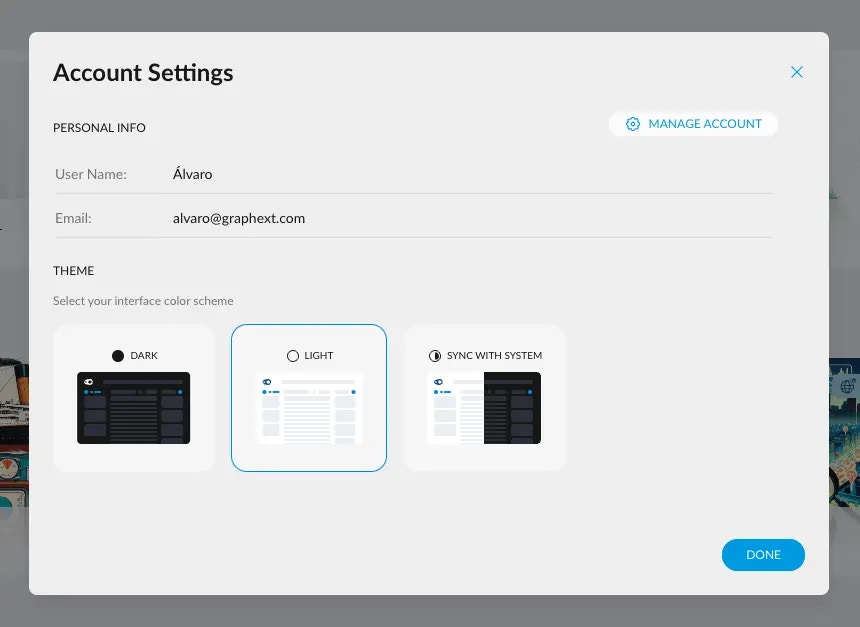
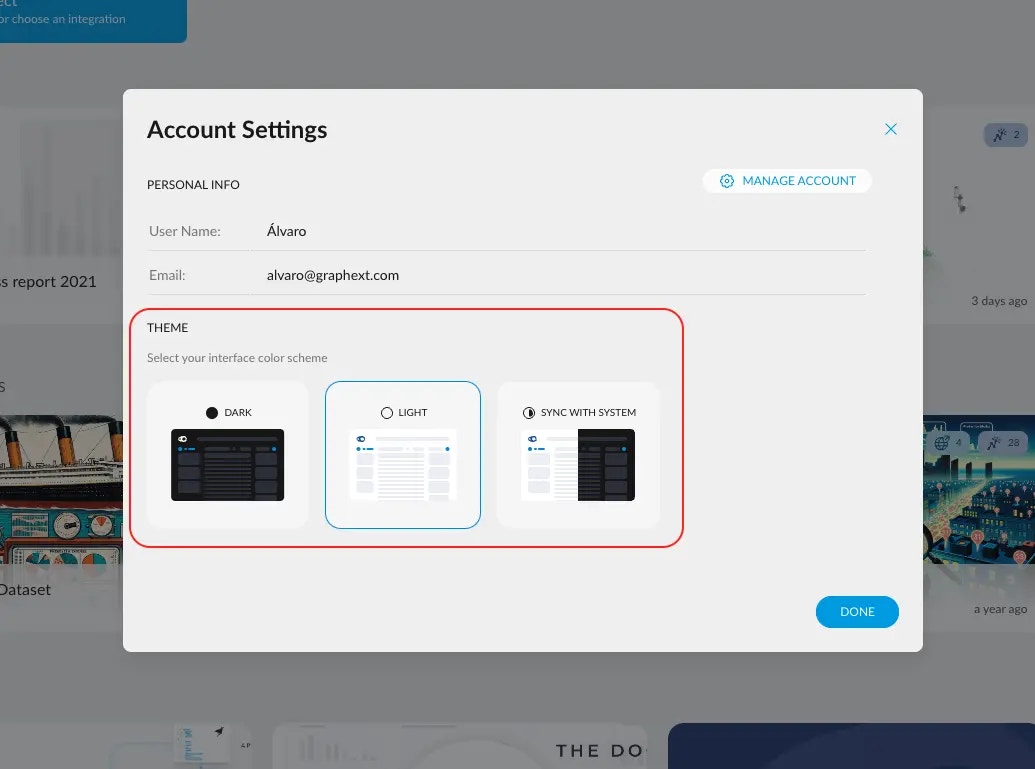
In Graphext, we understand the importance of a personalized user experience, which is why we offer two distinct themes: **dark and light**. You can switch between these themes at any point to suit your visual preference or lighting conditions. For your convenience, you can easily change the theme using the toggle available in the dropdown menu at the top left of the interface, or by adjusting your preferences in the account settings. Additionally, for those who desire an even more seamless experience, we provide an option to **synchronize the theme with your system settings**. This feature allows the Graphext interface to automatically adapt to the time of day, aligning with your system's theme to ensure optimal visibility and comfort throughout your day. Whether you prefer the stark elegance of dark mode or the crisp brightness of light mode, our customizable settings are designed to meet the needs of all users.
* Themes toggle
Open the email and click on the **Reset Password** button or copy and
paste the URL link in the browser
Enter your new password in both inputs and click on the **Reset
Password** button. Make sure you follow the requirements.
## How to customize your theme
In Graphext, we understand the importance of a personalized user experience, which is why we offer two distinct themes: **dark and light**. You can switch between these themes at any point to suit your visual preference or lighting conditions. For your convenience, you can easily change the theme using the toggle available in the dropdown menu at the top left of the interface, or by adjusting your preferences in the account settings. Additionally, for those who desire an even more seamless experience, we provide an option to **synchronize the theme with your system settings**. This feature allows the Graphext interface to automatically adapt to the time of day, aligning with your system's theme to ensure optimal visibility and comfort throughout your day. Whether you prefer the stark elegance of dark mode or the crisp brightness of light mode, our customizable settings are designed to meet the needs of all users.
* Themes toggle
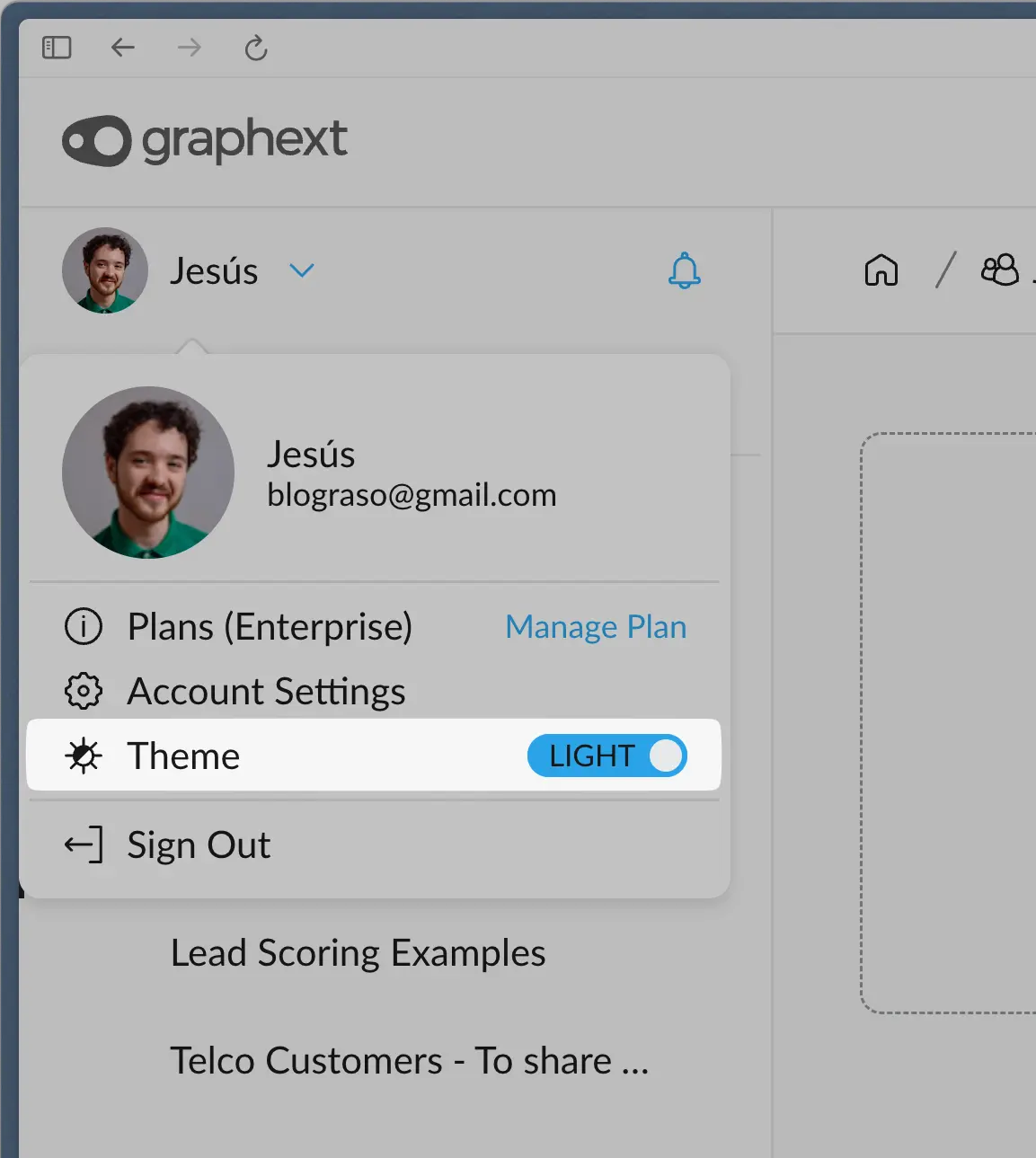 * Account settings themes configuration
 ## How to manage your subscription plan
Click the **Account** dropdown menu in the navigation bar
Open **Account Settings > Manage Account**
Click on the **Plans** tab
## How to manage your subscription plan
Click the **Account** dropdown menu in the navigation bar
Open **Account Settings > Manage Account**
Click on the **Plans** tab
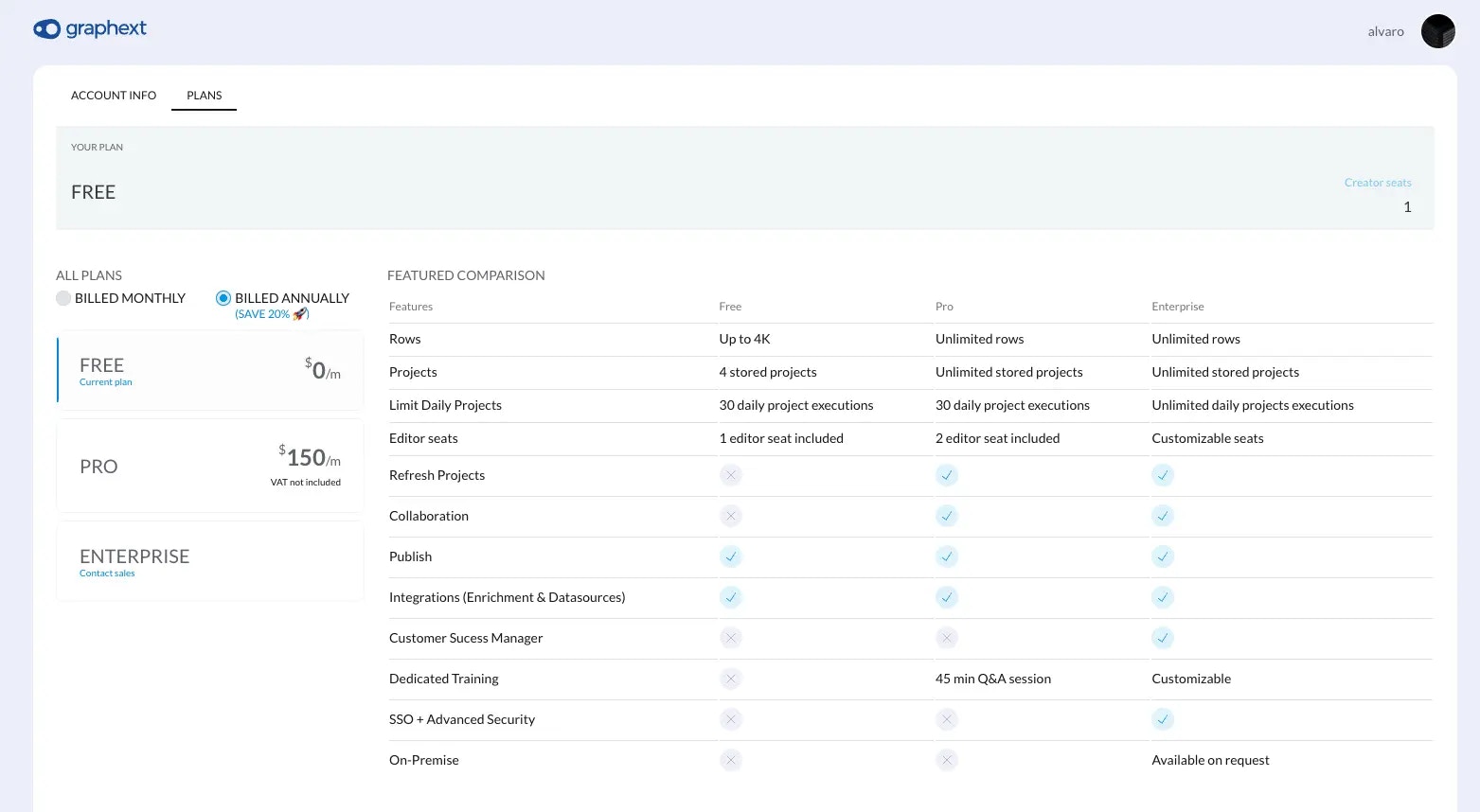 Select the **PRO** plan and proceed to checkout or [contact our sales team](mailto:support@graphext.com) to contract an **enterprise plan**
Click the **Account** dropdown menu in the navigation bar
Open **Account Settings > Manage Account**
Click on the **Members** tab
Select the **PRO** plan and proceed to checkout or [contact our sales team](mailto:support@graphext.com) to contract an **enterprise plan**
Click the **Account** dropdown menu in the navigation bar
Open **Account Settings > Manage Account**
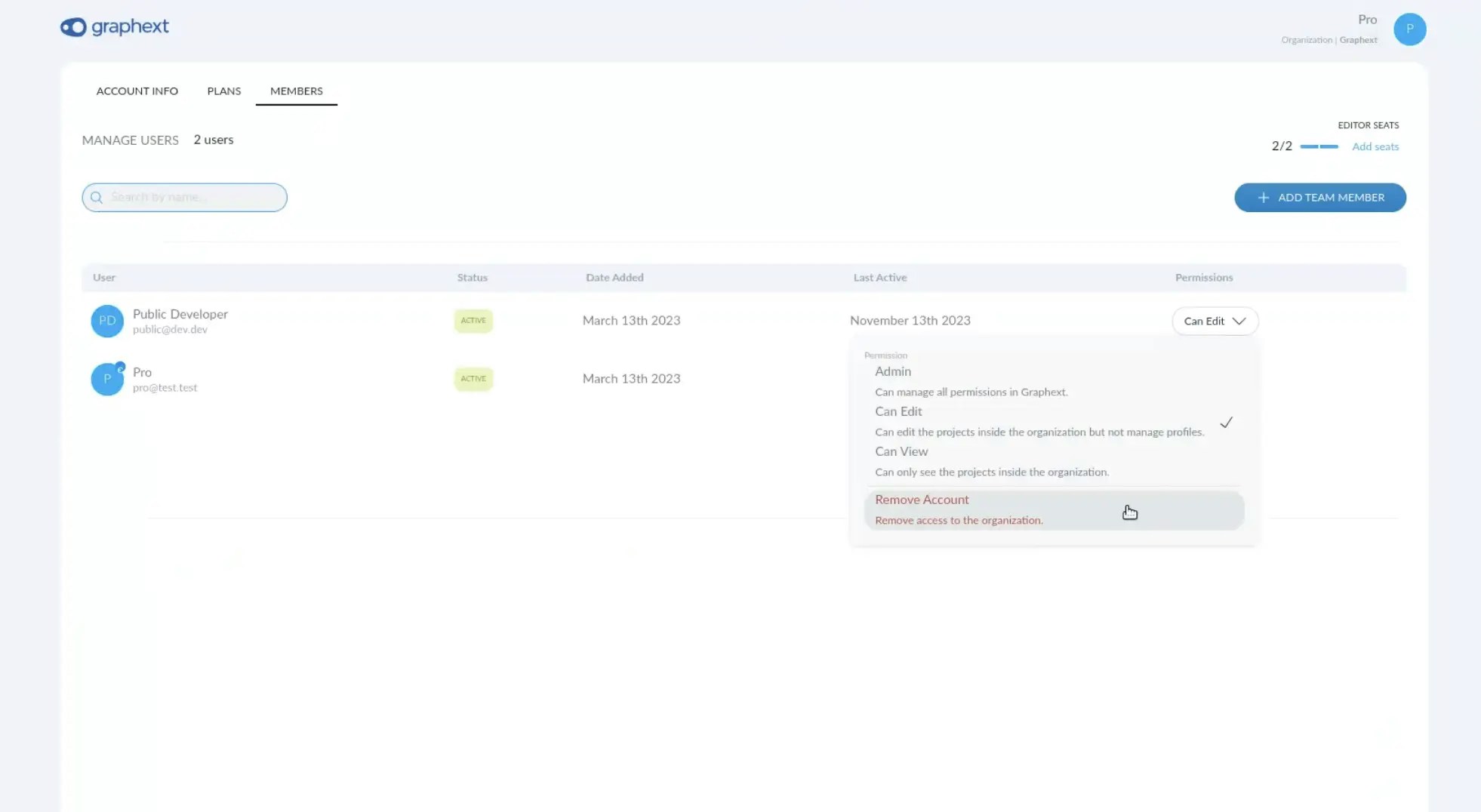
Click on the **Members** tab
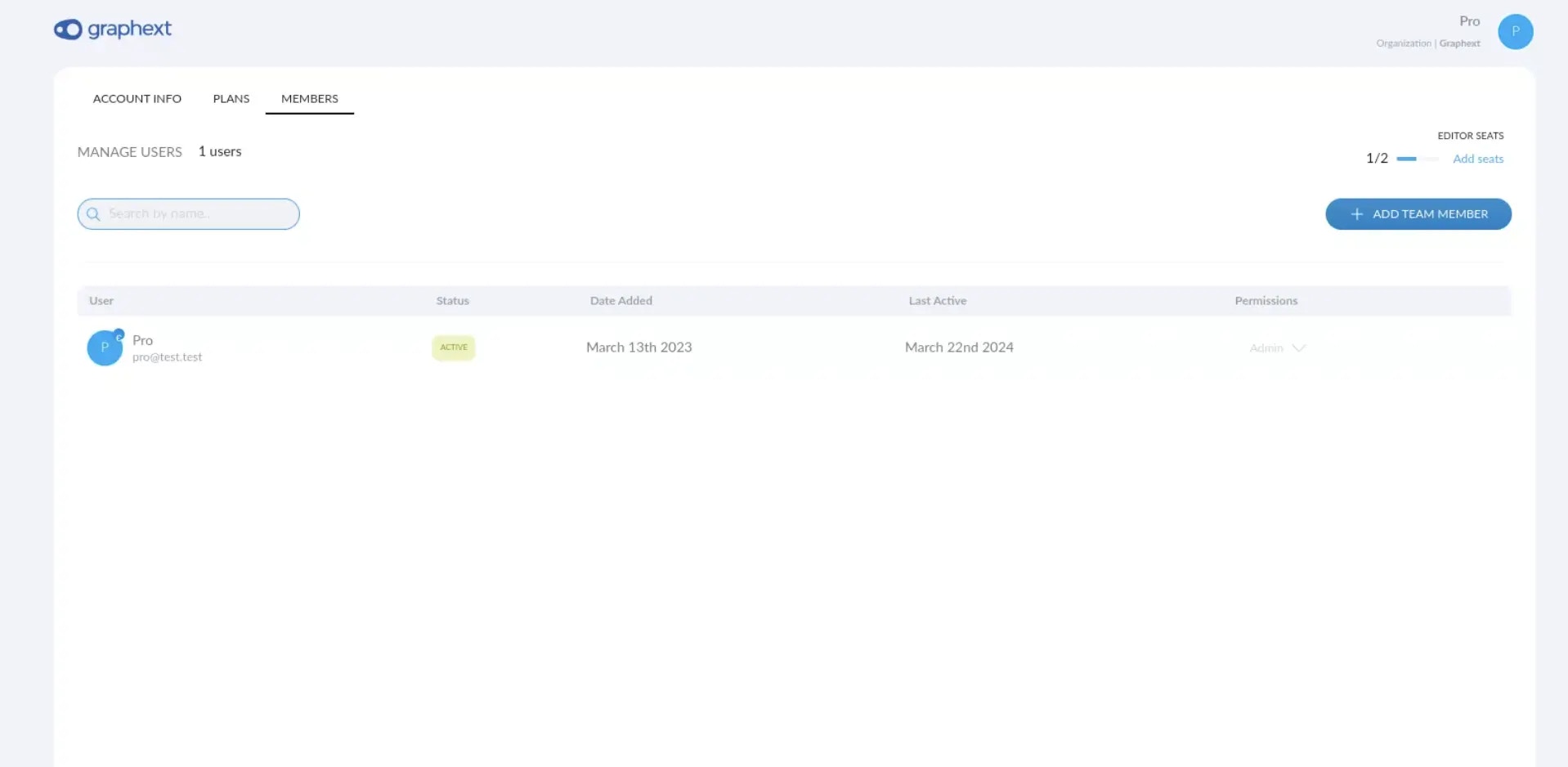 Click on the **+ Add Team Member** button and write the email you want to add to your team.
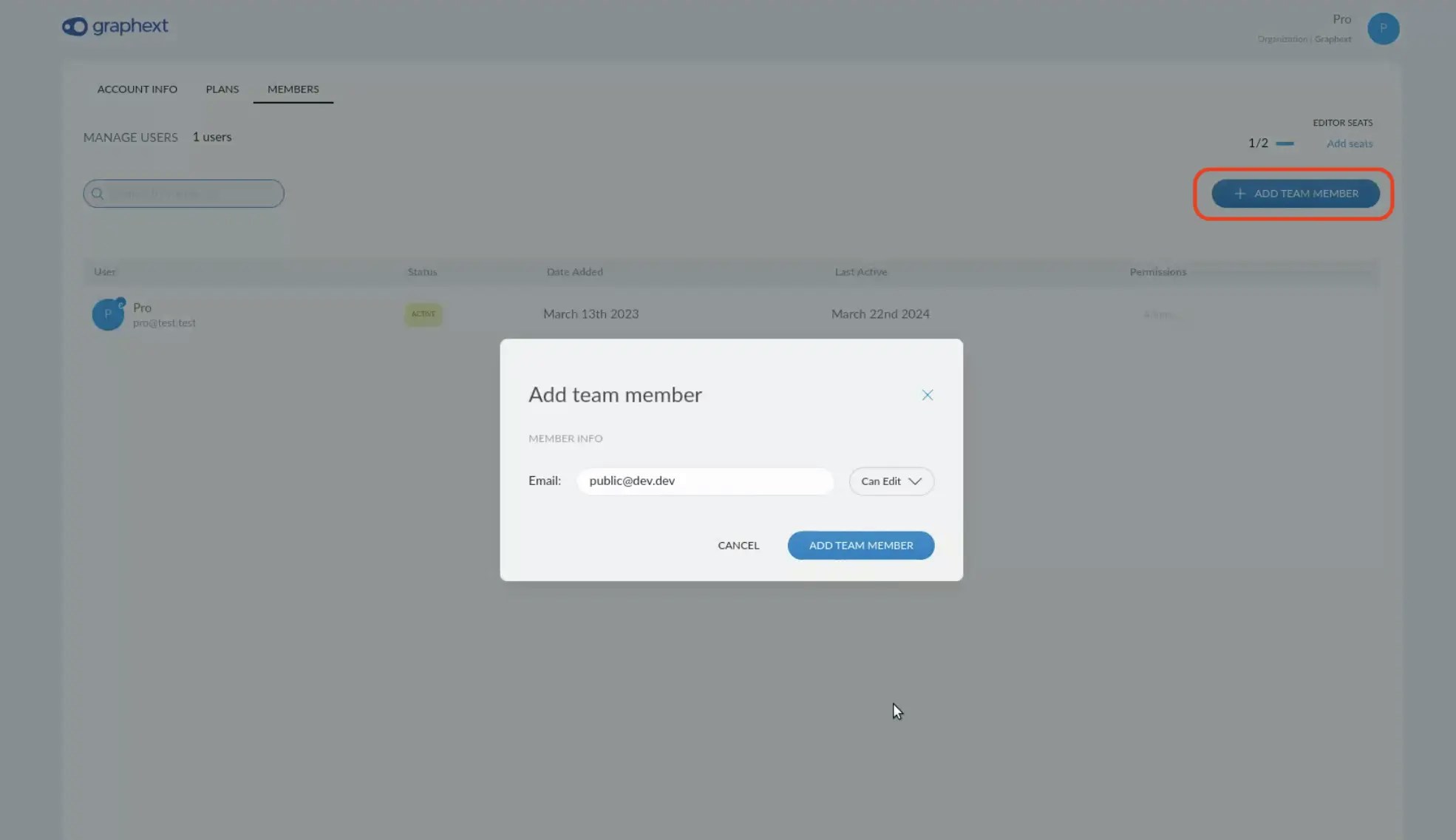 Click on the **permissions dropdown** to change the role or remove that account.
 ## How to configure notifications
We have designed our notification system to be minimally invasive, ensuring that it only alerts you to matters of genuine importance. This approach helps prevent the accumulation of unread notifications, a common issue in many software applications where excessive, less useful alerts can lead users to ignore them altogether. Key notifications you will receive include:
* Alerts when a project **execution has failed**
* Notifications when someone or something has **stopped a recurrence**
* Invitations to join a **new team**
* Updates when a **project has been shared** with you.
If you miss any other notification or you want to do a more advance configuration of them, please [contact us](mailto:support@graphext.com).
## How to sign out
You will find this option in the **Account** dropdown menu, in the navigation bar.
## How to configure notifications
We have designed our notification system to be minimally invasive, ensuring that it only alerts you to matters of genuine importance. This approach helps prevent the accumulation of unread notifications, a common issue in many software applications where excessive, less useful alerts can lead users to ignore them altogether. Key notifications you will receive include:
* Alerts when a project **execution has failed**
* Notifications when someone or something has **stopped a recurrence**
* Invitations to join a **new team**
* Updates when a **project has been shared** with you.
If you miss any other notification or you want to do a more advance configuration of them, please [contact us](mailto:support@graphext.com).
## How to sign out
You will find this option in the **Account** dropdown menu, in the navigation bar.