> ## Documentation Index
> Fetch the complete documentation index at: https://docs.graphext.com/llms.txt
> Use this file to discover all available pages before exploring further.
# Update your data recurrently
> Setting up Graphext to update your data on a periodic basis
When dealing with data that comes from a given [integration](/integrations/data-sources/overview),
you can tell Graphext to update it recurrently, so you can
have the latest version always available and ready to be analyzed.
Doing this is very easy:
[Set your project up](/documentation/import-and-export/data-connections) as usual, connecting your preferred integration.
On the top right corner there should be a little cloud icon. Click on it to open the dropdown. At the very bottom, you can see **Recurrence: Not scheduled**. Click and continue.
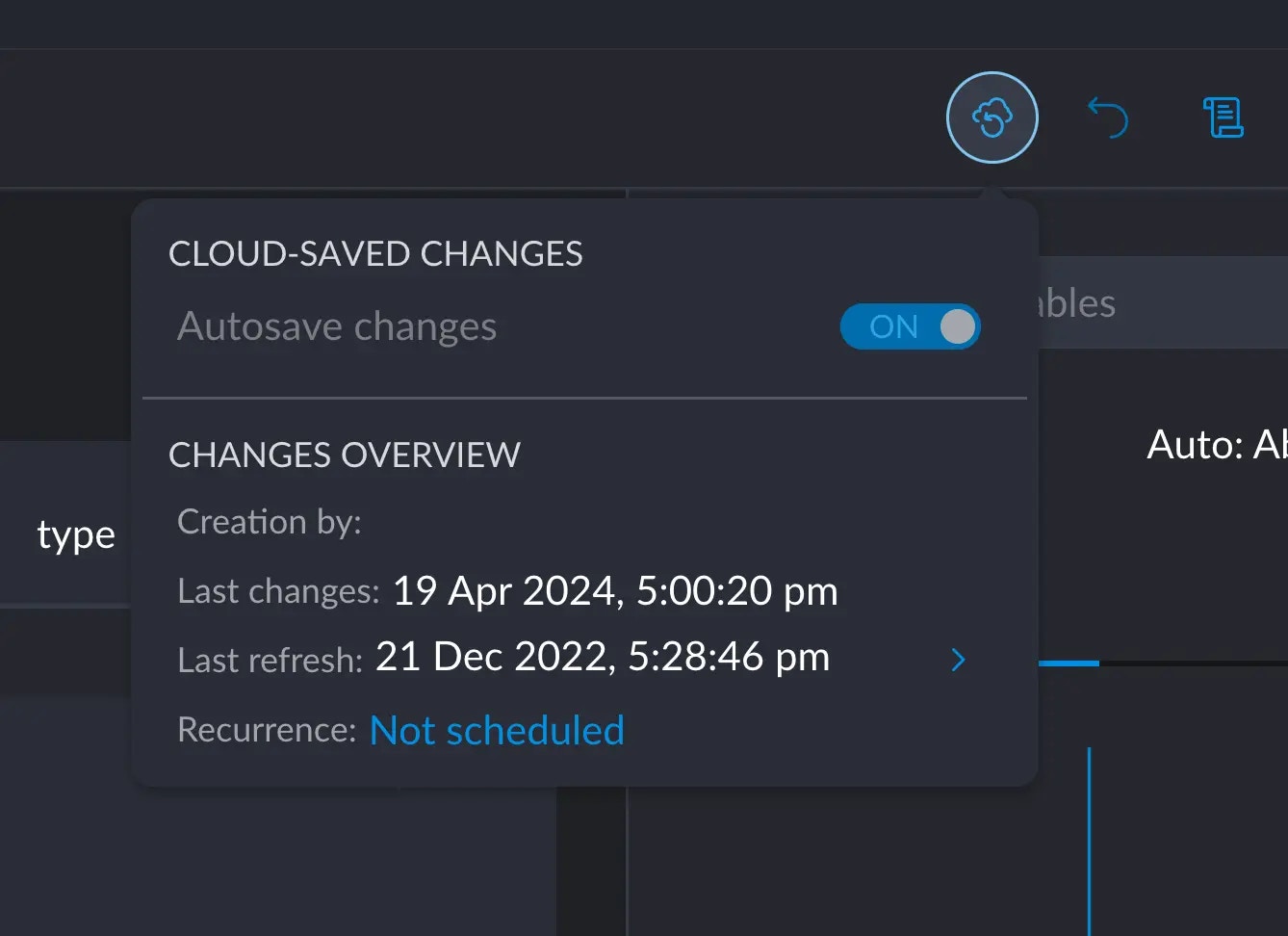 This menu will pop up, prompting you for some settings.
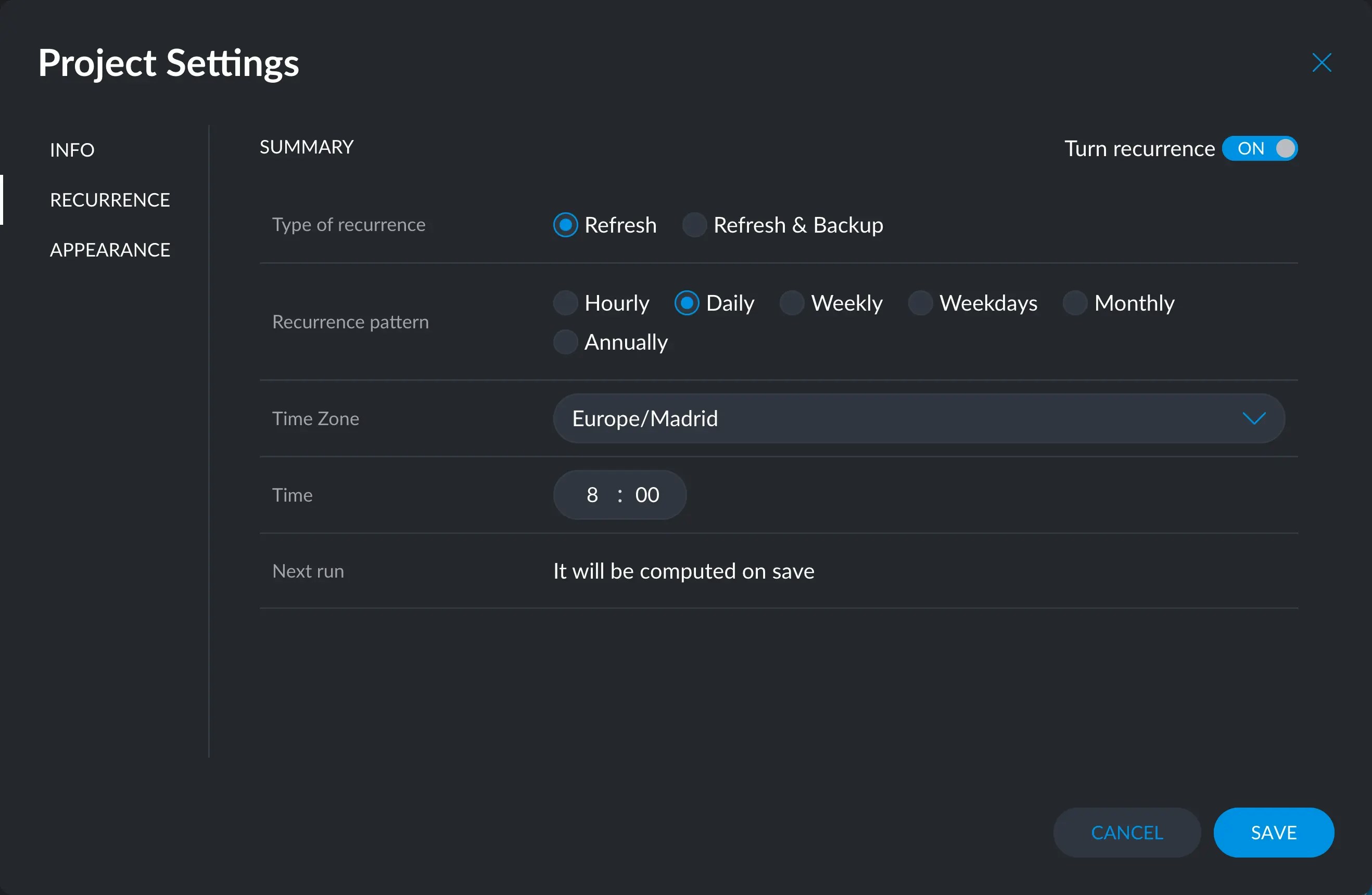 You can set up:
* **Type of recurrence**
* **Refresh**: will overwrite your last dataset with the new one
* **Refresh & Backup**: will save each version of your data as a snapshot
* **Recurrence pattern**: Define how much time will span in between updates
When configuring a weekly, monthly or anual pattern, the beginning of the period
starts at:
* Weekly: every Monday
* Monthly: every first day of the following month
* Anually: every first day of the following year
For hourly, daily and weekdays, the pattern just depends on the time. Weekdays will update the data
every day except for Saturdays and Sundays.
* **Time Zone**: you may select a different time zone if that is of your convenience
* **Time**: exactly at what point in the period should the data be updated
The **Next run** row will display when the pattern was first created, when was the last
time it was updated, and when is the next update scheduled. This information will be
populated upon saving your settings.
This won't work on data that comes from a file from your computer since we
need to periodically bring the latest data from the source.
You can set up:
* **Type of recurrence**
* **Refresh**: will overwrite your last dataset with the new one
* **Refresh & Backup**: will save each version of your data as a snapshot
* **Recurrence pattern**: Define how much time will span in between updates
When configuring a weekly, monthly or anual pattern, the beginning of the period
starts at:
* Weekly: every Monday
* Monthly: every first day of the following month
* Anually: every first day of the following year
For hourly, daily and weekdays, the pattern just depends on the time. Weekdays will update the data
every day except for Saturdays and Sundays.
* **Time Zone**: you may select a different time zone if that is of your convenience
* **Time**: exactly at what point in the period should the data be updated
The **Next run** row will display when the pattern was first created, when was the last
time it was updated, and when is the next update scheduled. This information will be
populated upon saving your settings.
This won't work on data that comes from a file from your computer since we
need to periodically bring the latest data from the source.