> ## Documentation Index
> Fetch the complete documentation index at: https://docs.graphext.com/llms.txt
> Use this file to discover all available pages before exploring further.
# Line Chart
***
Line charts are the most popular type of chart for visualizing change over time and detecting temporal
patterns. While not exlusively used for that, it's where they really shine.
In Graphext, you have 4 subtypes of line charts to choose from:
* Simple Line Charts
* Multiple Line Charts
* Segmented Line Charts
* Seasonal Decompositions
## Simple Line Charts
The simplest form of a line chart. Shows the progression of one variable over the other.
## Multiple Line Charts
Multiple Line charts allow to see how different variabes change over time, offering a broader
perspective. Again, these are usually used to show how multiple trends change over time.
They take one more variable, which would be mapped to a new line with a new color.
## Segmented Line Charts
Segmented Line charts also show multiple variables but do so in separate charts. These are also known as
**faceted line charts**, or **faceted charts**, in general.
These are useful when you want to measure change on different variables but each variable doesn't necessarily
respond to the same Y scale. Think a computer resources dashboard, displaying CPU usage, RAM and Network.
## Seasonal Decompositions
Seasonal Decomposition charts are a type of Segmented chart that displays the different temporal components your
data presents, such as trend and seasonality.
We can see in this example from measurements of the temperature of Madrid from 1920 to 2022, how the original data
can be decomposed into its trend and seasonality components. The trend has been rising steadily, but we can see a
particular bump around 1975 and onwards.
Seasonality is also quite descriptive of the 4 seasons that occur, even when considering a 10 year window.
### Expanding charts
In the Seasonal Decomposition Charts you can expand each of the individual plots to a full-scale
version of it, for increased clarity.
## Customizing a line chart
 ### Color
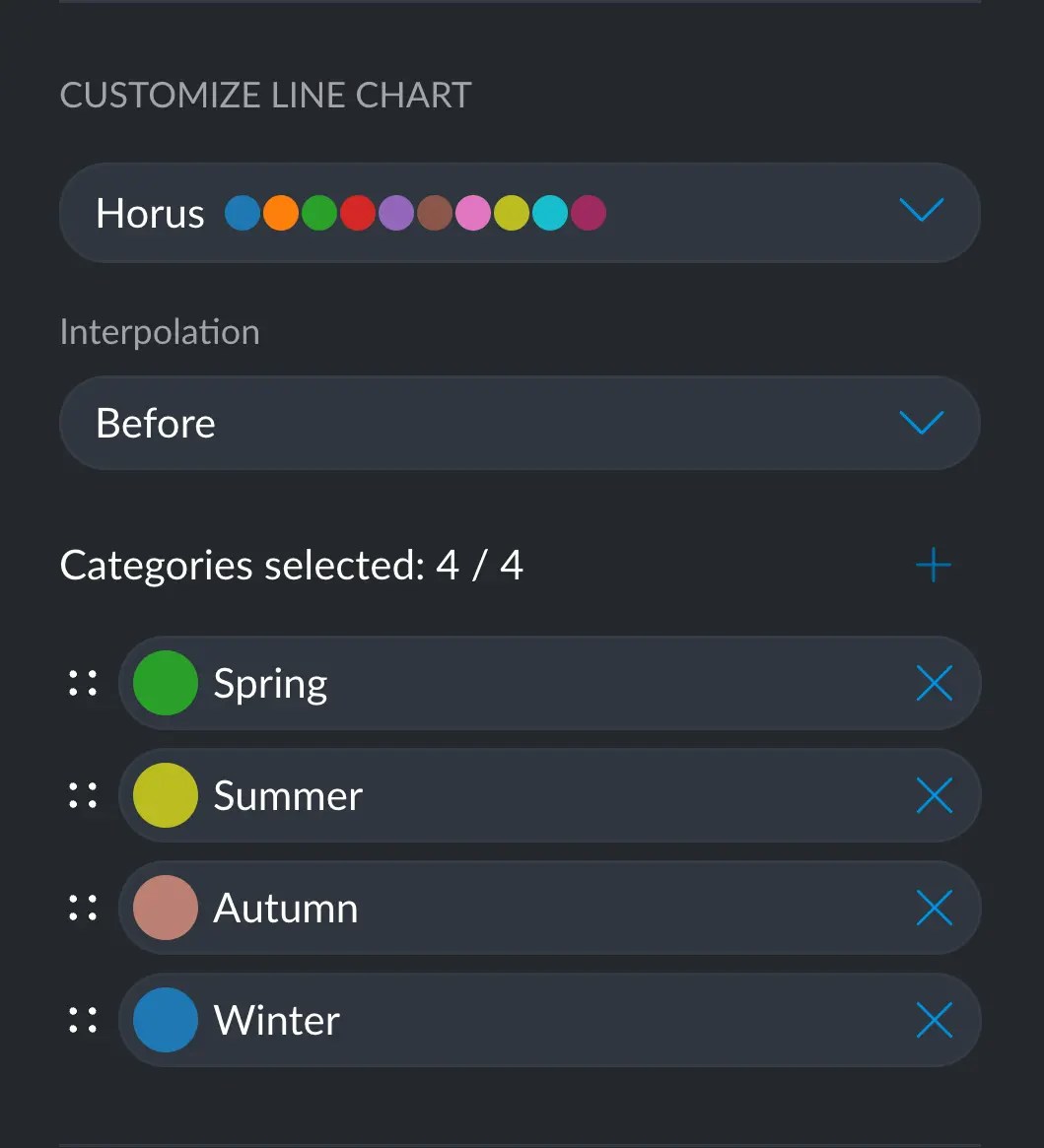
Color customization for line charts works in the same way as with any chart.
You can learn more here: [Customizing colors in a chart](/documentation/data-visualization/customizing-charts#colors).
You can change the color of each line by either selecting a color palette for all
lines, or changing a specific category for a more semantically accurate color.
For example, in here we can have a yellow summer and a brownish
autumn, which makes it that much easier to identify at a glance.
You can change a specific color by clicking on the colored circle next to the desired
category.
When selecting a specific color for a category, this decision will take over
any color palette/theme choice. That is: the colors you set manually will
prevail over any other way of changing colors.
### Line thickness
You can change the line thickness and style of one or more lines, in the need to create a bit of emphasis
in a specific segment.
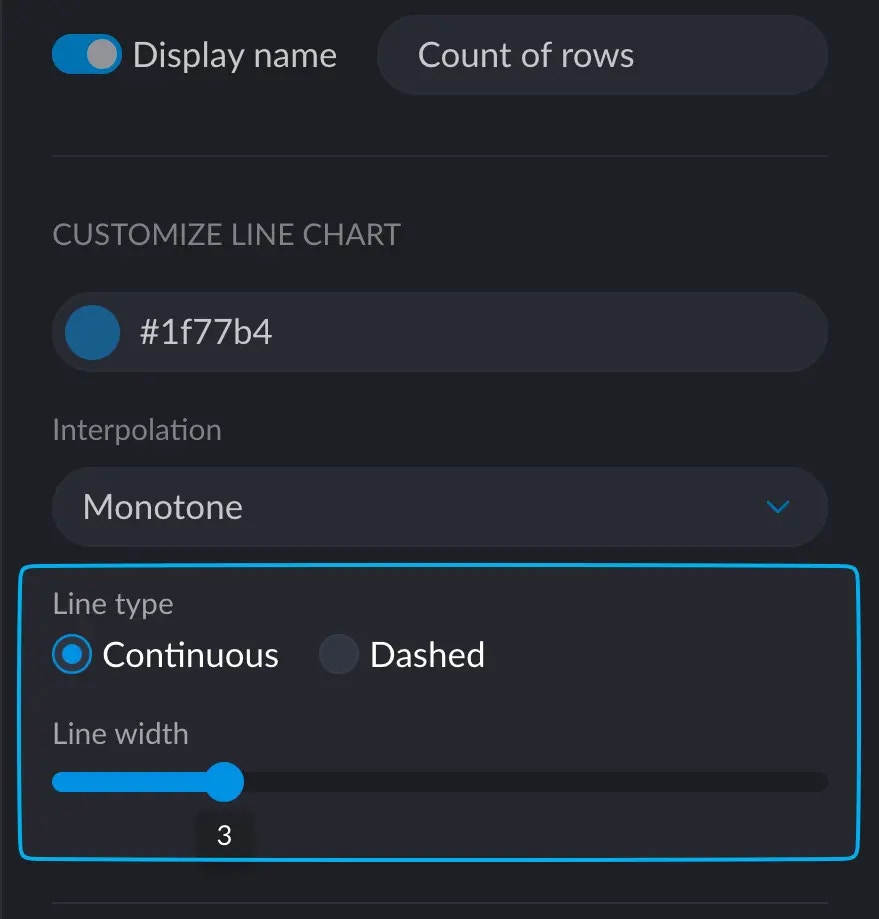
If you are dealing with a [simple line chart](#simple-line-charts), options to change the thickness and dash pattern will appear under
the interpolation section.
### Color
Color customization for line charts works in the same way as with any chart.
You can learn more here: [Customizing colors in a chart](/documentation/data-visualization/customizing-charts#colors).
You can change the color of each line by either selecting a color palette for all
lines, or changing a specific category for a more semantically accurate color.
For example, in here we can have a yellow summer and a brownish
autumn, which makes it that much easier to identify at a glance.
You can change a specific color by clicking on the colored circle next to the desired
category.
When selecting a specific color for a category, this decision will take over
any color palette/theme choice. That is: the colors you set manually will
prevail over any other way of changing colors.
### Line thickness
You can change the line thickness and style of one or more lines, in the need to create a bit of emphasis
in a specific segment.
If you are dealing with a [simple line chart](#simple-line-charts), options to change the thickness and dash pattern will appear under
the interpolation section.
 If you are working witha a [multiple line chart](#multiple-line-charts) though, more options are available to you.
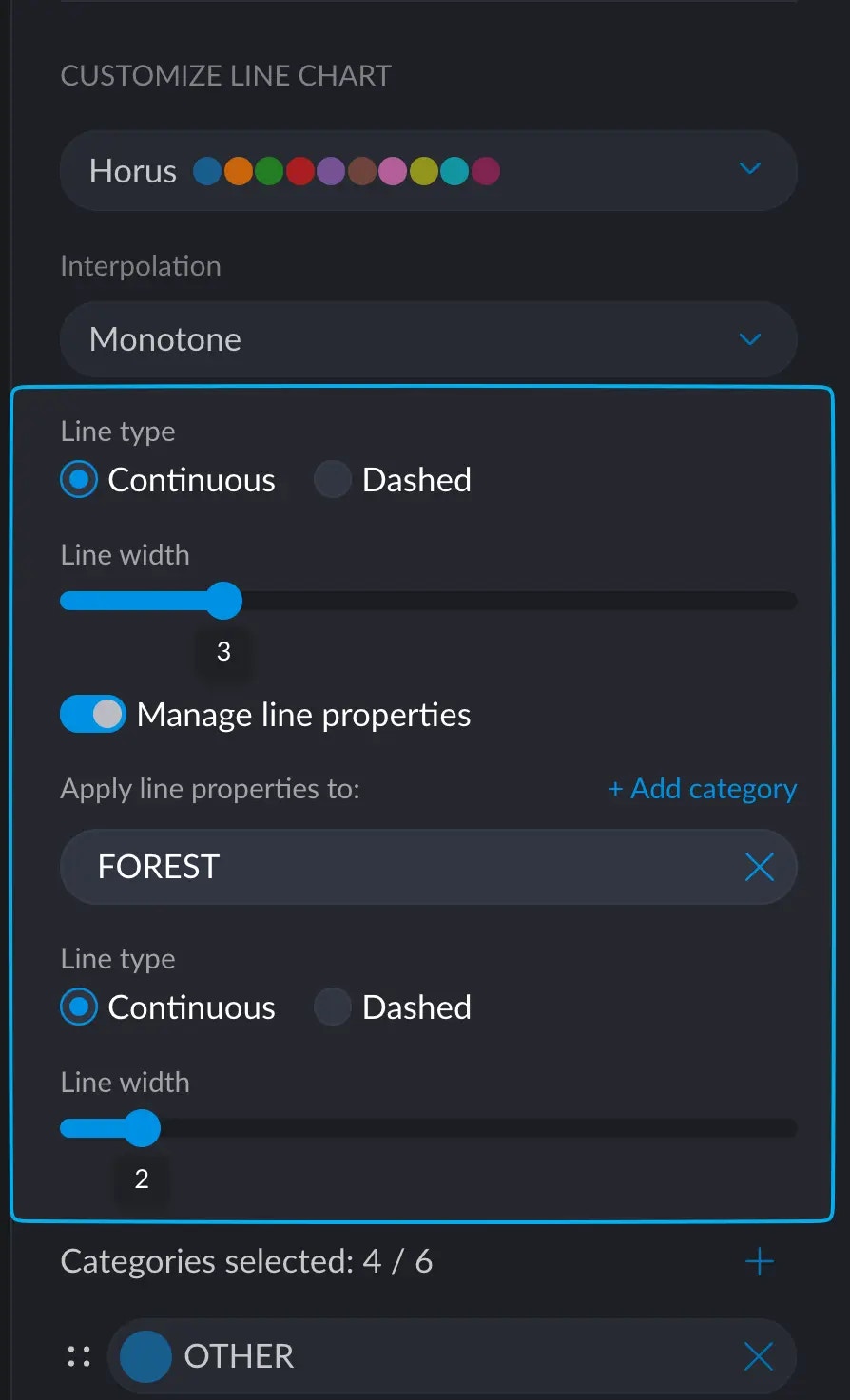 The first section of the controls remain the same: you can change the width and dash pattern and this will apply
to **every line in your chart**.
When toggling "Manage line properties", you can select a subset of segments within the category mapped to color,
that will respond to the controls underneath. This way, you can select the segments you are most interested in and
give them a different styling.
### Interpolation
Interpolation on all Line Charts can be changed between these modes:
#### Linear Interpolation
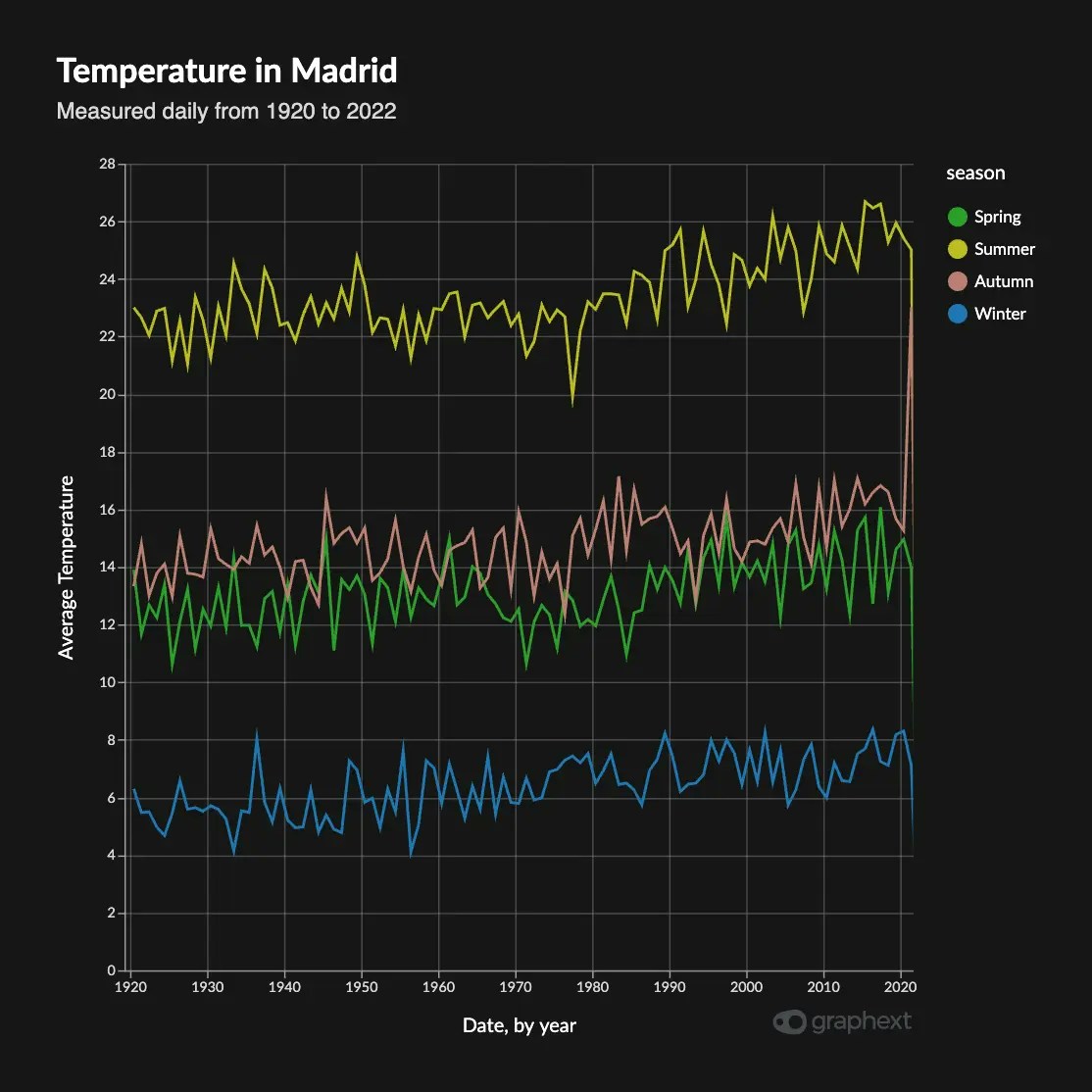
Classic straight-line interpolation between any pair of points.
The first section of the controls remain the same: you can change the width and dash pattern and this will apply
to **every line in your chart**.
When toggling "Manage line properties", you can select a subset of segments within the category mapped to color,
that will respond to the controls underneath. This way, you can select the segments you are most interested in and
give them a different styling.
### Interpolation
Interpolation on all Line Charts can be changed between these modes:
#### Linear Interpolation
Classic straight-line interpolation between any pair of points.
 #### Curve Interpolation
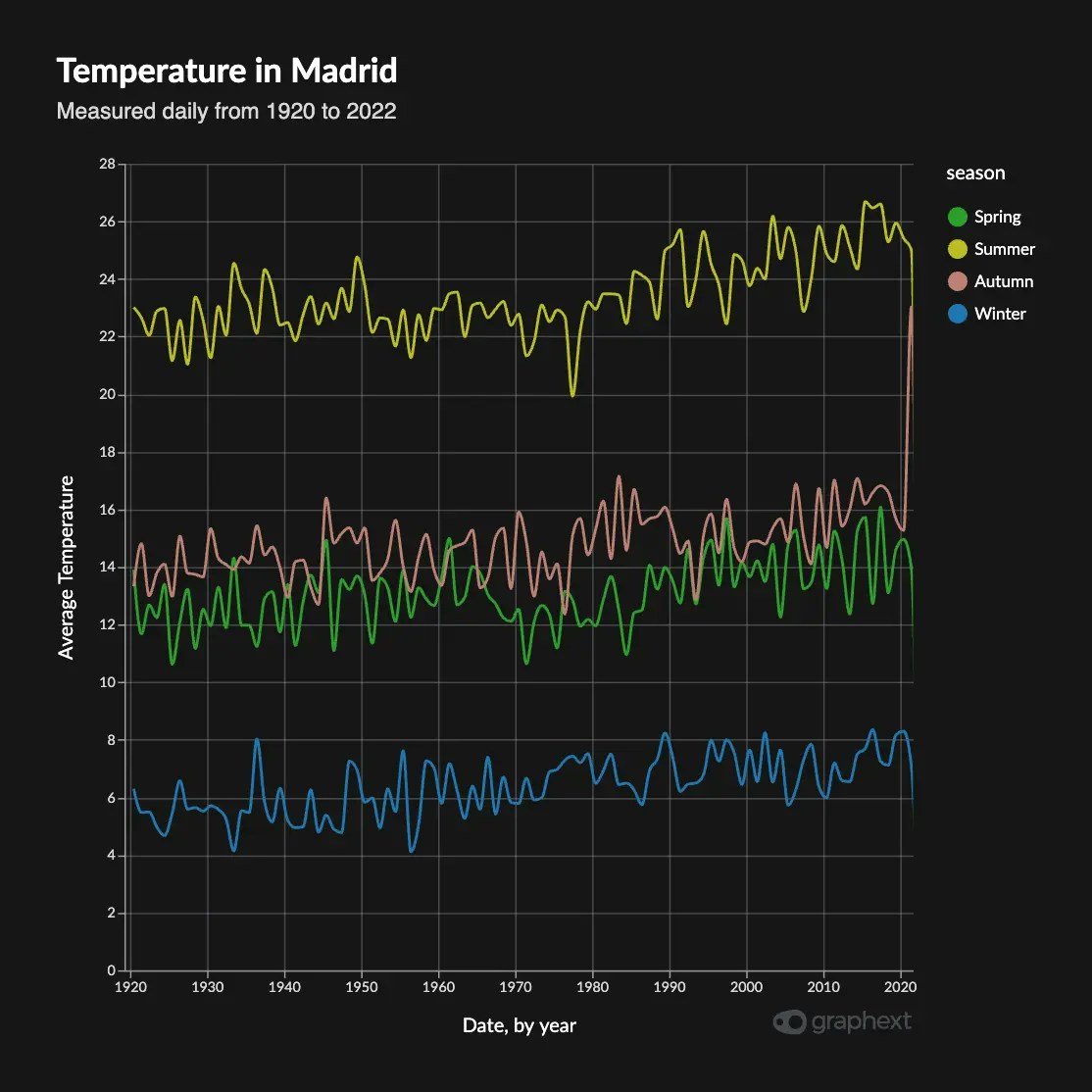
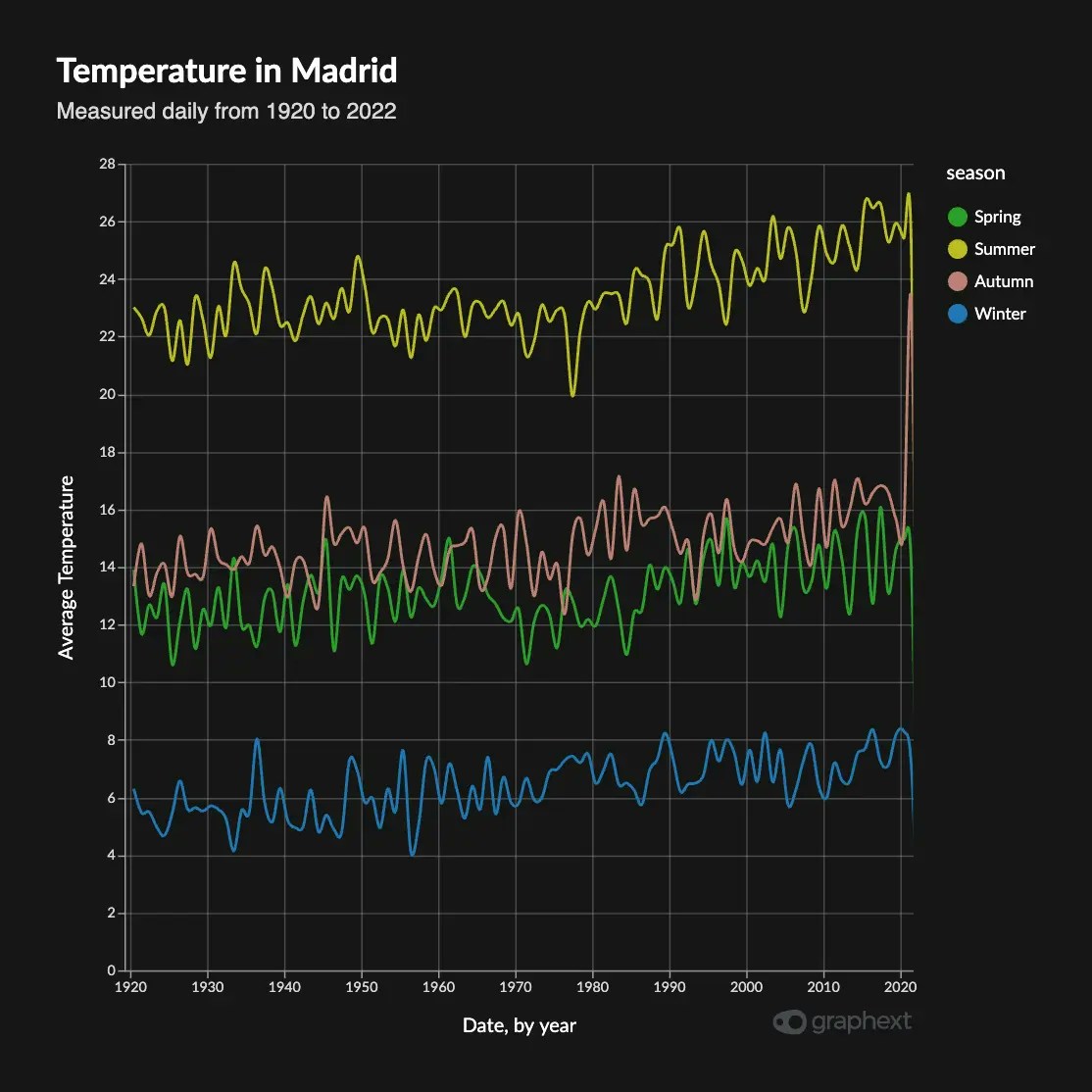
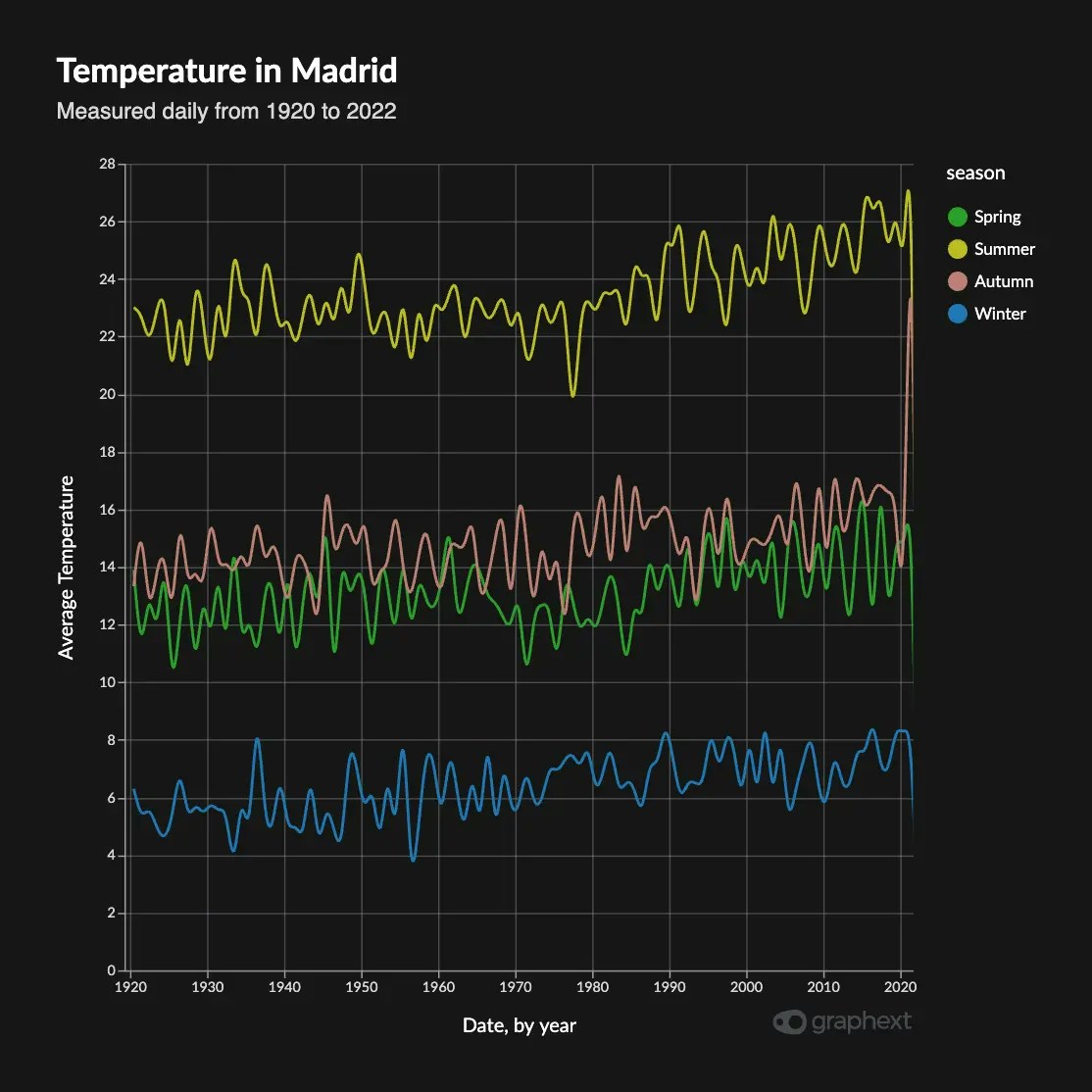
Defines a curve between any pair of points, making the overall result look smoother.
You can choose between Monotone, Cardinal and Natural interpolation.
While these can yield pleasing curves, they may not represent your data
faithfully. Monotone interpolation is the one that best fits the data points
while making a smooth curve.
#### Curve Interpolation
Defines a curve between any pair of points, making the overall result look smoother.
You can choose between Monotone, Cardinal and Natural interpolation.
While these can yield pleasing curves, they may not represent your data
faithfully. Monotone interpolation is the one that best fits the data points
while making a smooth curve.
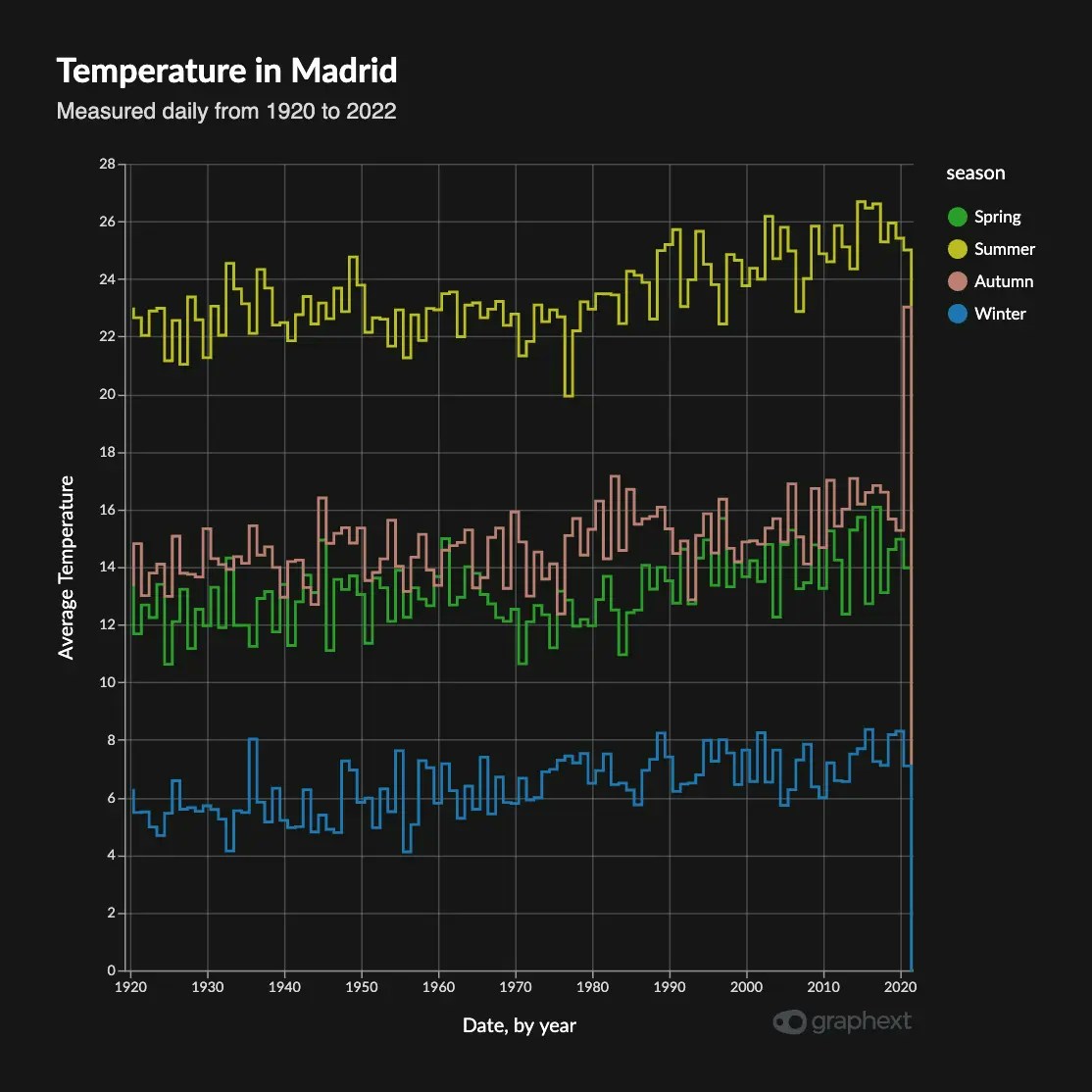
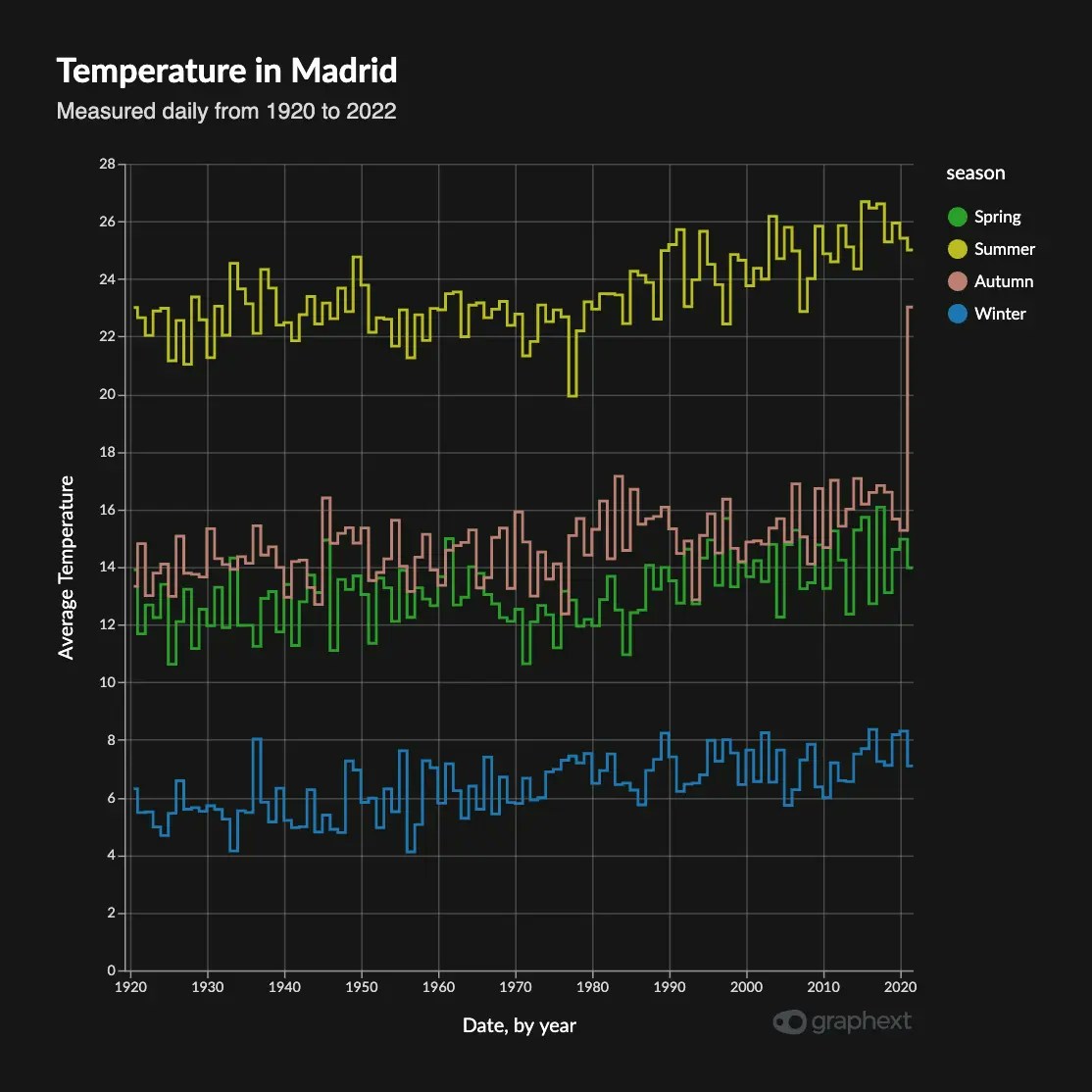
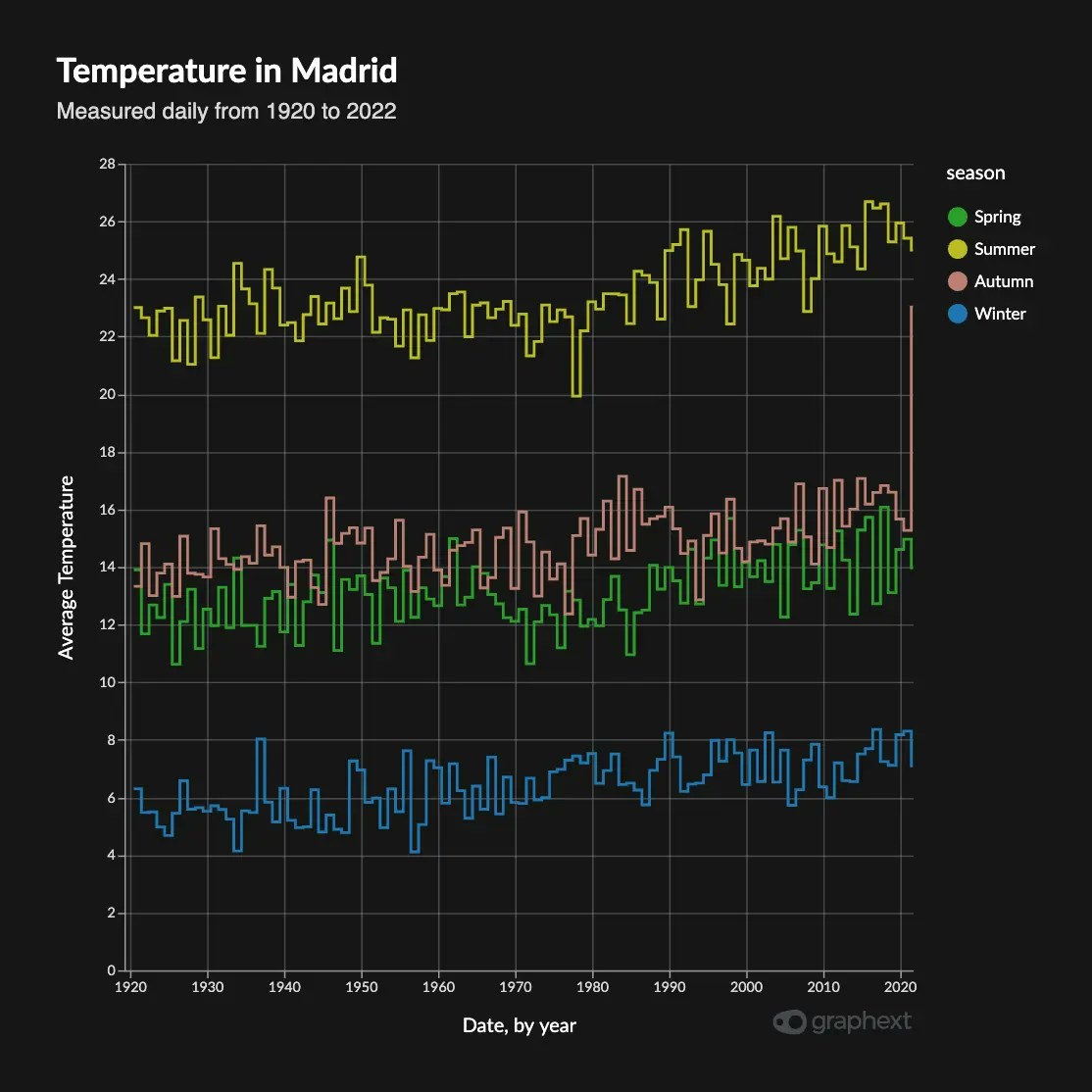
 #### Step Interpolation
Step interpolation is, basically, no interpolation. It creates sharp corners
and straight vertical lines between the points. These are useful when it makes
no sense to interpolate between two points, but just want to see the difference
between them.
Step has three modes: Before, Middle and After, which define the anchor point with
respect the actual data point.
#### Step Interpolation
Step interpolation is, basically, no interpolation. It creates sharp corners
and straight vertical lines between the points. These are useful when it makes
no sense to interpolate between two points, but just want to see the difference
between them.
Step has three modes: Before, Middle and After, which define the anchor point with
respect the actual data point.
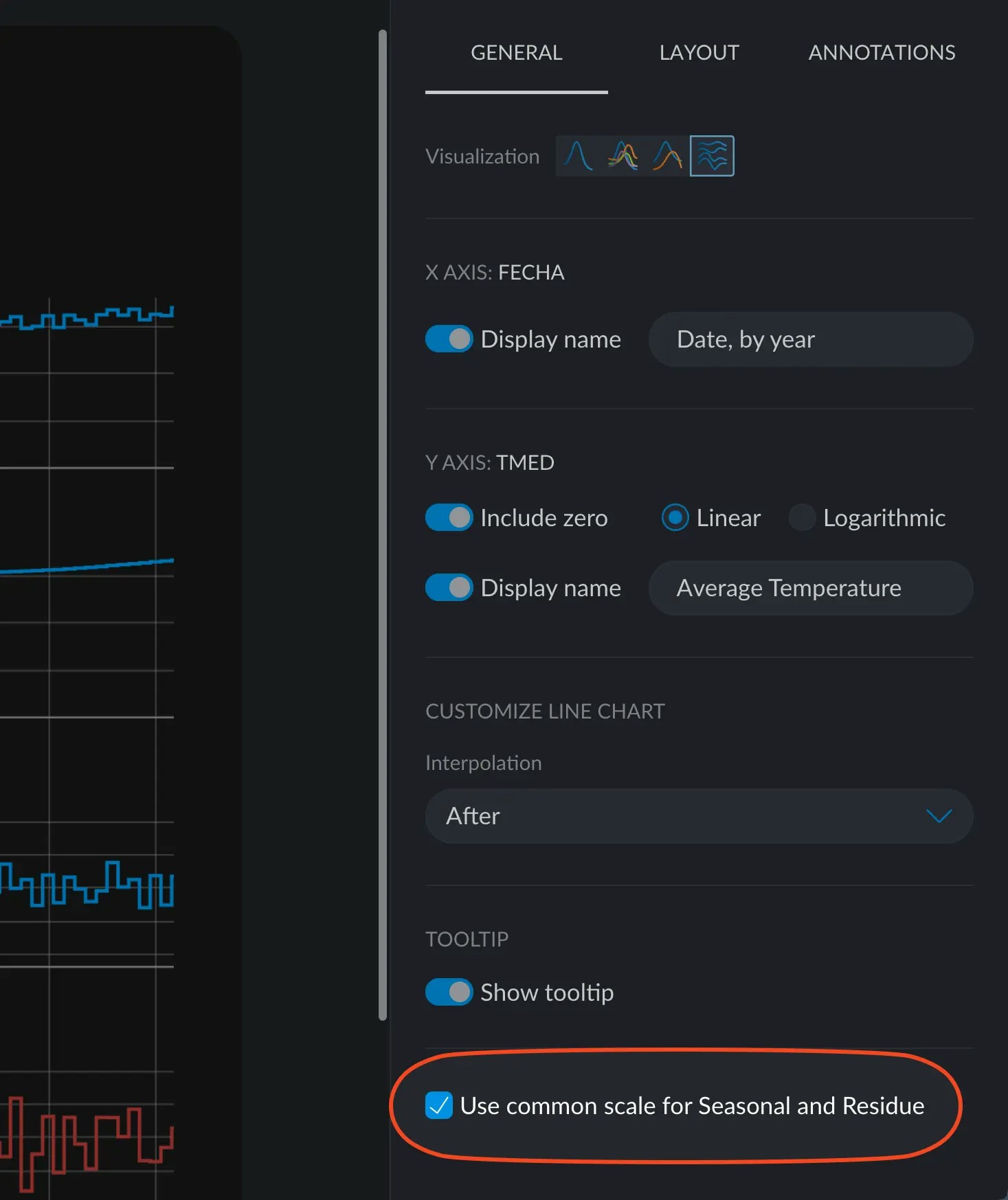
 ### Seasonality Decomposition: Common Scale
In Seasonality Decomposition Charts you can enable a little check box at the very bottom that
toggles between the season and the residue charts having a common scale.
### Seasonality Decomposition: Common Scale
In Seasonality Decomposition Charts you can enable a little check box at the very bottom that
toggles between the season and the residue charts having a common scale.