> ## Documentation Index
> Fetch the complete documentation index at: https://docs.graphext.com/llms.txt
> Use this file to discover all available pages before exploring further.
# Customizing Charts
***
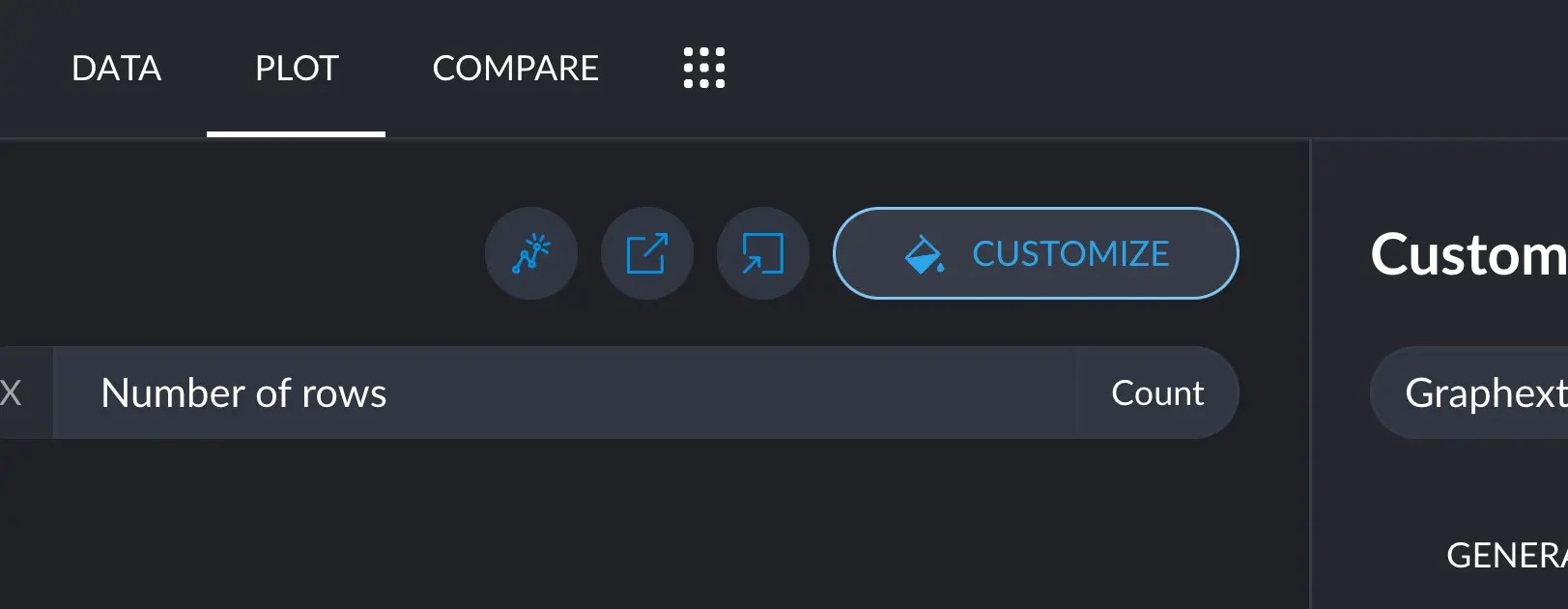
Plots can generally be highly customized. In any plot, click on the Customize button on the top right corner.
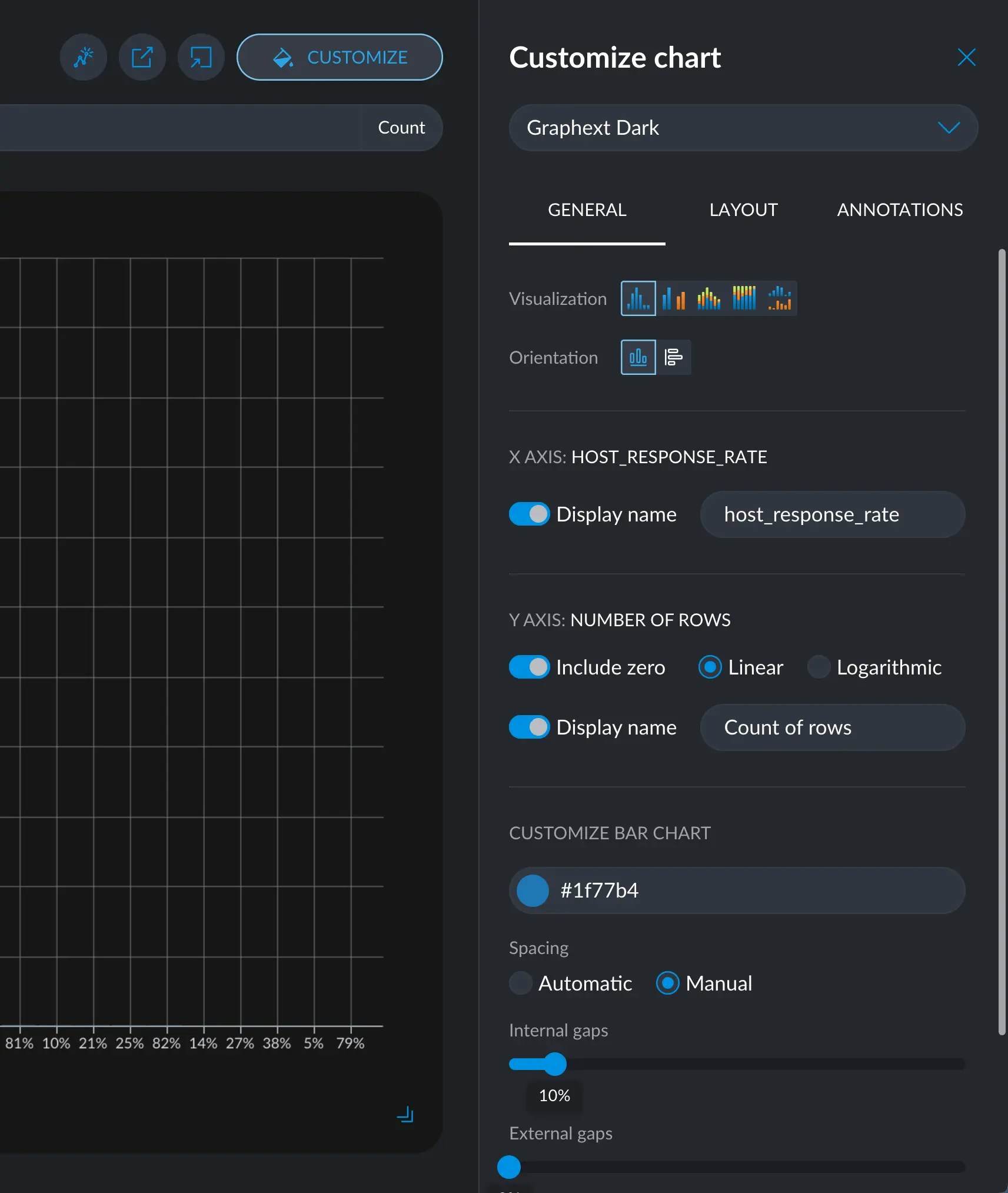
 This will open a menu with a myriad of options to customize your plot.
 ## Filtering
While not immediately obvious, all the [cross filters](/concepts/graphext-concepts/cross-filters) you have currently
applied will actually show up in your plot, in real time. You can switch
to the Data tab, hone in to a thin slice of your dataset, and come back to the
Plot tab and continue editing your chart. All progress will be saved.
By toggling the Customize button, you can swap between the customize panel and
the cross filters panel. This will allow you to filter the data while seeing
how the changes affect your chart in real time.
Going to another tab like Data or Insights will not reset the state in Plot.
You can navigate away safely for quick adjustments.
## Themes
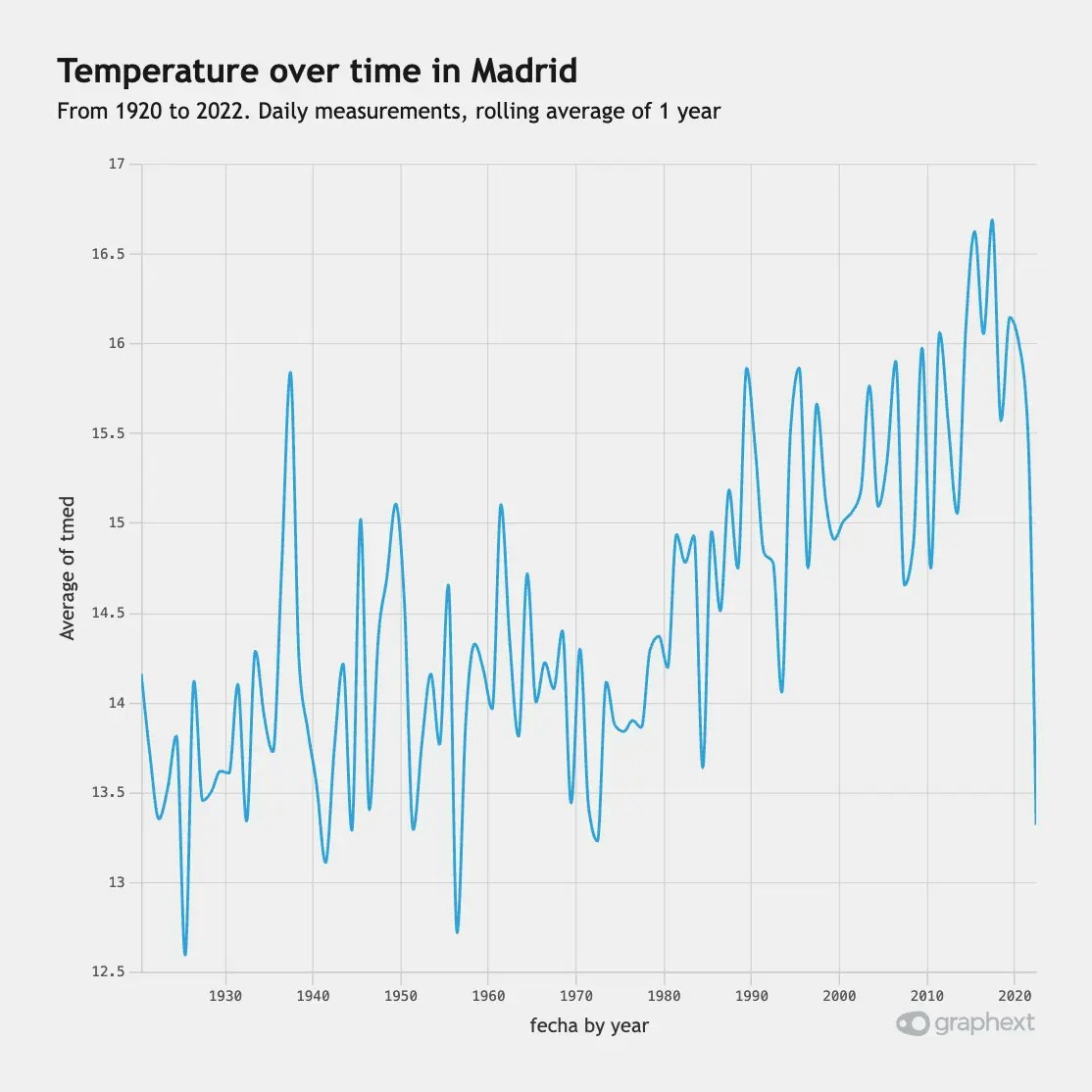
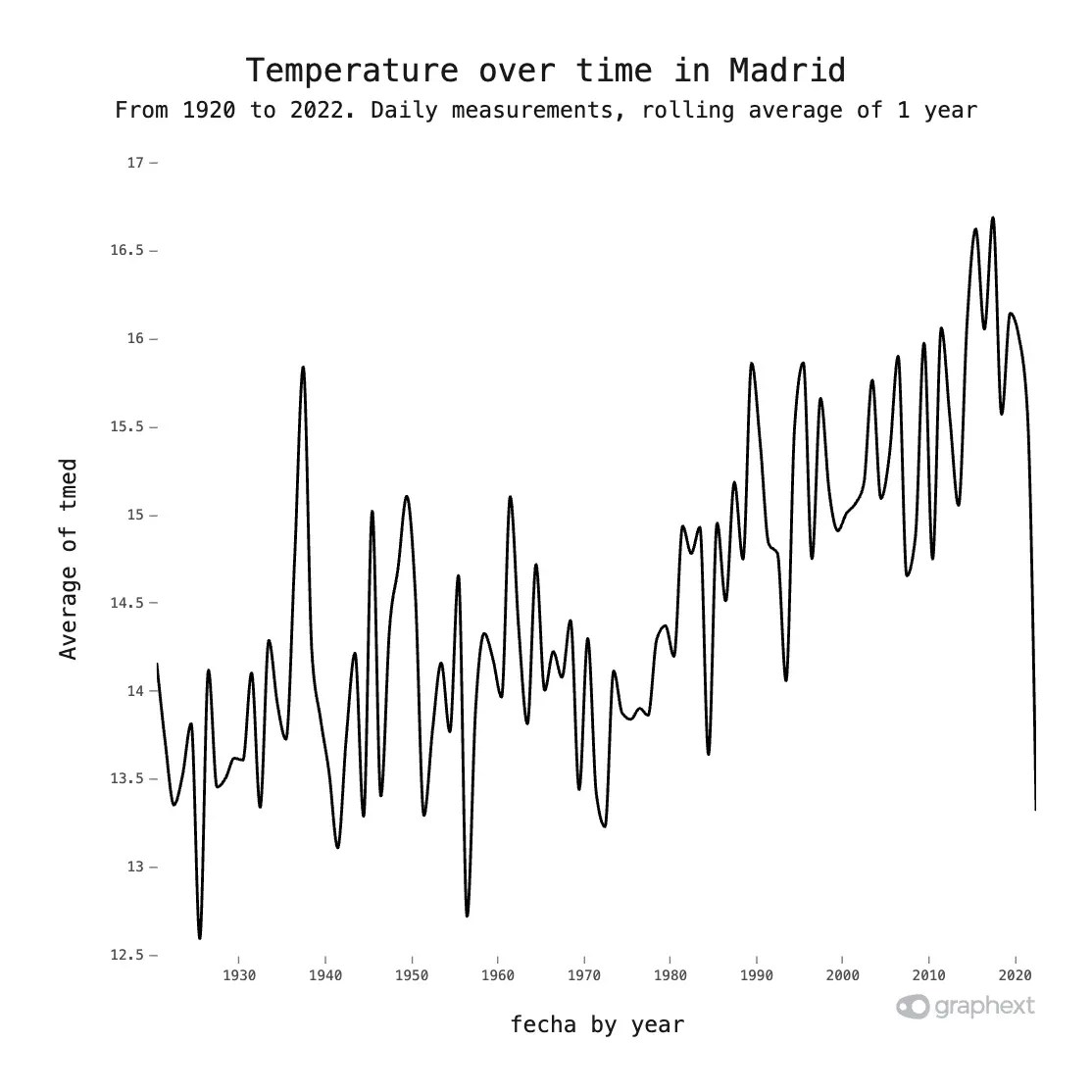
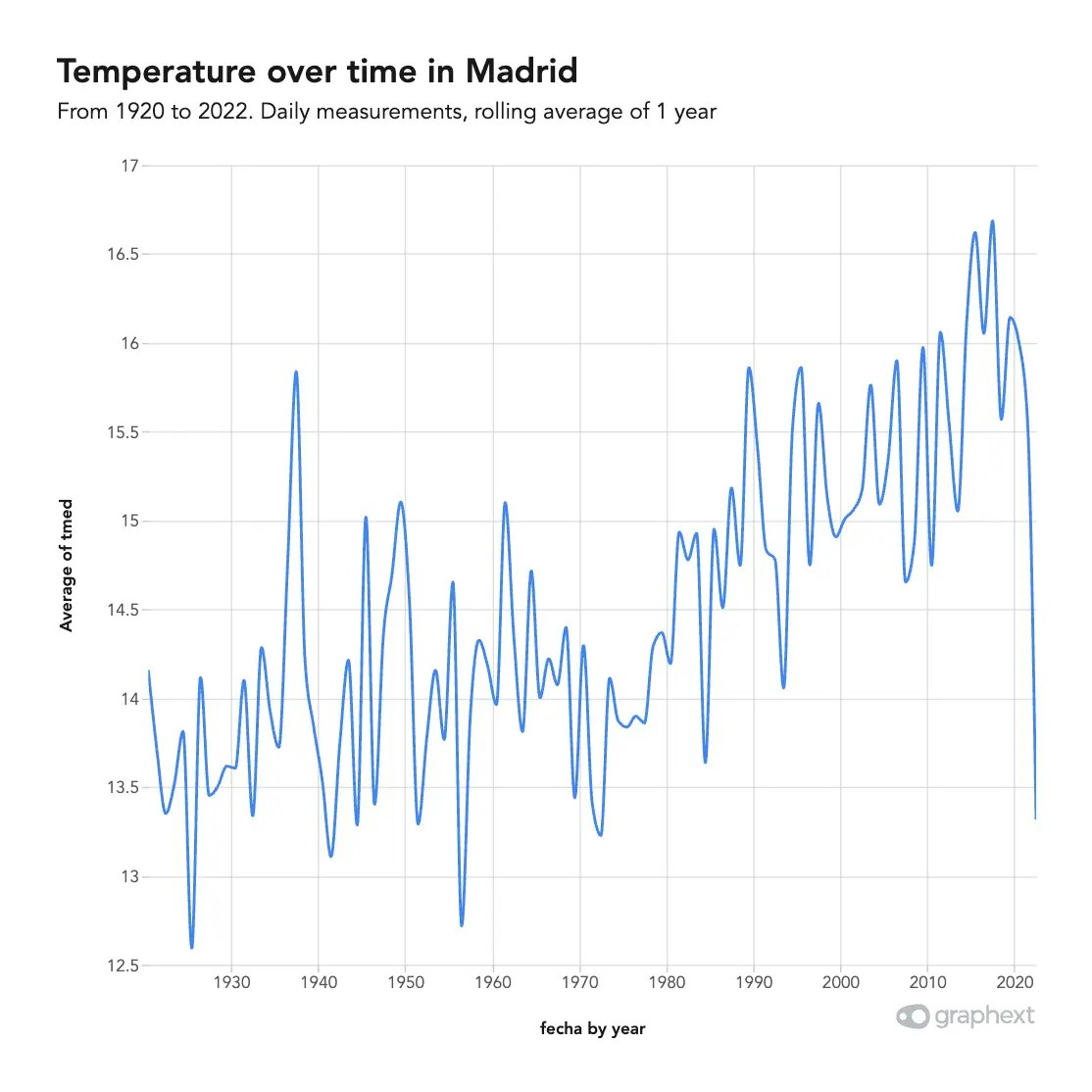
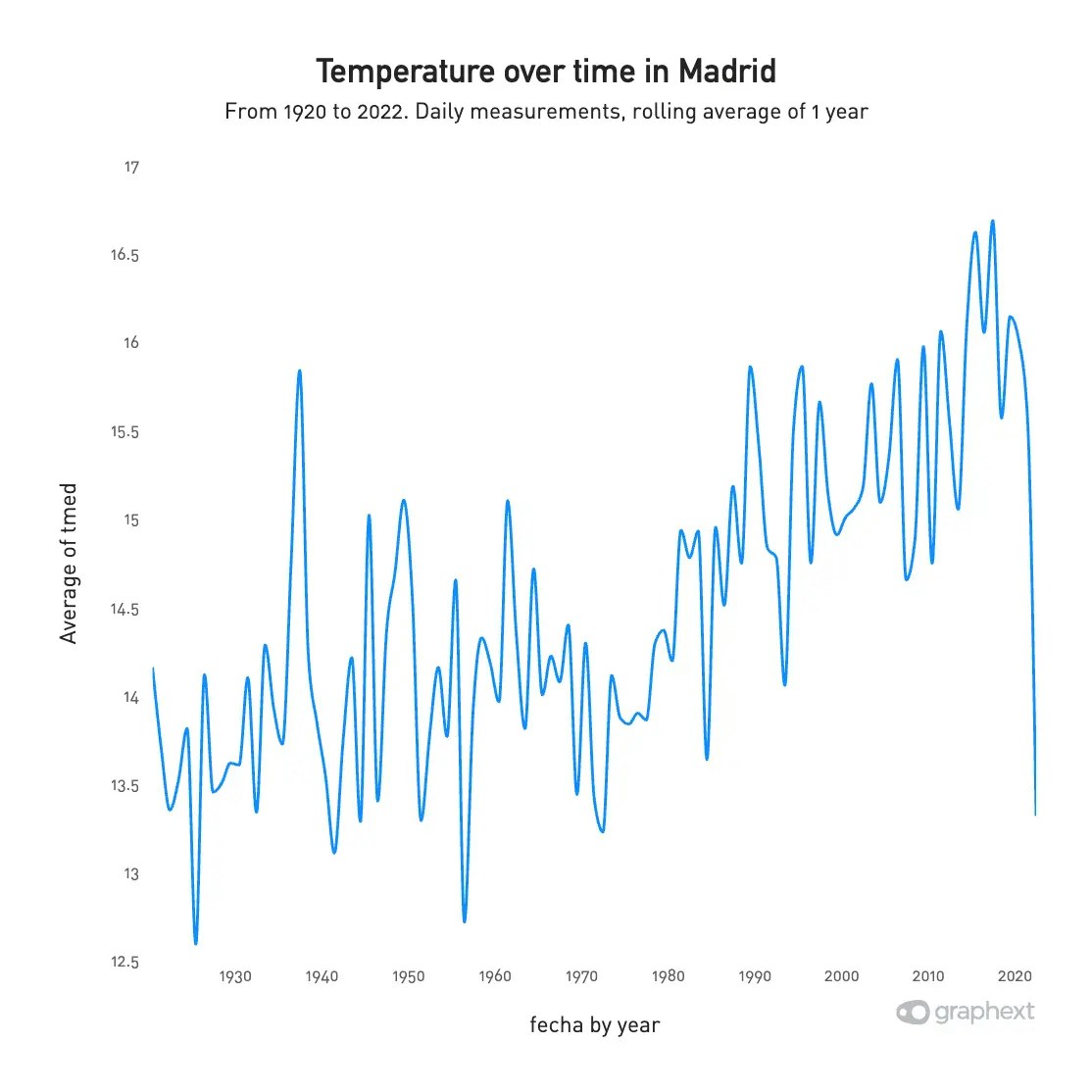
Themes are color and typography settings that change the look and feel of your chart. We currently
include 7 themes inspired by the most used tools and their aesthetic decisions:
* Graphext Dark
* Graphext Light
* FiveThirtyEight
* ggplot2
* Google Charts
* PowerBI
* Urban Institute
## Filtering
While not immediately obvious, all the [cross filters](/concepts/graphext-concepts/cross-filters) you have currently
applied will actually show up in your plot, in real time. You can switch
to the Data tab, hone in to a thin slice of your dataset, and come back to the
Plot tab and continue editing your chart. All progress will be saved.
By toggling the Customize button, you can swap between the customize panel and
the cross filters panel. This will allow you to filter the data while seeing
how the changes affect your chart in real time.
Going to another tab like Data or Insights will not reset the state in Plot.
You can navigate away safely for quick adjustments.
## Themes
Themes are color and typography settings that change the look and feel of your chart. We currently
include 7 themes inspired by the most used tools and their aesthetic decisions:
* Graphext Dark
* Graphext Light
* FiveThirtyEight
* ggplot2
* Google Charts
* PowerBI
* Urban Institute
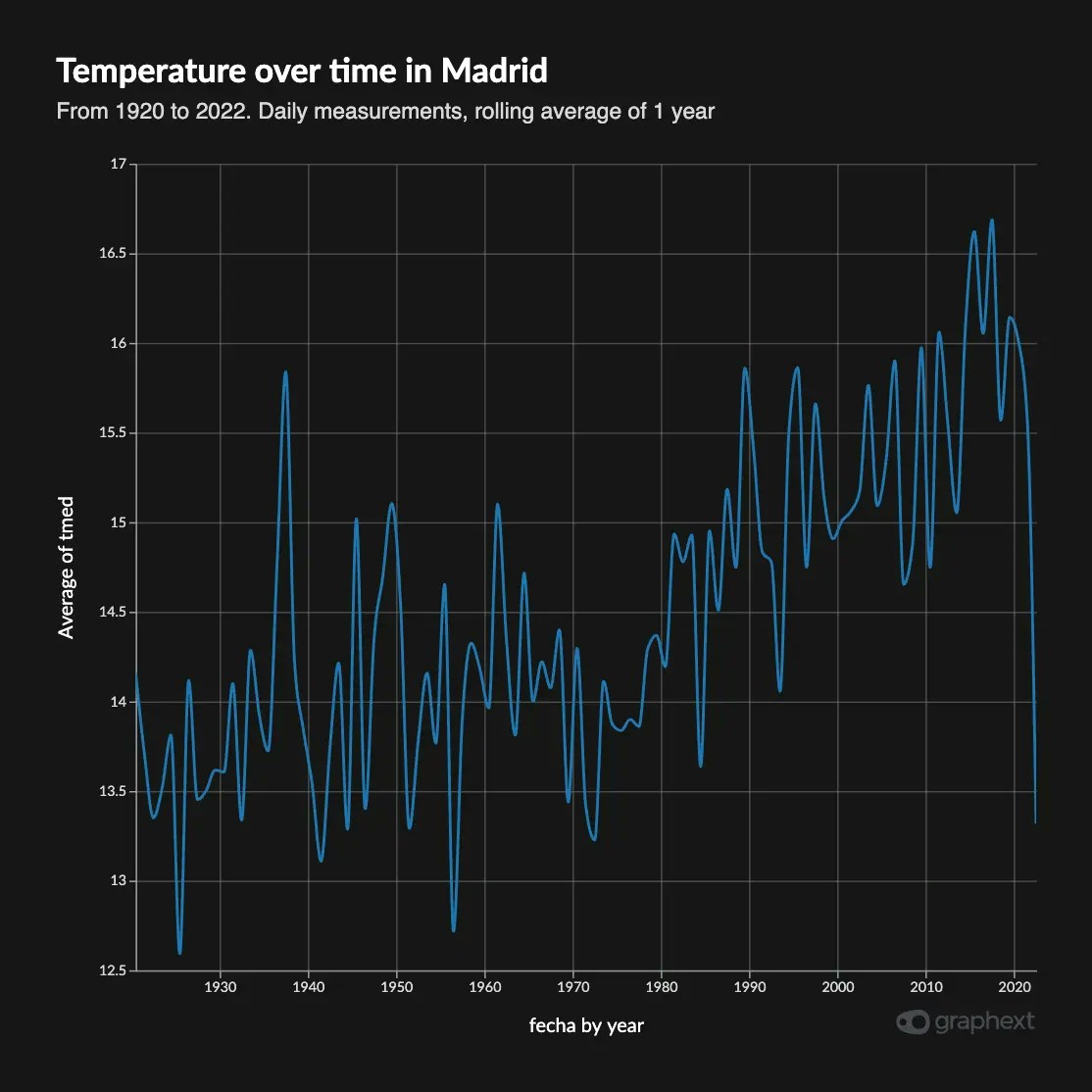
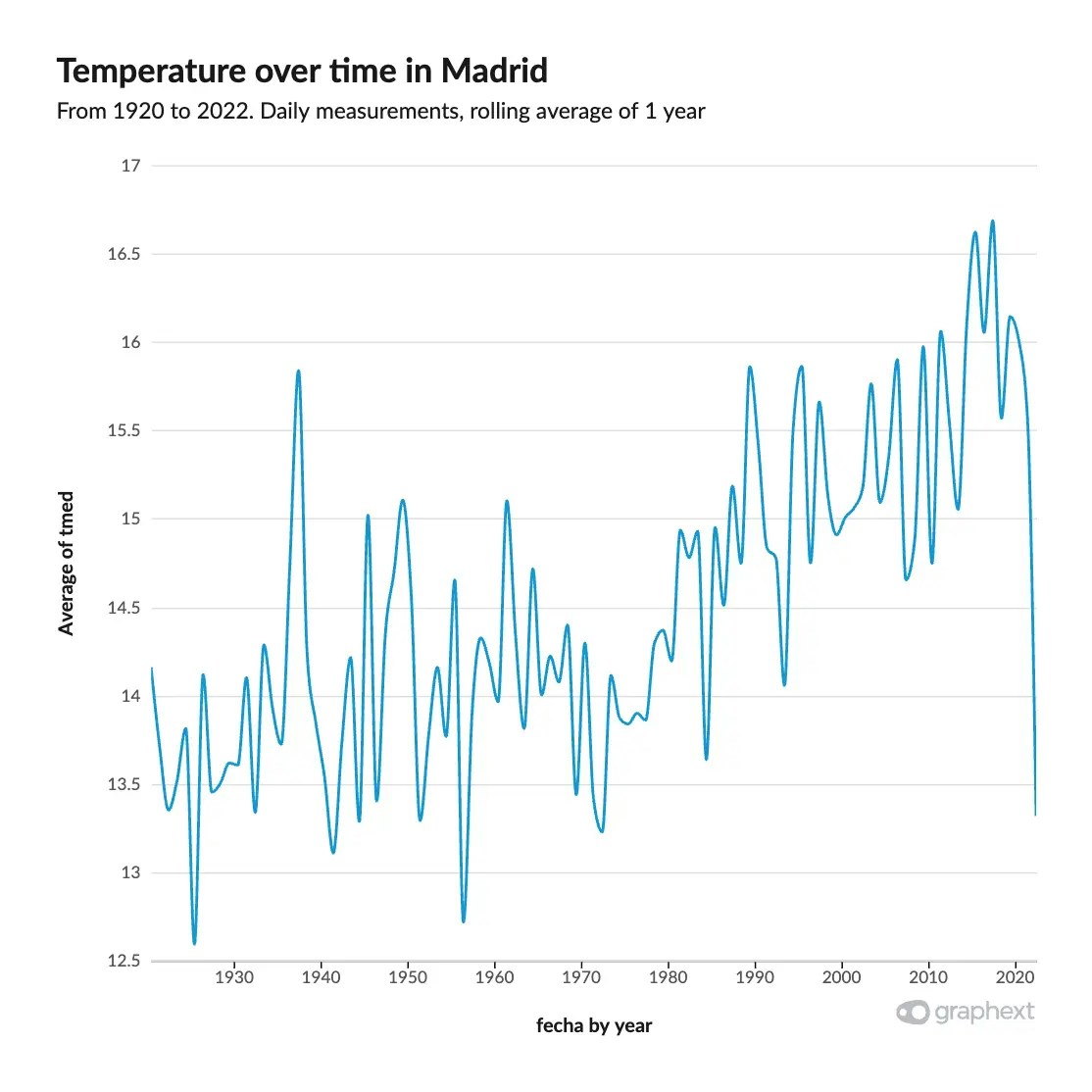
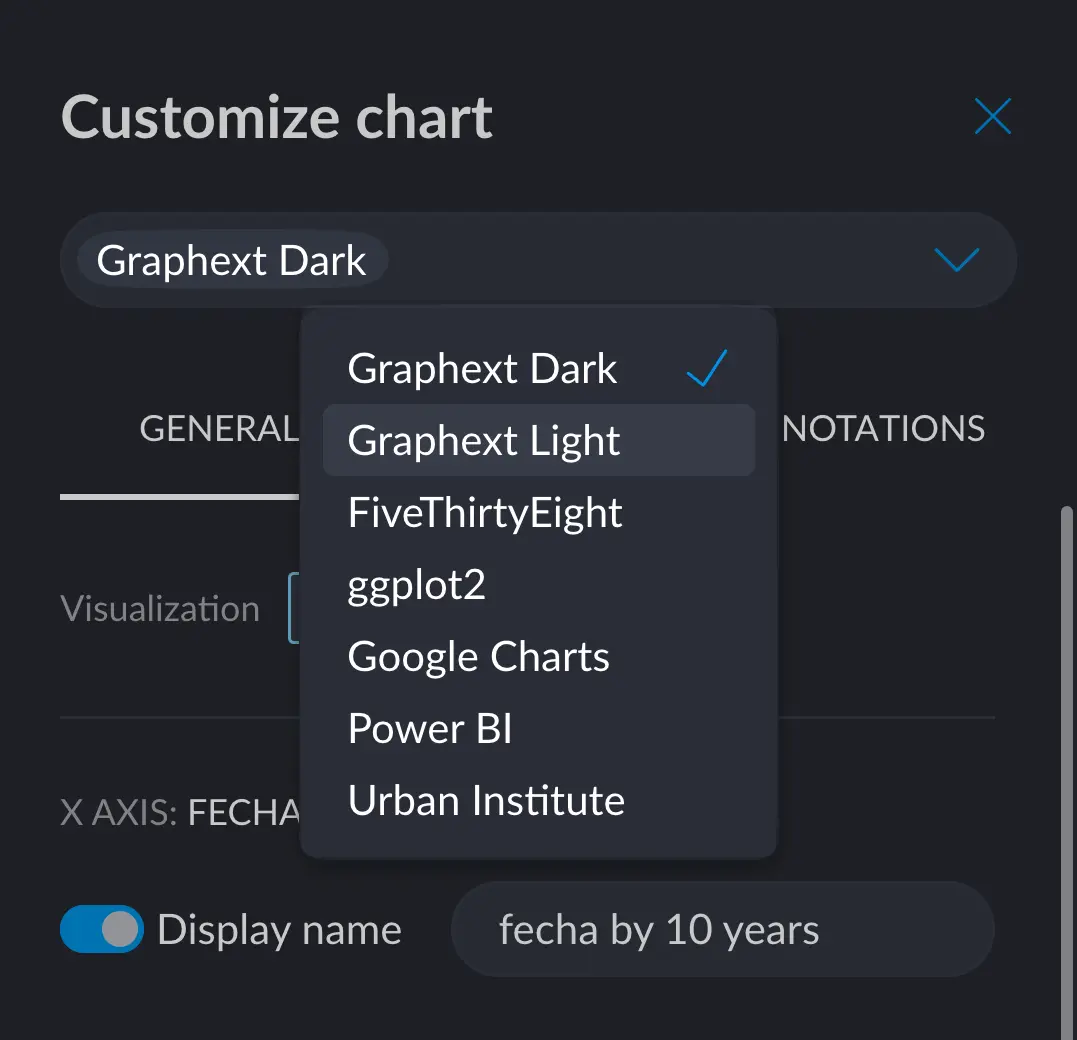 Example of a simple chart with all themes applied.

 ## General Tab
The General tab holds options for changing axis names, scales, customize color segments, spacings and such.
On top of that, each plot will also display some exclusive options that may only make sense in that type of
plot.
### Visualization & Orientation
These options are generally available in multi variable charts, like line, area, and bar charts.
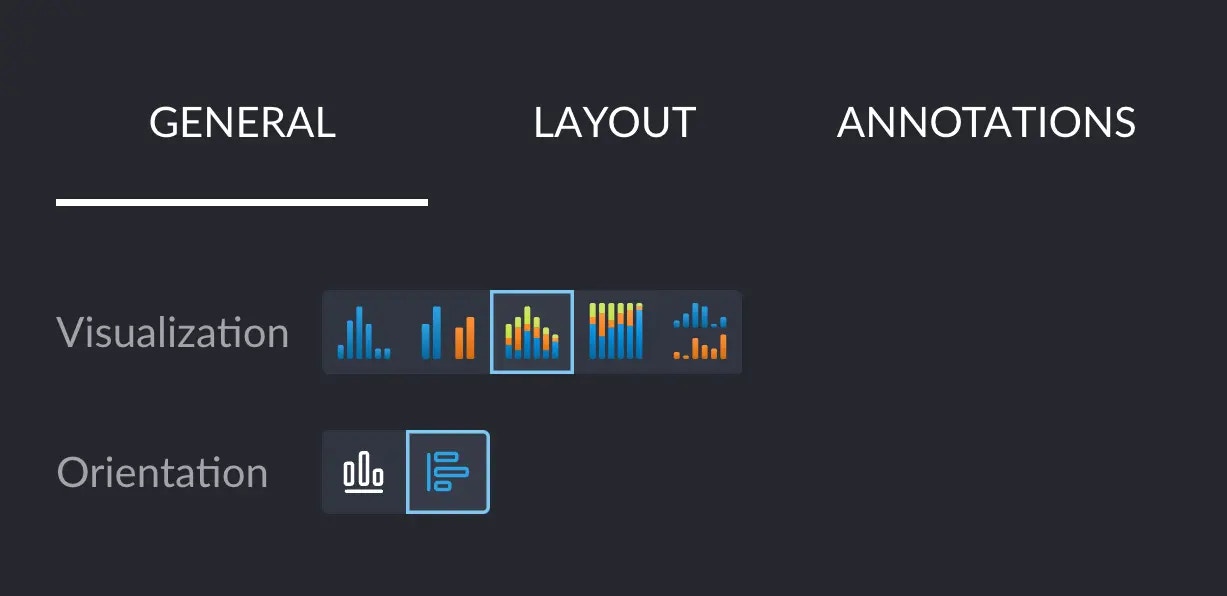
The **Visualization** option allows to include more variables to compare, taking you from a simple bar chart to
a more rich grouped bar chart or stacked bar chart, for example.
The **Orientation** option allows to swap the X and Y axes to make the chart horizontal or vertical. Horizontal
charts are useful when the X axis has very long names in each tick.
## General Tab
The General tab holds options for changing axis names, scales, customize color segments, spacings and such.
On top of that, each plot will also display some exclusive options that may only make sense in that type of
plot.
### Visualization & Orientation
These options are generally available in multi variable charts, like line, area, and bar charts.
The **Visualization** option allows to include more variables to compare, taking you from a simple bar chart to
a more rich grouped bar chart or stacked bar chart, for example.
The **Orientation** option allows to swap the X and Y axes to make the chart horizontal or vertical. Horizontal
charts are useful when the X axis has very long names in each tick.
 ### Axes Scale and Title
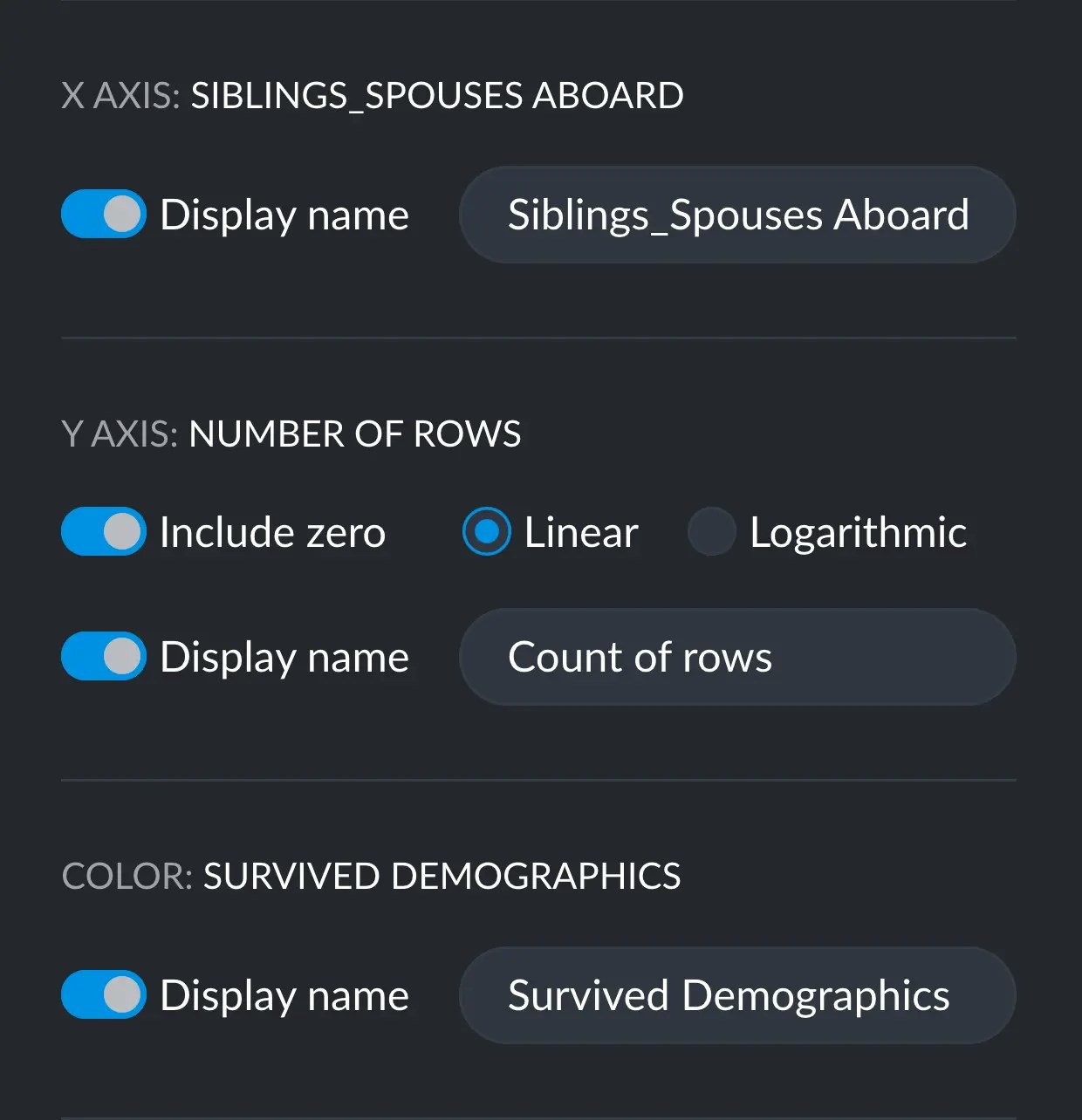
Axes customization of titles and scales are also generally available, where it applies. You can customize
the Y scale, and titles for each axis. If available, the color display name will change the title above the
legend for the colors.
### Axes Scale and Title
Axes customization of titles and scales are also generally available, where it applies. You can customize
the Y scale, and titles for each axis. If available, the color display name will change the title above the
legend for the colors.
 ### Colors
When available, you can customize the color of each segment and even change the order in which they appear.
## Layout tab
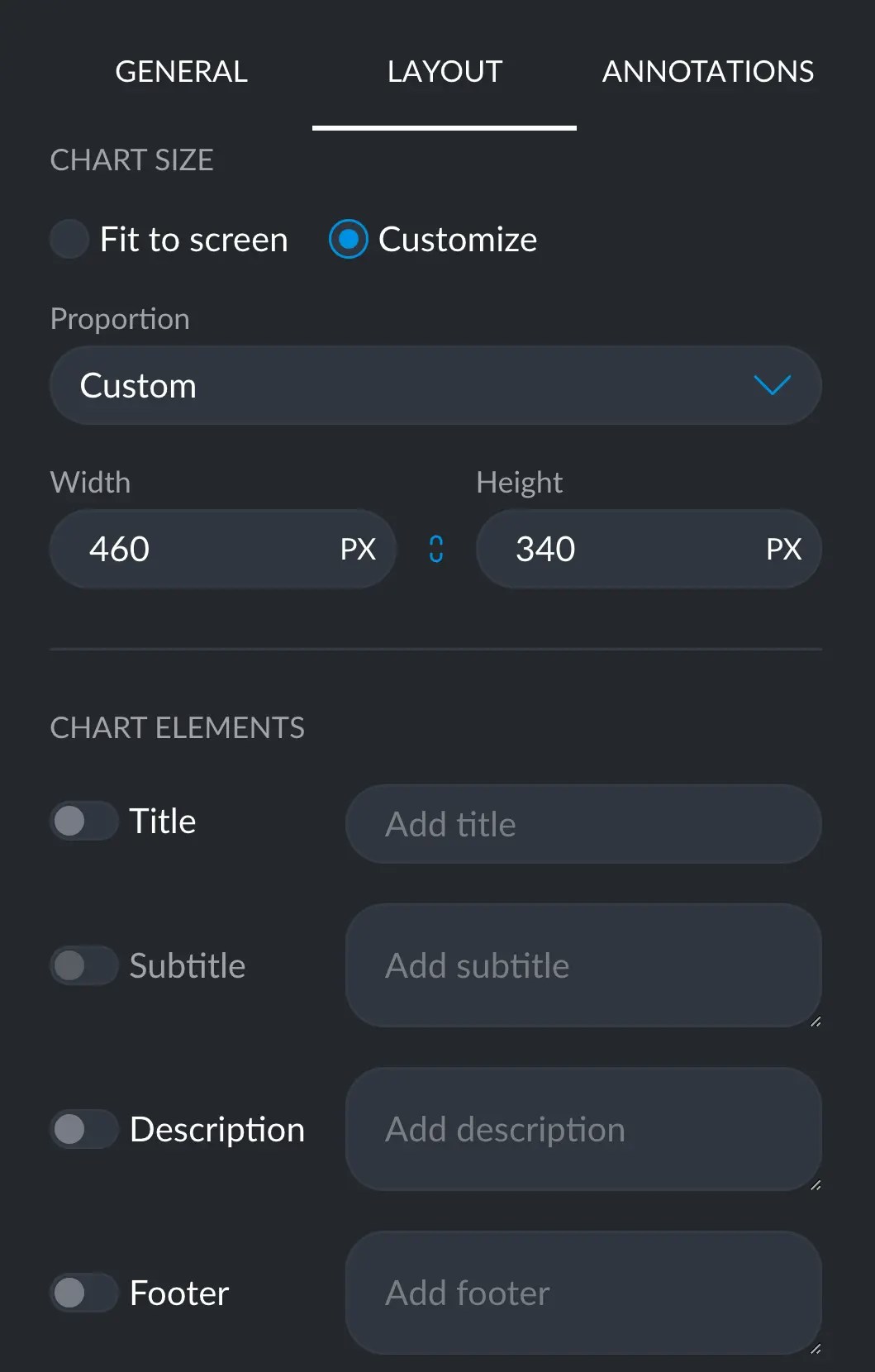
The Layout tab remains mostly the same in every chart type. Here you can change the size and proportions
of the *canvas* the chart is over.
You can also add a title, a subtitle, a description and a footer to your chart, essential when publishing
anywhere.
### Colors
When available, you can customize the color of each segment and even change the order in which they appear.
## Layout tab
The Layout tab remains mostly the same in every chart type. Here you can change the size and proportions
of the *canvas* the chart is over.
You can also add a title, a subtitle, a description and a footer to your chart, essential when publishing
anywhere.
 ## Annotations tab
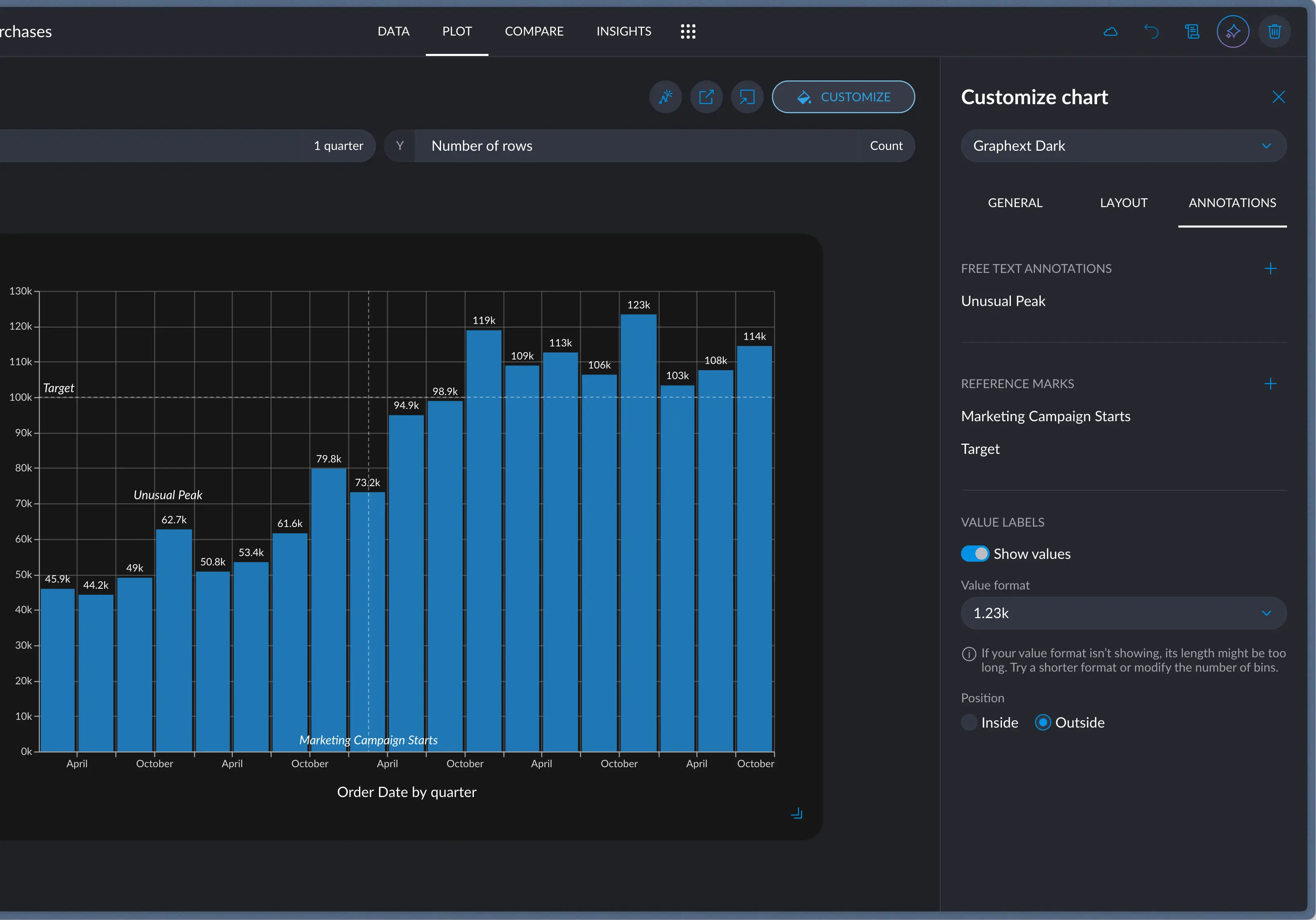
The Annotations tab allows you to add little pieces of information, like value labels and statistic marks.
This tab and the behavior of the marks will change depending on the orientation and nature of your chart.
## Annotations tab
The Annotations tab allows you to add little pieces of information, like value labels and statistic marks.
This tab and the behavior of the marks will change depending on the orientation and nature of your chart.
 ### Free Text Annotations
Free text annotations allow you to position any given piece of text wherever you want. This makes it easy to
emphasize some aspects of your chart that may be overlooked.
### Highlight shape
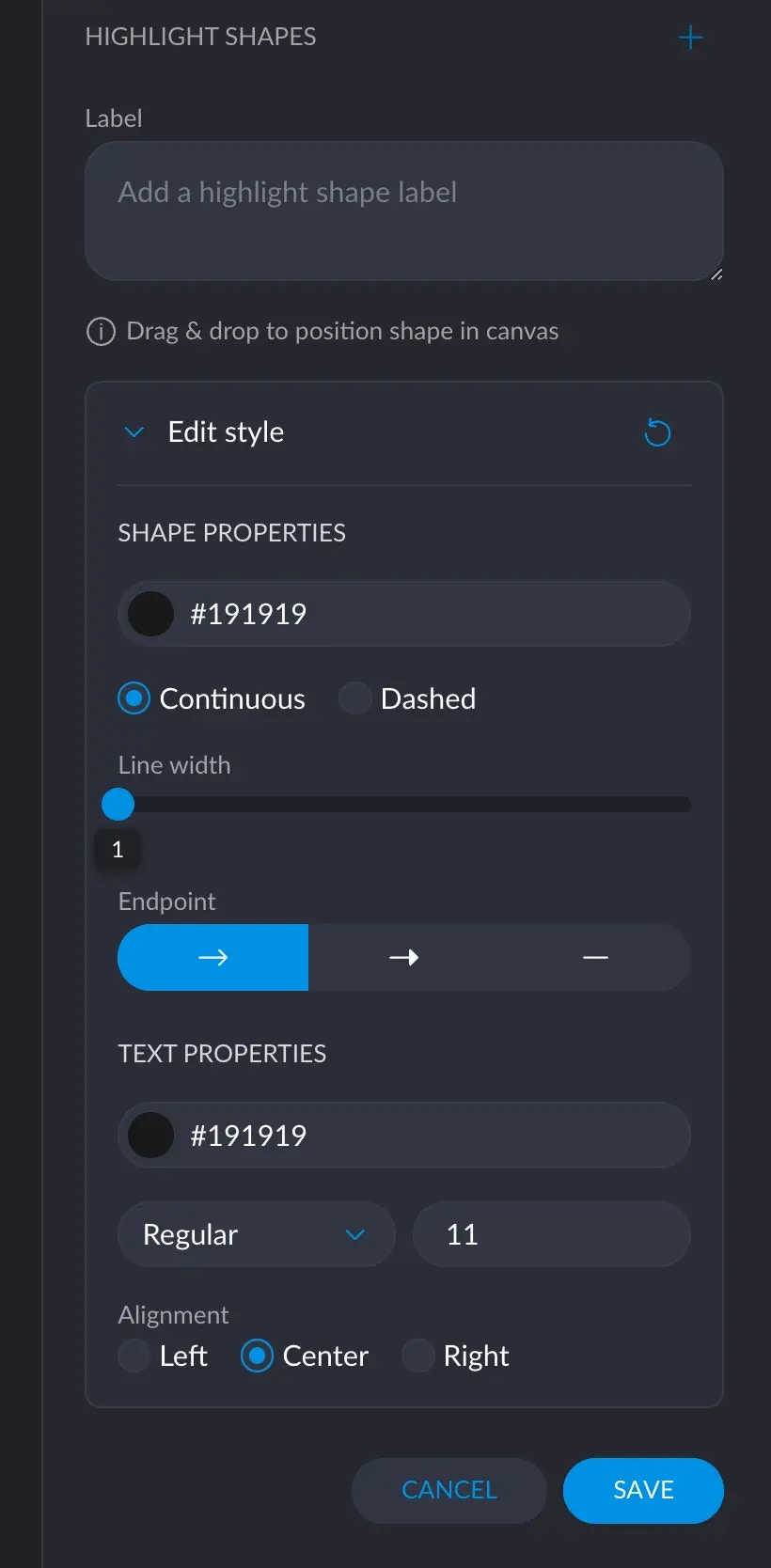
Additionally, you can add an arrow that may be attached to some text. This is very powerful to clarify something
in your chart but just putting the text is not clear enough.
When you add a new highlight shape, an arrow will appear in the middle of the chart. You can simply move the endpoints
wherever you like. Write its corresponding text and move it where it best looks.
You can configure the color, stroke style, endpoint (head) and width of the arrow.
You may also change the color, size and style (italic, bold) and alignment of the associated piece of text.
### Free Text Annotations
Free text annotations allow you to position any given piece of text wherever you want. This makes it easy to
emphasize some aspects of your chart that may be overlooked.
### Highlight shape
Additionally, you can add an arrow that may be attached to some text. This is very powerful to clarify something
in your chart but just putting the text is not clear enough.
When you add a new highlight shape, an arrow will appear in the middle of the chart. You can simply move the endpoints
wherever you like. Write its corresponding text and move it where it best looks.
You can configure the color, stroke style, endpoint (head) and width of the arrow.
You may also change the color, size and style (italic, bold) and alignment of the associated piece of text.
 ### Reference Marks
Reference Marks are labels that have an associated value with respect to a given axis. To put one, click the +
icon and select the axis in which you want to put your mark. Depending on its nature, you'll be prompted to select a
specific value to position it. You can also write a label that offers more information around that value.
### Reference Marks
Reference Marks are labels that have an associated value with respect to a given axis. To put one, click the +
icon and select the axis in which you want to put your mark. Depending on its nature, you'll be prompted to select a
specific value to position it. You can also write a label that offers more information around that value.
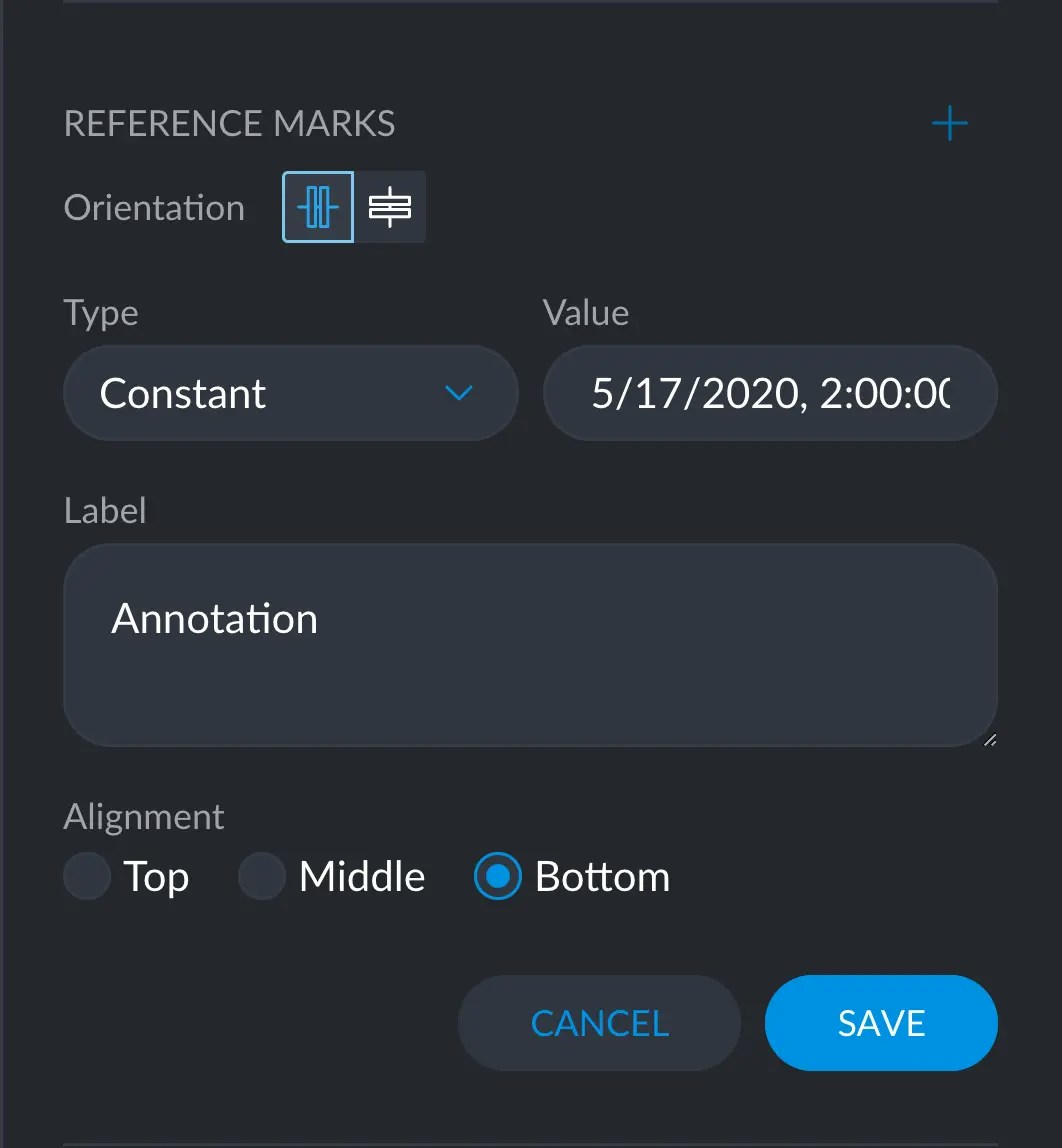 On top of that, you can also select the "type" of value, which can also depend on the nature of your axis. For numeric or
date values, an arbitrary "Constant" is offered alongside some metrics like minimum, maximum, average and more.
For categorical variables, a dropdown is offered listing all the possible categories.
### Show Values
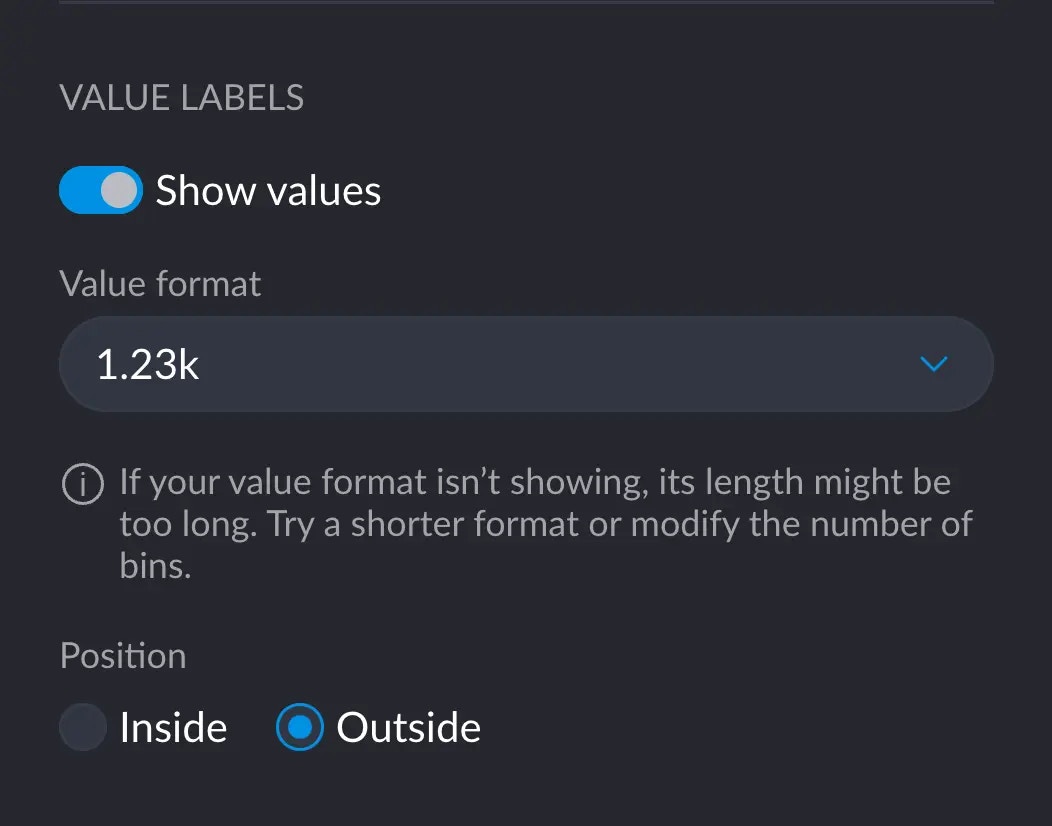
Shows the value for each element in your chart, making comparisons that much easier and convenient.
You can change the formatting and positioning.
On top of that, you can also select the "type" of value, which can also depend on the nature of your axis. For numeric or
date values, an arbitrary "Constant" is offered alongside some metrics like minimum, maximum, average and more.
For categorical variables, a dropdown is offered listing all the possible categories.
### Show Values
Shows the value for each element in your chart, making comparisons that much easier and convenient.
You can change the formatting and positioning.
 ## Specific options
As previously mentioned, there are some specific customization options to each chart. For example, only the
bubble chart has the option to scale up or down the size of each data point.
You may check the specific options for each chart under their corresponding page.
## Specific options
As previously mentioned, there are some specific customization options to each chart. For example, only the
bubble chart has the option to scale up or down the size of each data point.
You may check the specific options for each chart under their corresponding page.