> ## Documentation Index
> Fetch the complete documentation index at: https://docs.graphext.com/llms.txt
> Use this file to discover all available pages before exploring further.
# Specifying order in categorical variables
It is common to have a categorical column whose values have a clear order. This can
be shirt sizes, like "S", "M", "L" or "XL". The category "L" is *greater* than "M".
## Applying ordering to the values
To do this, we reach out to the column menu and select the **Order** option.
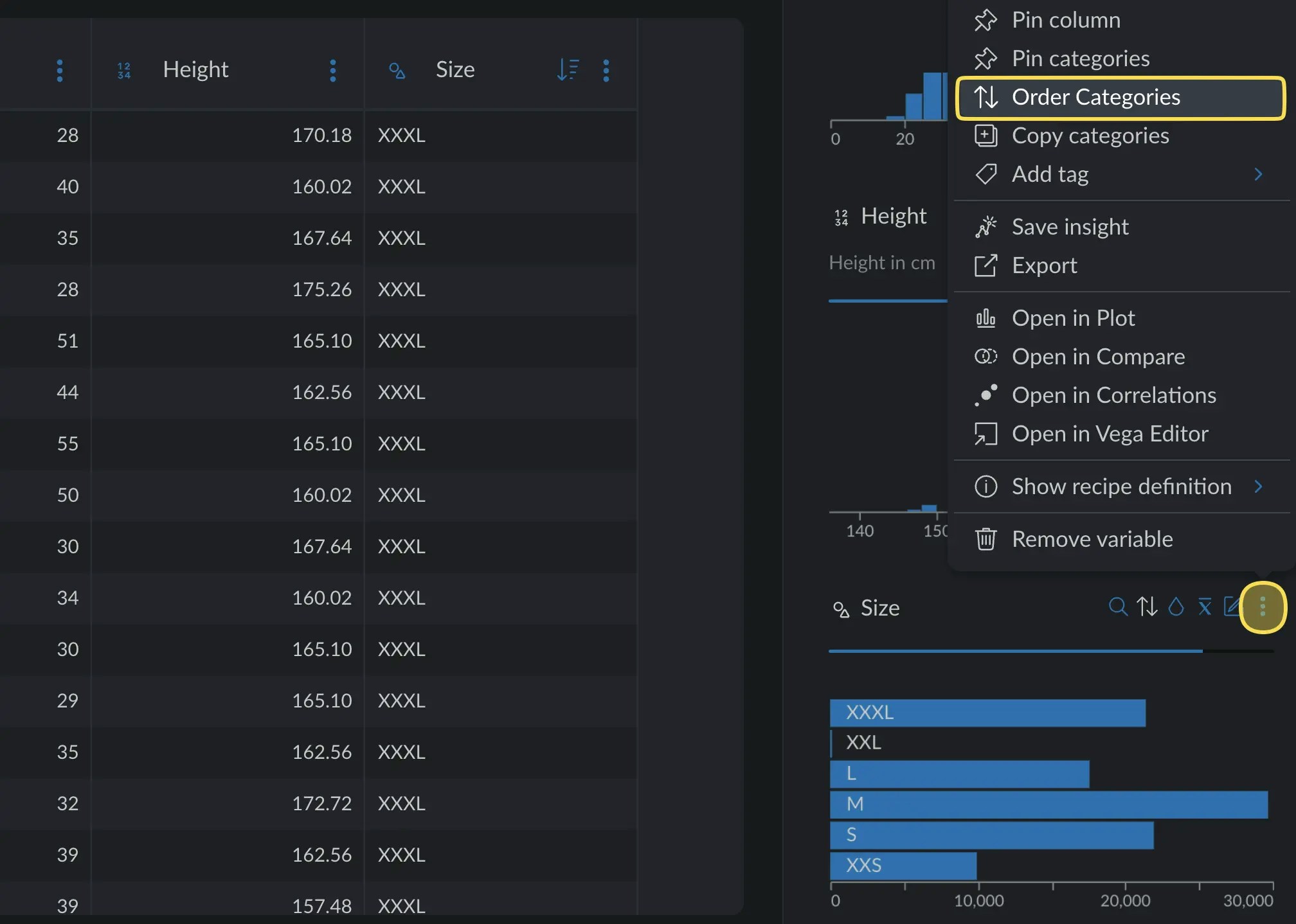 All the different values for this column will appear, with a handle on the left.
Drag and sort the categories in the order you want, in **descending order**.
Bigger elements first.
All the different values for this column will appear, with a handle on the left.
Drag and sort the categories in the order you want, in **descending order**.
Bigger elements first.
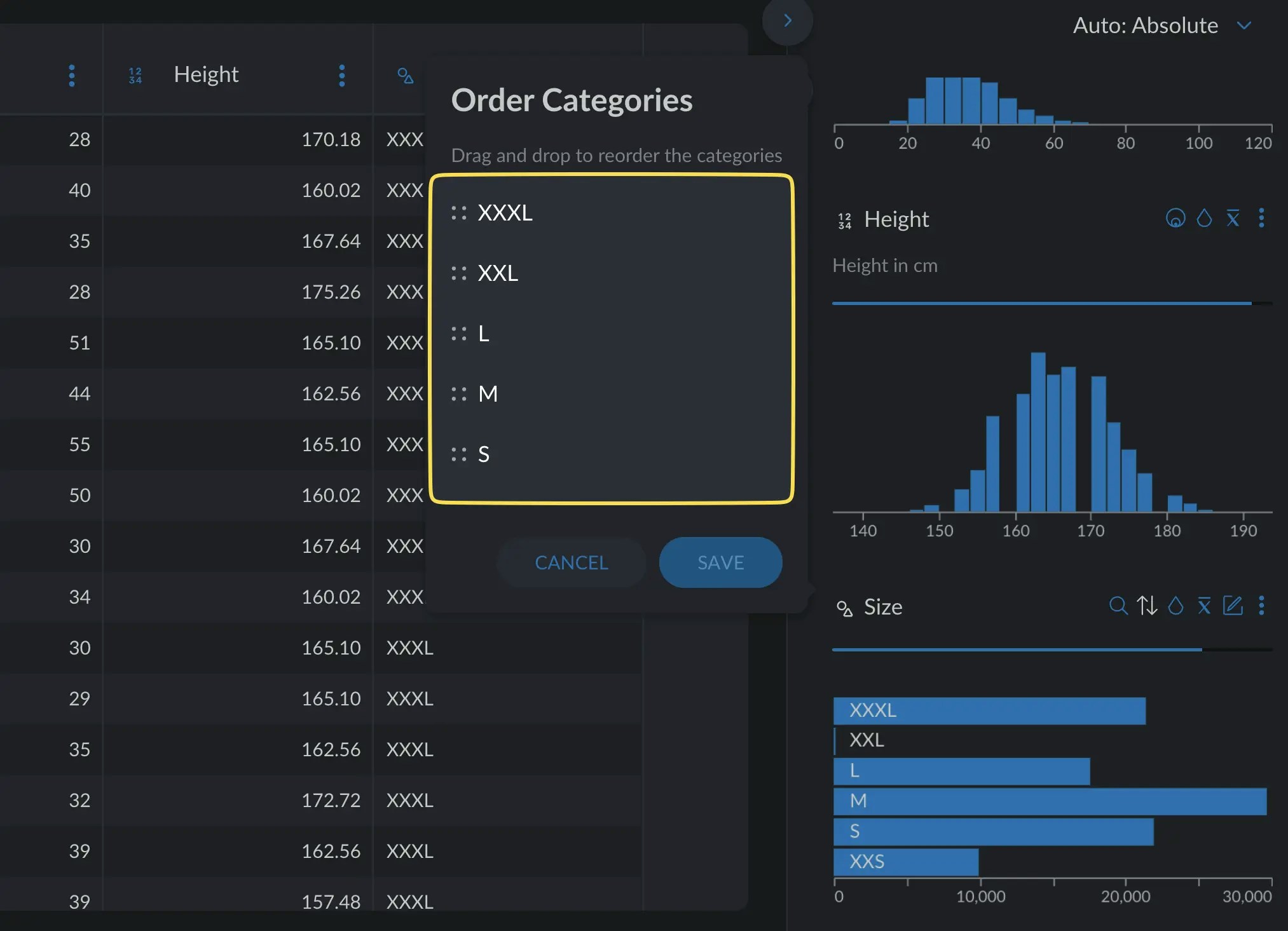 Hit save and you are good to go!
## Using the recipe
We can also order categories through the
[Recipe](/concepts/graphext-concepts/recipe), writing a
[step](/concepts/graphext-concepts/steps).
### Intro and Resources
To do this, we are going to use the [order\_categories](/api-docs/prepare/transform/order_categories) step.
You can follow [this example](https://app.graphext.com/projects/UHJvamVjdC05ODA3MA==/v/data).
A video tutorial is available to do this exact process in the Titanic Data set.
You can watch it [here](https://youtu.be/kM9KCq5K2nw?t=239\&si=-CG2PA6UVZS8kAAE) in case it makes it easier to follow.
### Open the Recipe
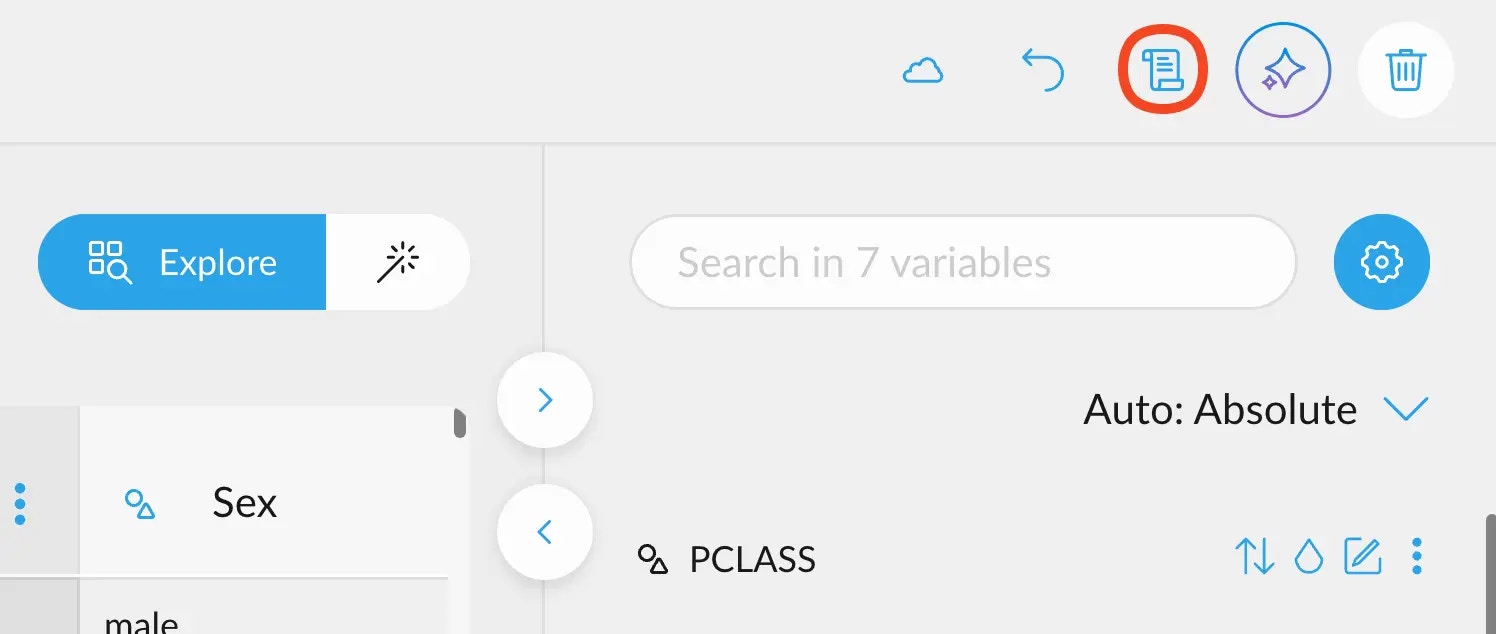
Reach out to the little scroll icon in the top right corner.
Hit save and you are good to go!
## Using the recipe
We can also order categories through the
[Recipe](/concepts/graphext-concepts/recipe), writing a
[step](/concepts/graphext-concepts/steps).
### Intro and Resources
To do this, we are going to use the [order\_categories](/api-docs/prepare/transform/order_categories) step.
You can follow [this example](https://app.graphext.com/projects/UHJvamVjdC05ODA3MA==/v/data).
A video tutorial is available to do this exact process in the Titanic Data set.
You can watch it [here](https://youtu.be/kM9KCq5K2nw?t=239\&si=-CG2PA6UVZS8kAAE) in case it makes it easier to follow.
### Open the Recipe
Reach out to the little scroll icon in the top right corner.
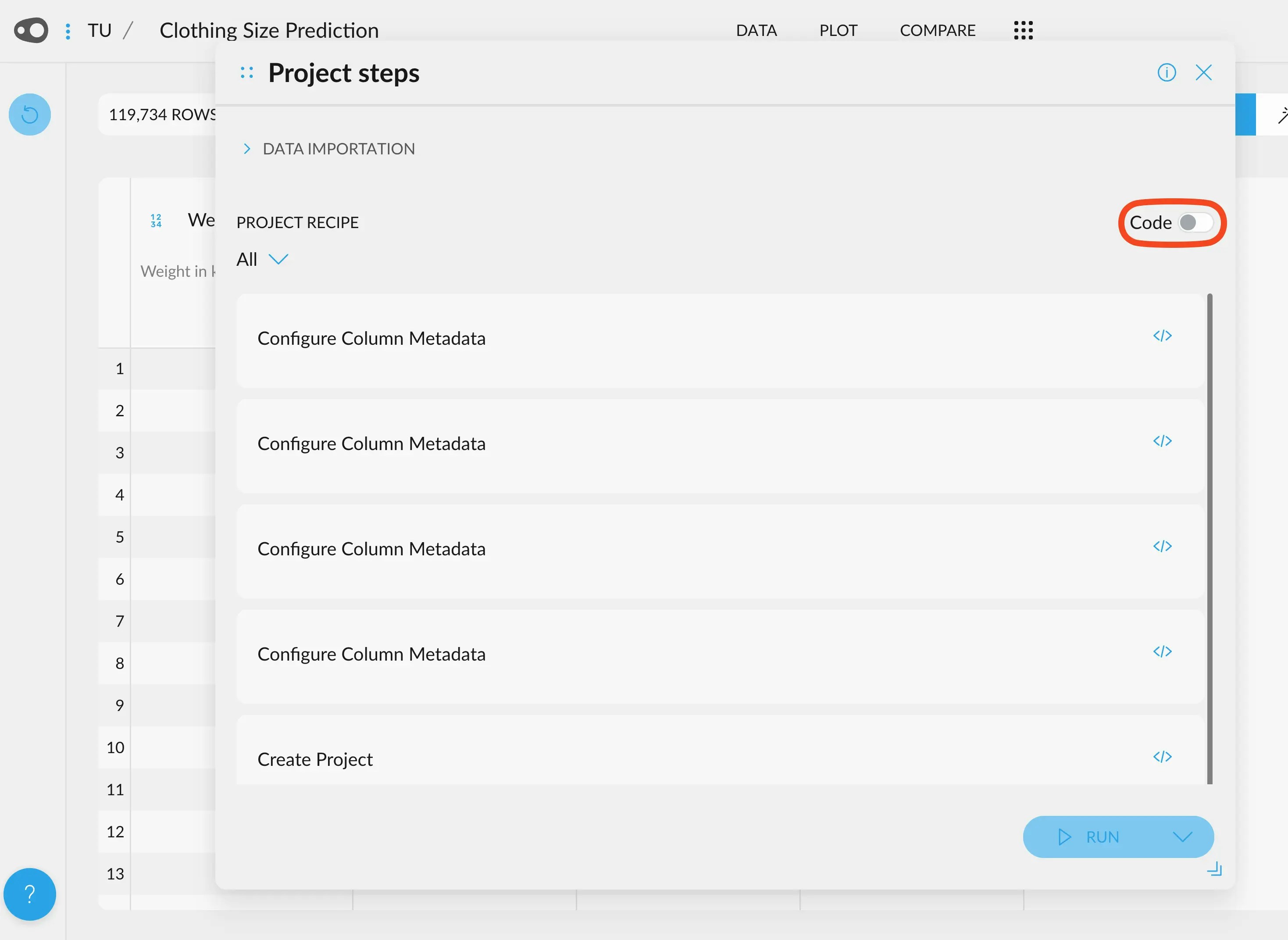
 ### Enable Code Mode
This will allow us to see and edit the code.
### Enable Code Mode
This will allow us to see and edit the code.
 ### Search for the order\_categories step
Look for a line of code that looks like this:
```erlang theme={null}
create_project(ds)
```
and write a **new line ABOVE it**. It is very important that you keep this in
mind. Our step won't have any effect if it is written after the `create_project` step.
Start writing `ord`, and the list will show the `order_categories` step.
Press enter, tab or click on the suggestion to accept it.
### Search for the order\_categories step
Look for a line of code that looks like this:
```erlang theme={null}
create_project(ds)
```
and write a **new line ABOVE it**. It is very important that you keep this in
mind. Our step won't have any effect if it is written after the `create_project` step.
Start writing `ord`, and the list will show the `order_categories` step.
Press enter, tab or click on the suggestion to accept it.
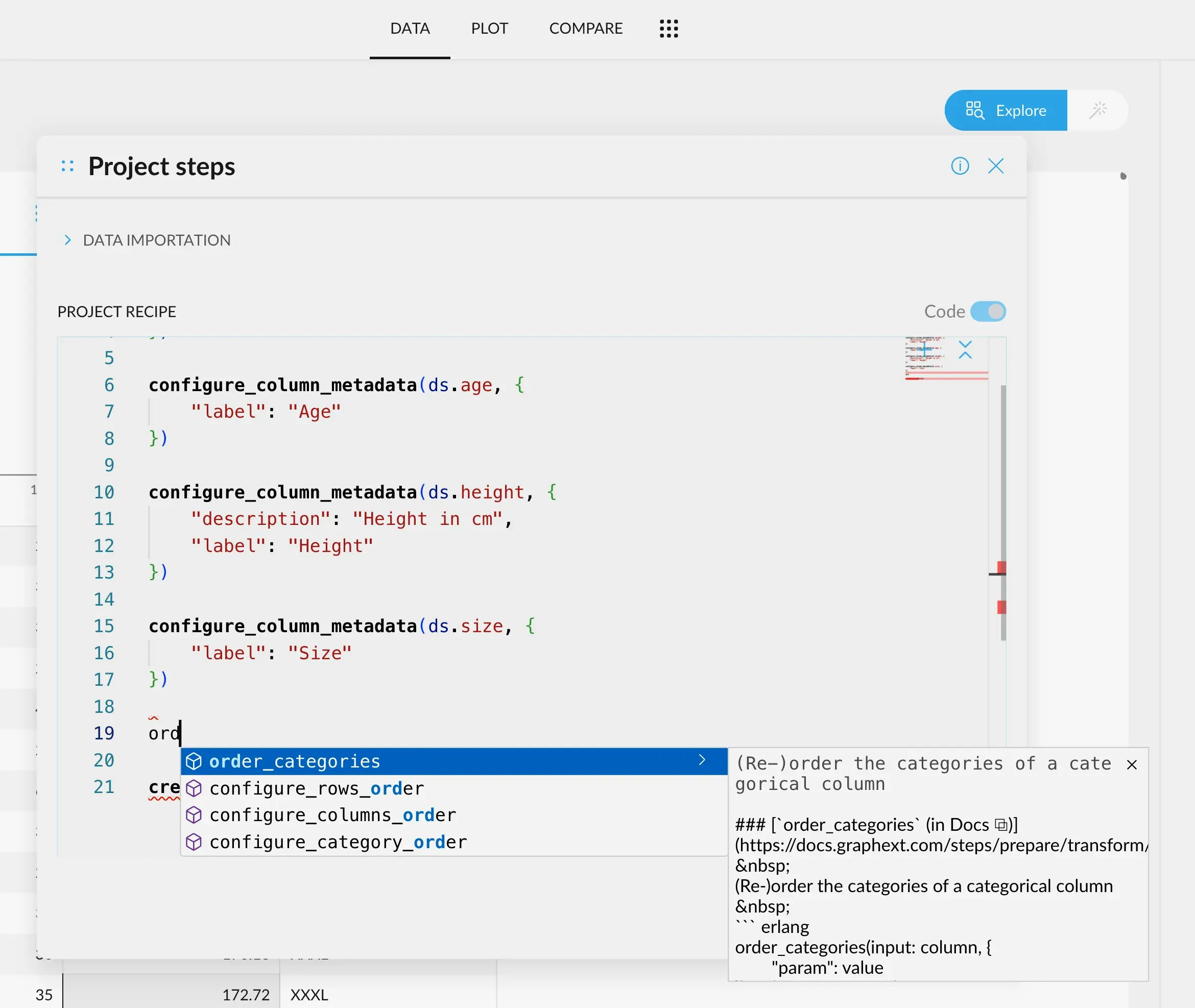 This operation will write this piece of code on the same line:
```erlang theme={null}
order_categories(ds.input) -> (ds.output)
```
### Edit the step with your column name
Because the column we want to take the information from is called `size` (careful, it's case sensitive!),
we change the code so it looks like this:
```erlang theme={null}
order_categories(ds.size) -> (ds.size)
```
This gives an error because we are trying to create a column that already exists, `size`. We can either
create a new column with the ordering applied, or we can **overwrite** the existing column to include
the ordering information.
To create a new column, simply change the output from size to any other name, for example:
```erlang theme={null}
order_categories(ds.size) -> (ds.size_ordered)
```
To overwrite the colum, we use the overwrite operator, like this:
```erlang theme={null}
order_categories(ds.size) => (ds.size)
^ this changed from - to =
```
### Apply the ordering
Let's apply the ordering. To do this, edit the step like this:
```erlang theme={null}
order_categories(ds.size,
{"categories": ["XXS", "S", "M", "L", "XXL", "XXXL"]}
) => (ds.size)
```
This involves creating an options object with `{}` that has a field `categories`. This field expects a list
of all the categories present in this column **in ascending order**. "Smaller" elements first.
You can basically copy this piece of code and substitute "size" for the name
of your column, and the categories list by all the different categories just
like here: each in between quote marks and separated by commas.
### Done!
Now, we click "Run" in the lower right corner to save.
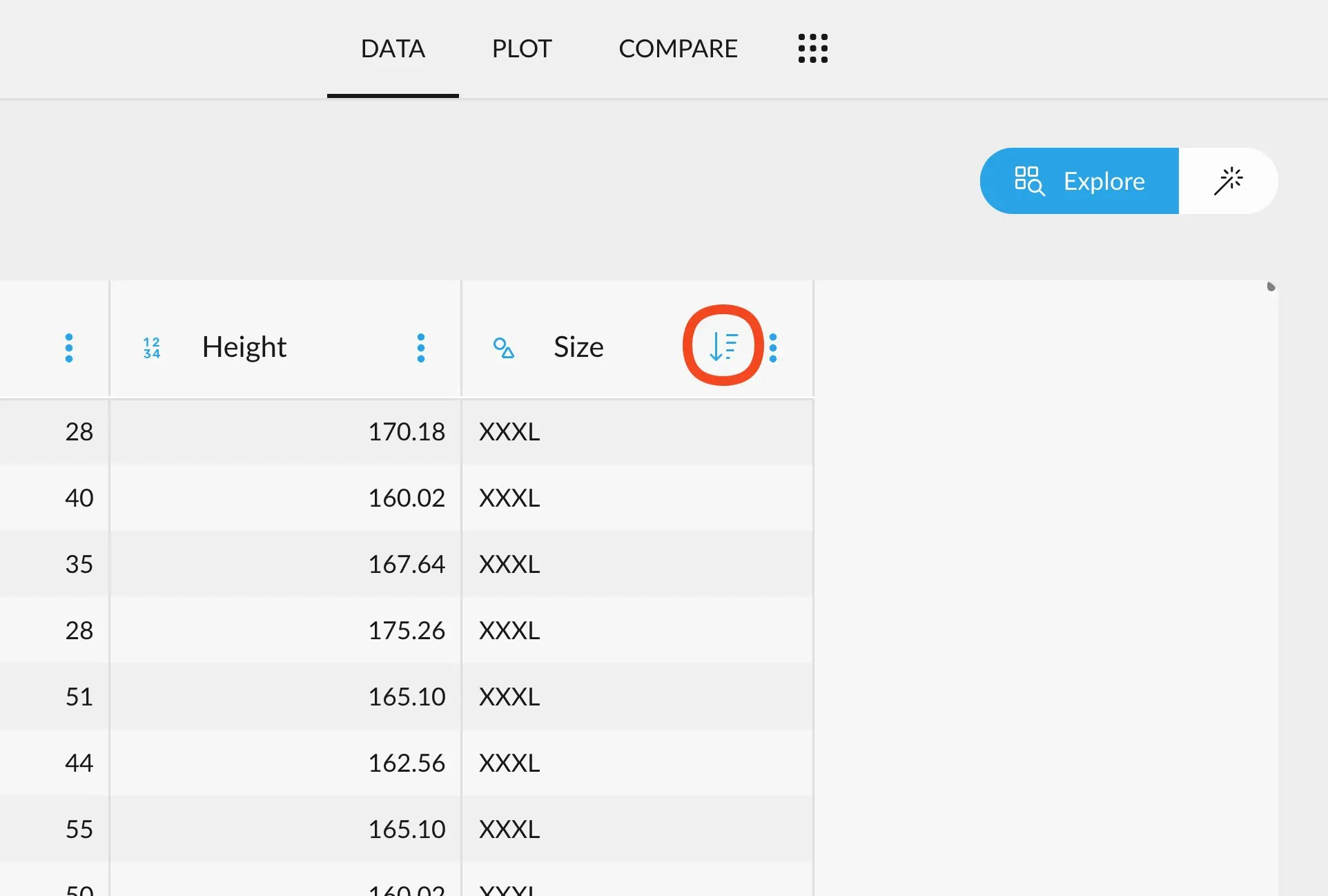
We can now see that our variable Size has a sorting icon next to it, allowing us to [sort the whole table](/documentation/data-preparation/variable-management-ui-config/sort-data-table).
This operation will write this piece of code on the same line:
```erlang theme={null}
order_categories(ds.input) -> (ds.output)
```
### Edit the step with your column name
Because the column we want to take the information from is called `size` (careful, it's case sensitive!),
we change the code so it looks like this:
```erlang theme={null}
order_categories(ds.size) -> (ds.size)
```
This gives an error because we are trying to create a column that already exists, `size`. We can either
create a new column with the ordering applied, or we can **overwrite** the existing column to include
the ordering information.
To create a new column, simply change the output from size to any other name, for example:
```erlang theme={null}
order_categories(ds.size) -> (ds.size_ordered)
```
To overwrite the colum, we use the overwrite operator, like this:
```erlang theme={null}
order_categories(ds.size) => (ds.size)
^ this changed from - to =
```
### Apply the ordering
Let's apply the ordering. To do this, edit the step like this:
```erlang theme={null}
order_categories(ds.size,
{"categories": ["XXS", "S", "M", "L", "XXL", "XXXL"]}
) => (ds.size)
```
This involves creating an options object with `{}` that has a field `categories`. This field expects a list
of all the categories present in this column **in ascending order**. "Smaller" elements first.
You can basically copy this piece of code and substitute "size" for the name
of your column, and the categories list by all the different categories just
like here: each in between quote marks and separated by commas.
### Done!
Now, we click "Run" in the lower right corner to save.
We can now see that our variable Size has a sorting icon next to it, allowing us to [sort the whole table](/documentation/data-preparation/variable-management-ui-config/sort-data-table).