> ## Documentation Index
> Fetch the complete documentation index at: https://docs.graphext.com/llms.txt
> Use this file to discover all available pages before exploring further.
# Hide a variable
Hiding a variable removes it from the data table or the layout, without the need to delete it completely.
There are a couple ways to hide a variable.
## Hiding a column from the data table
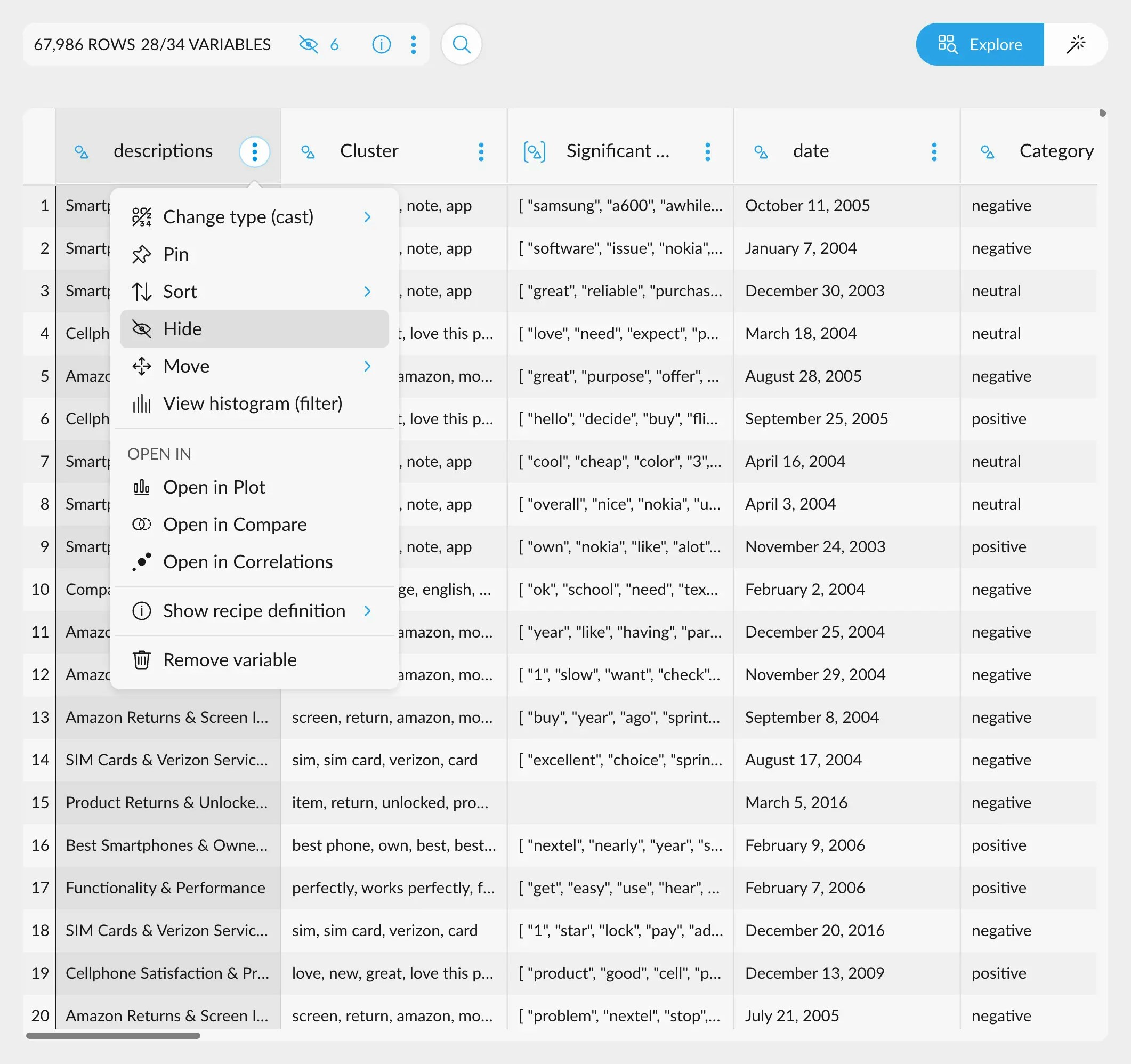
In order to hide a column from the data table, click on the options icon next to its name,
and select "Hide". The variable will disappear from the data table, but not from the sidebars.
 ## Hiding a variable from the sidebar
In order to hide a variable from either the left or the right sidebar, we must
use the Variable Manager, which is the gear icon located at the top right corner of the interface.
### Step 1: Click on Manage Variable
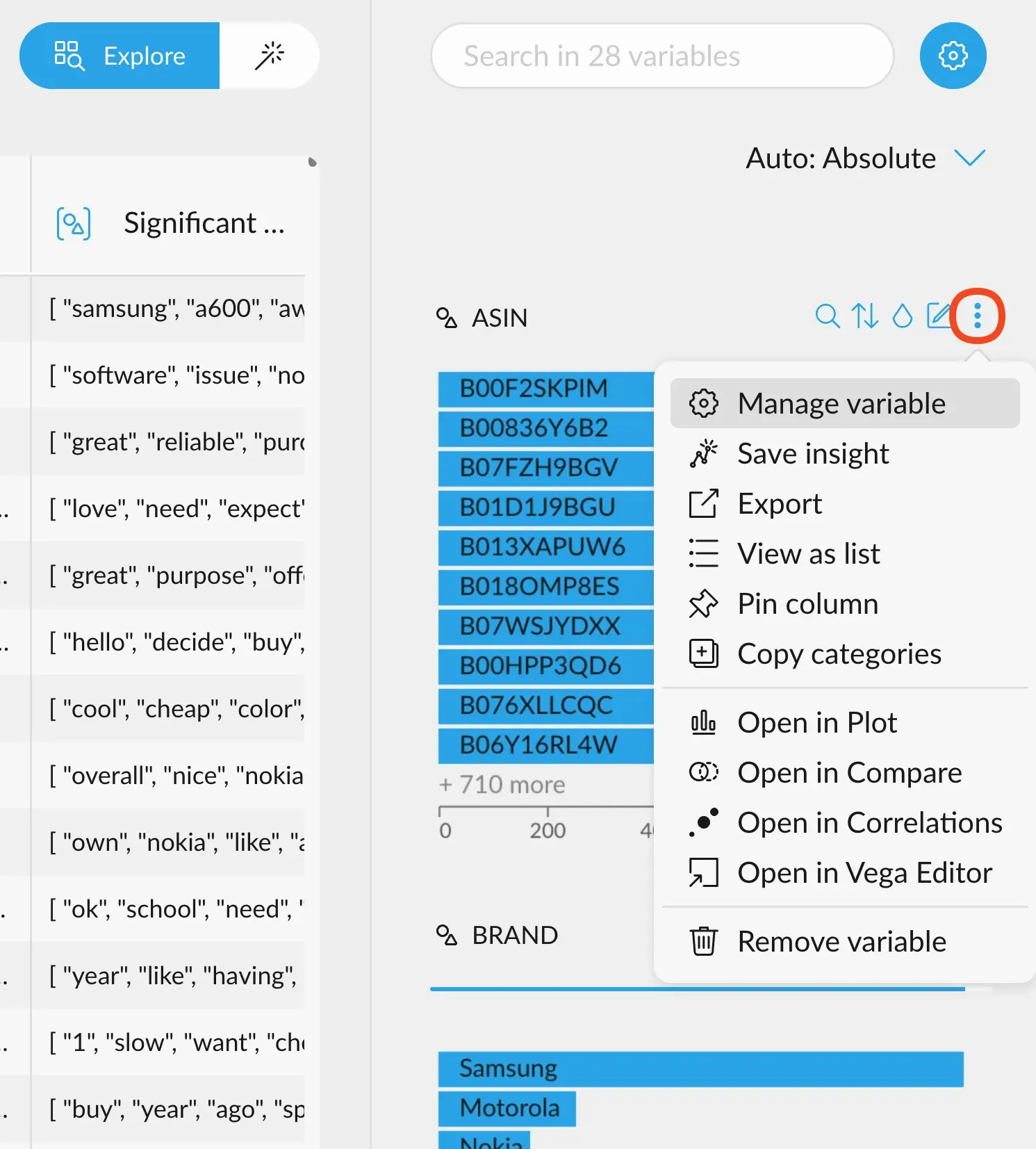
A quick way to hide a specific variable, is to click on the options icon in the variable
card, and select "Manage Variable".
## Hiding a variable from the sidebar
In order to hide a variable from either the left or the right sidebar, we must
use the Variable Manager, which is the gear icon located at the top right corner of the interface.
### Step 1: Click on Manage Variable
A quick way to hide a specific variable, is to click on the options icon in the variable
card, and select "Manage Variable".
 ### Step 2: Hide the variable from the sidebar
This will automatically open the Variable Manager and position the view in the variable we
are interested in. The rest of the variables will appear dimmed for a moment. From here, you can
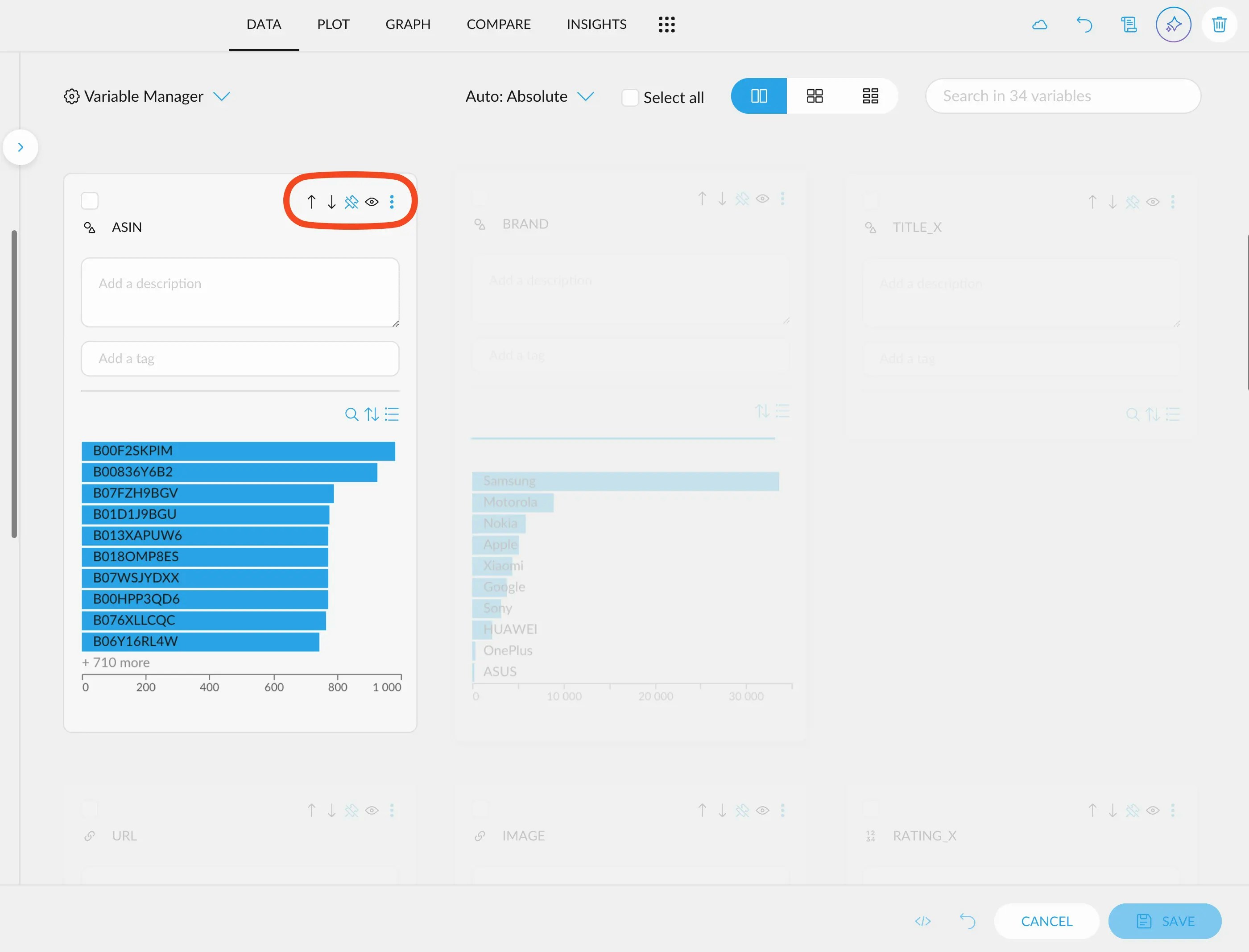
hide the variable from the sidebar by clicking on the little eye icon on the top right of the variable's
card.
When you are done, click the "Save" button in the lower right corner. This will save the layout you've
created.
### Step 2: Hide the variable from the sidebar
This will automatically open the Variable Manager and position the view in the variable we
are interested in. The rest of the variables will appear dimmed for a moment. From here, you can
hide the variable from the sidebar by clicking on the little eye icon on the top right of the variable's
card.
When you are done, click the "Save" button in the lower right corner. This will save the layout you've
created.