> ## Documentation Index
> Fetch the complete documentation index at: https://docs.graphext.com/llms.txt
> Use this file to discover all available pages before exploring further.
# Group variables using tags
[Tags](/concepts/graphext-concepts/tags) are a powerful way of organizing your variables, ane especially useful on
datasets with lots of related variables.
## Adding tags
There are two main ways we can add tags to a variable: using the Variable Manager
or using a Step in the Recipe.
### Using the Variable Manager
Here's an example where we create the "host" tag in one variable, and then select multiple variables to apply the
tag to all of them in one step.
### As a Step in the Recipe
The step [configure\_tagged\_columns](/api-docs/report/configure_ui/configure_tagged_columns) will
allow you to tag every column passed with a tag of your choice.
```erlang theme={null}
configure_tagged_columns(ds.columna, ds.columnb, { "tag": "very important" })
```
### Using the tagged columns in the recipe
Sometimes it's useful to process all the columns belonging to a tag using a step.
You can copy all variable names belonging to a particular tag by selecting the tag itself and then clicking
the button in the upper right corner of the pop-up.
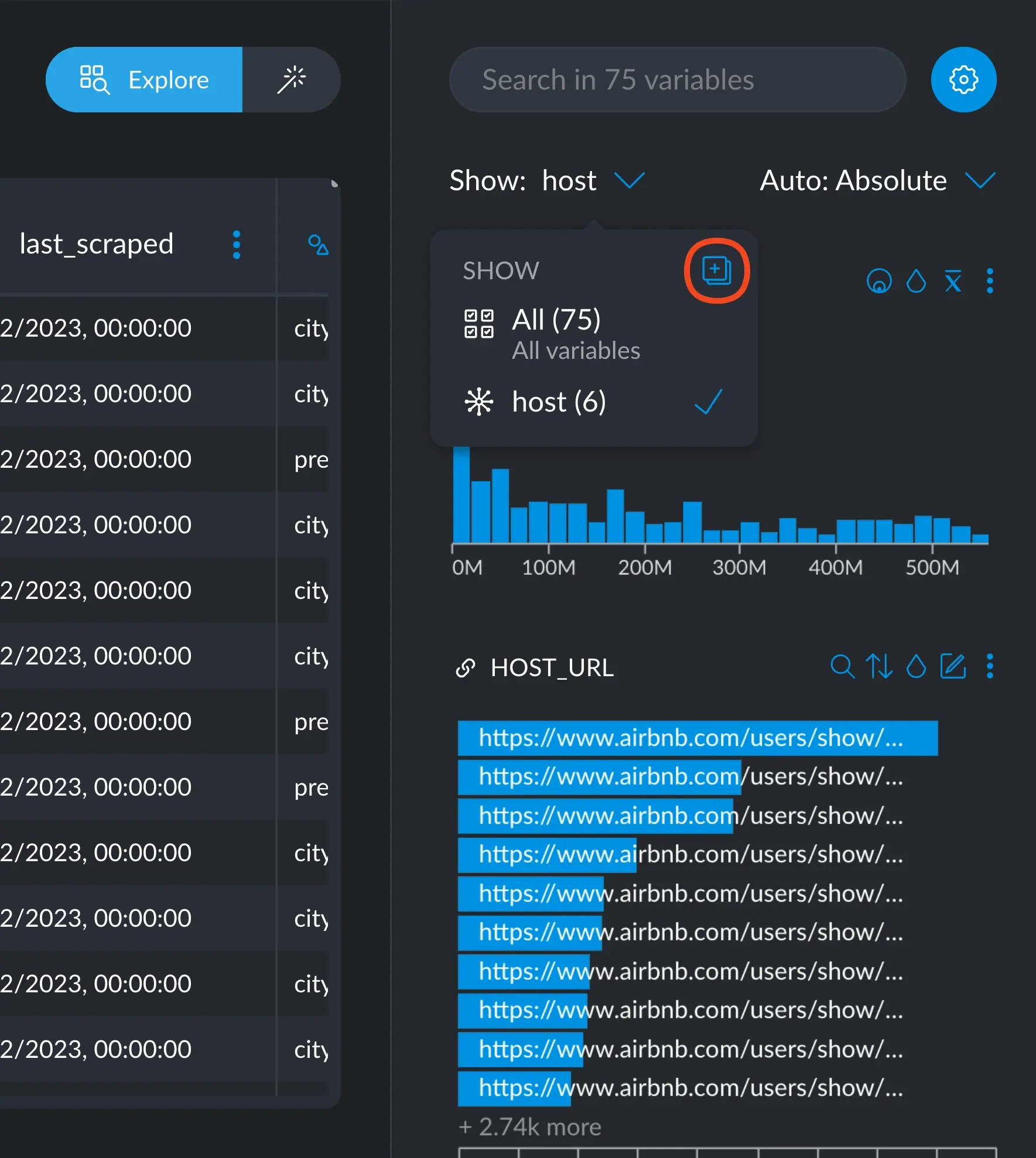 In this particular case, this is what gets sent to the clipboard:
```erlang theme={null}
"host_id", "host_url", "host_name", "host_since", "host_location", "host_about"
```
Since steps that work with groups of variables usually need them listed like this, you can simply
paste this into your step's options and quickly get going.
In this particular case, this is what gets sent to the clipboard:
```erlang theme={null}
"host_id", "host_url", "host_name", "host_since", "host_location", "host_about"
```
Since steps that work with groups of variables usually need them listed like this, you can simply
paste this into your step's options and quickly get going.