> ## Documentation Index
> Fetch the complete documentation index at: https://docs.graphext.com/llms.txt
> Use this file to discover all available pages before exploring further.
# Delete a variable
Deleting a variable can sometimes be useful, although you might consider [hiding it](/documentation/data-preparation/variable-management-ui-config/hide-variable) instead
in case some important or sensitive information is at play.
## Ways to delete a variable
### Deleting a variable from the Data Table
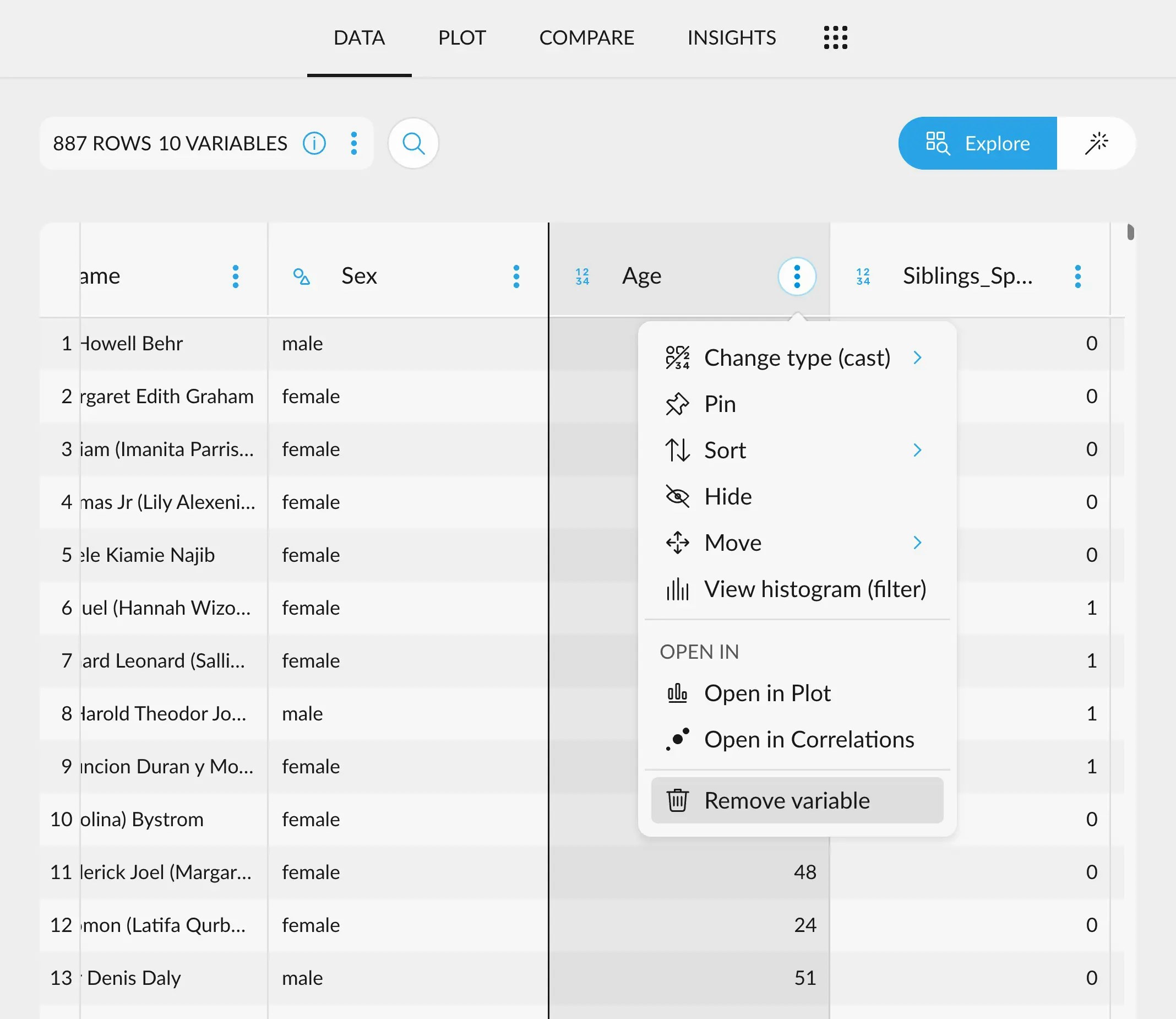
To delete a column from the Data Table, simply click on the options menu
next to the desired column's name and click "Remove Variable".
 ### Deleting a variable from either sidebar
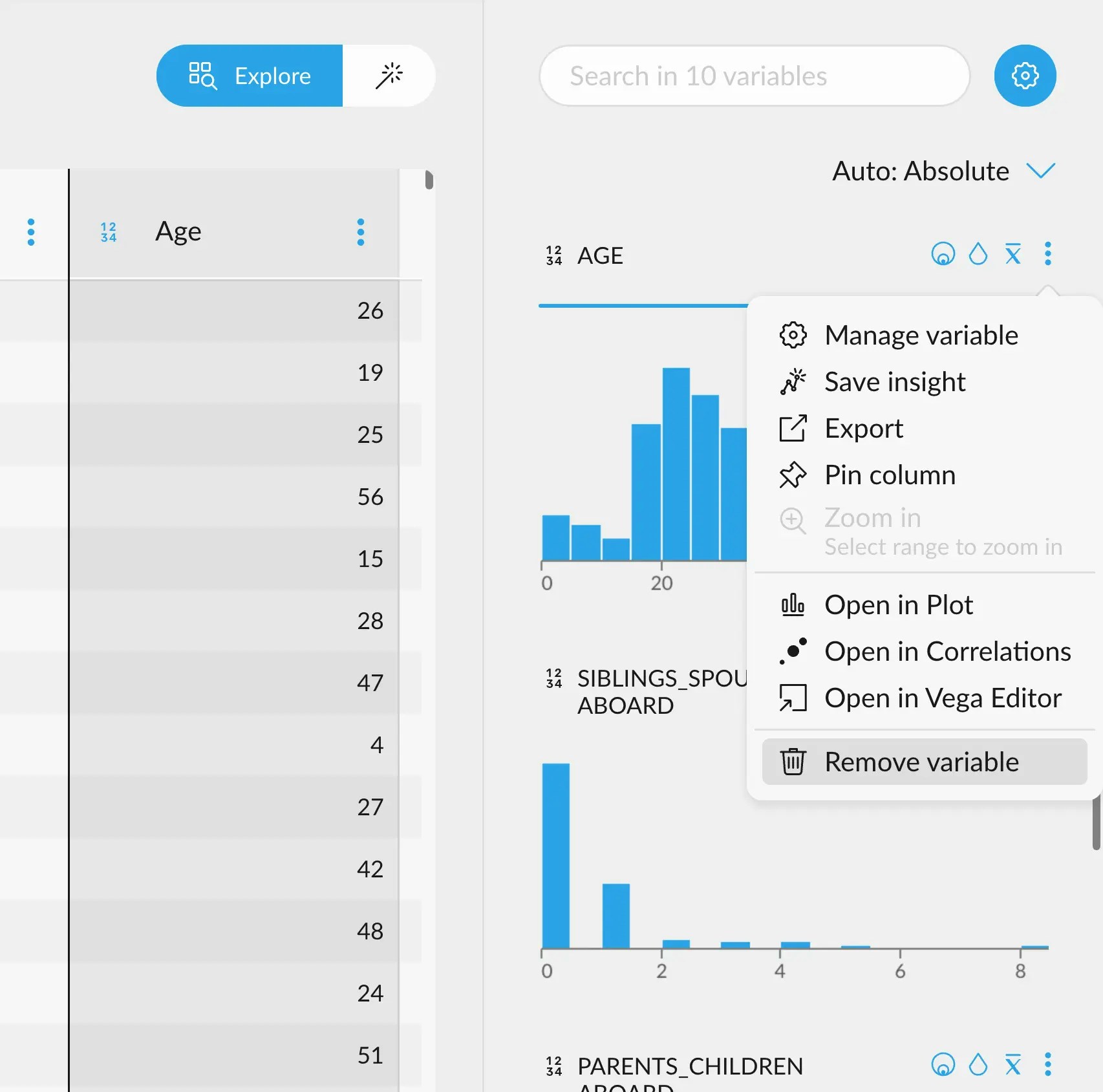
You can also delete a variable by accessing the menu in the top right
corner of the variable's cards in either sidebar.
### Deleting a variable from either sidebar
You can also delete a variable by accessing the menu in the top right
corner of the variable's cards in either sidebar.
 ### Deleting a variable from the Variable Manager
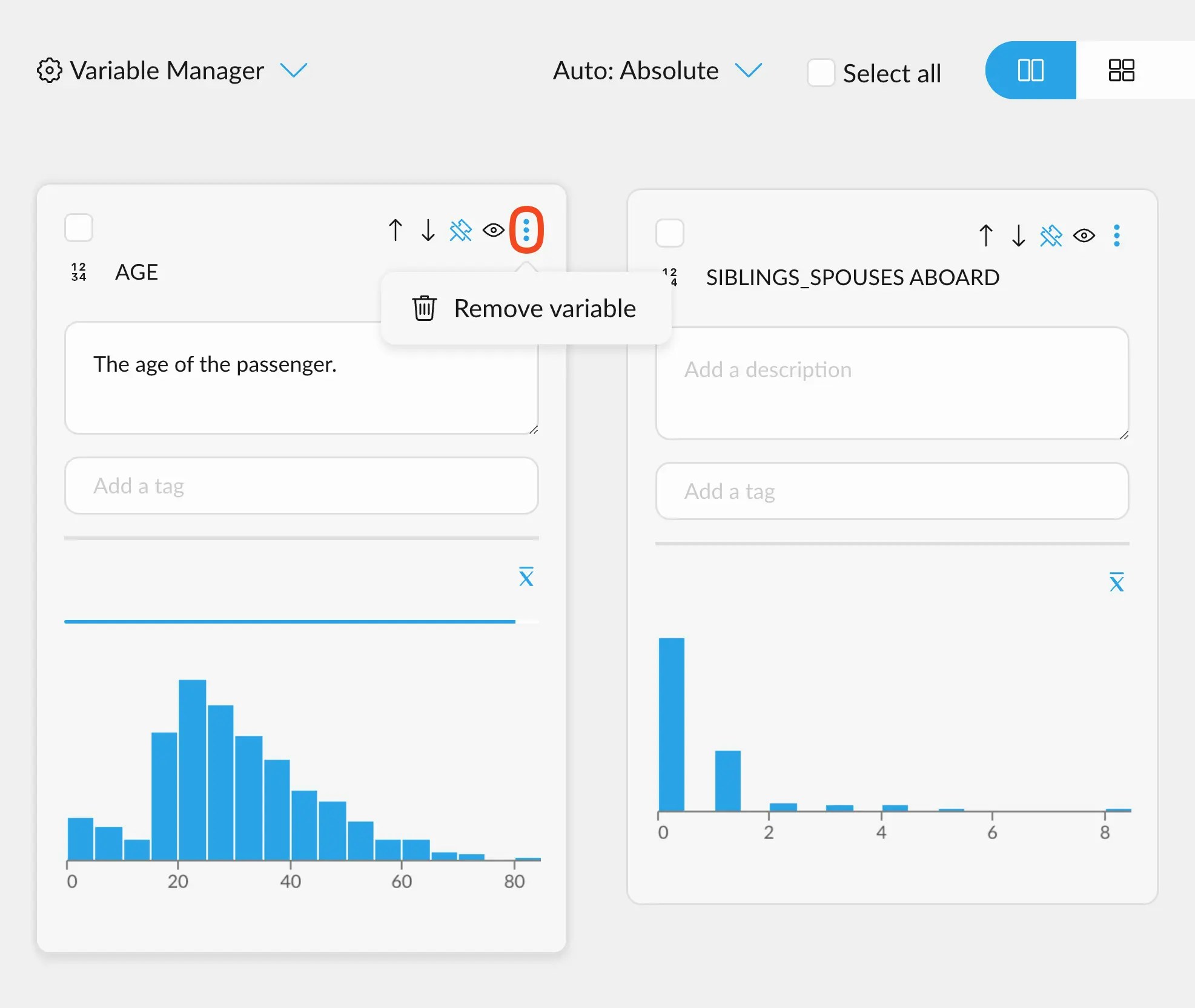
You can also delete a variable from the Variable Manager, by accessing
the menu in the top right corner of the variable's card.
### Deleting a variable from the Variable Manager
You can also delete a variable from the Variable Manager, by accessing
the menu in the top right corner of the variable's card.
 ## Implications of deleting a variable
Deleting a variable means to completely remove it from the dataset, effectively "creating" a
new version of the dataset without it.
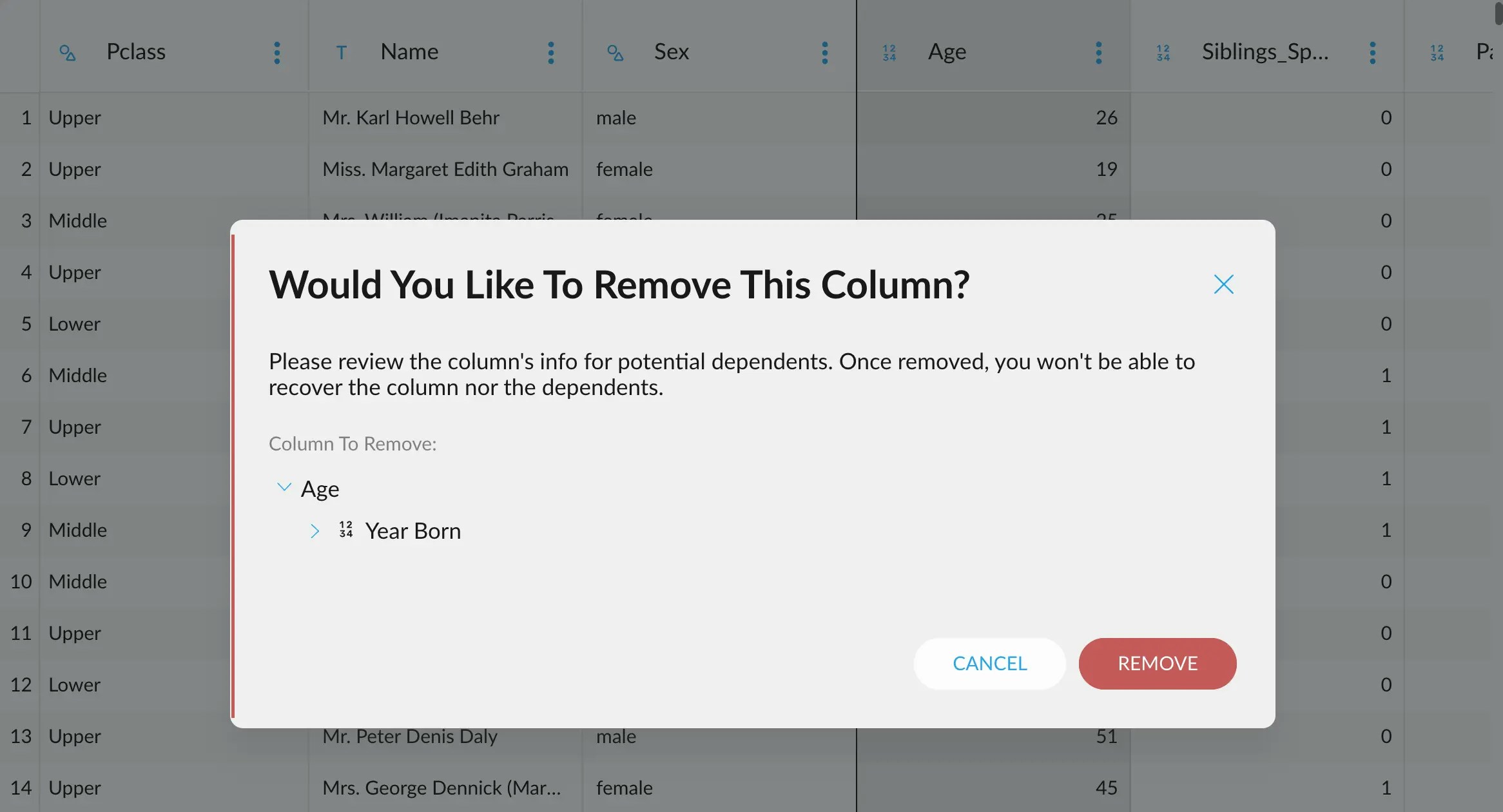
Upon clicking on "Remove Variable", a warning message will pop up, prompting you to confirm
whether you are sure to perform the deletion of the variable.
This message will also display all the columns that may depend on the variable you are deleting.
These variables would be deleted too.
## Implications of deleting a variable
Deleting a variable means to completely remove it from the dataset, effectively "creating" a
new version of the dataset without it.
Upon clicking on "Remove Variable", a warning message will pop up, prompting you to confirm
whether you are sure to perform the deletion of the variable.
This message will also display all the columns that may depend on the variable you are deleting.
These variables would be deleted too.
 ### Undoing deletions
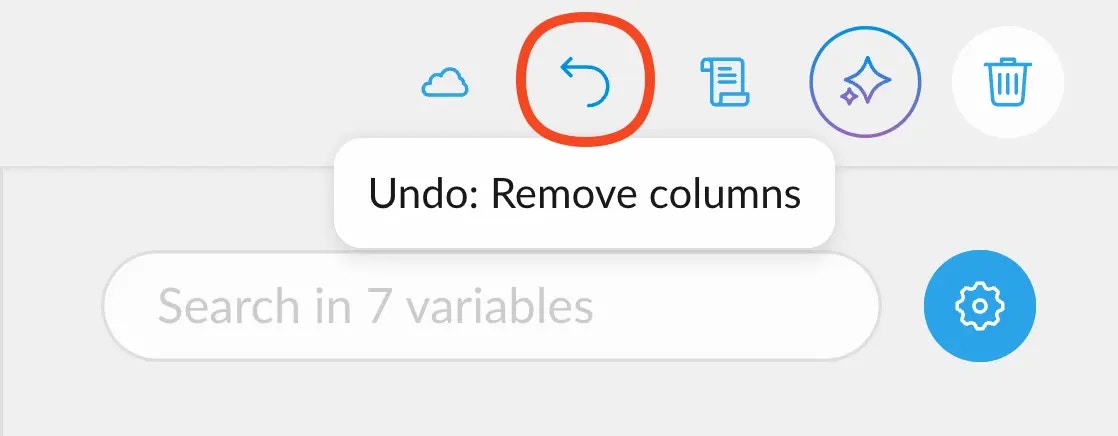
If you deleted a variable by mistake, you can reach to the undo button in the top right corner of the interface
to undo that operation.
### Undoing deletions
If you deleted a variable by mistake, you can reach to the undo button in the top right corner of the interface
to undo that operation.
 Undoing the operation will only be possible right after deleting. If you reload the page or come to a new
session, it will no longer be possible to recover the data.
If all these things happened and you need to recover information, [reach out to the team](mailto:support@graphext.com) for help.
Undoing the operation will only be possible right after deleting. If you reload the page or come to a new
session, it will no longer be possible to recover the data.
If all these things happened and you need to recover information, [reach out to the team](mailto:support@graphext.com) for help.