> ## Documentation Index
> Fetch the complete documentation index at: https://docs.graphext.com/llms.txt
> Use this file to discover all available pages before exploring further.
# Rename a variable
There are two ways of changing a column name in Graphext.
## Changing a column name from the data table
The quickest and easiest way is to simply click on the column name itself. This field
is editable, so you can input whatever name you like most.
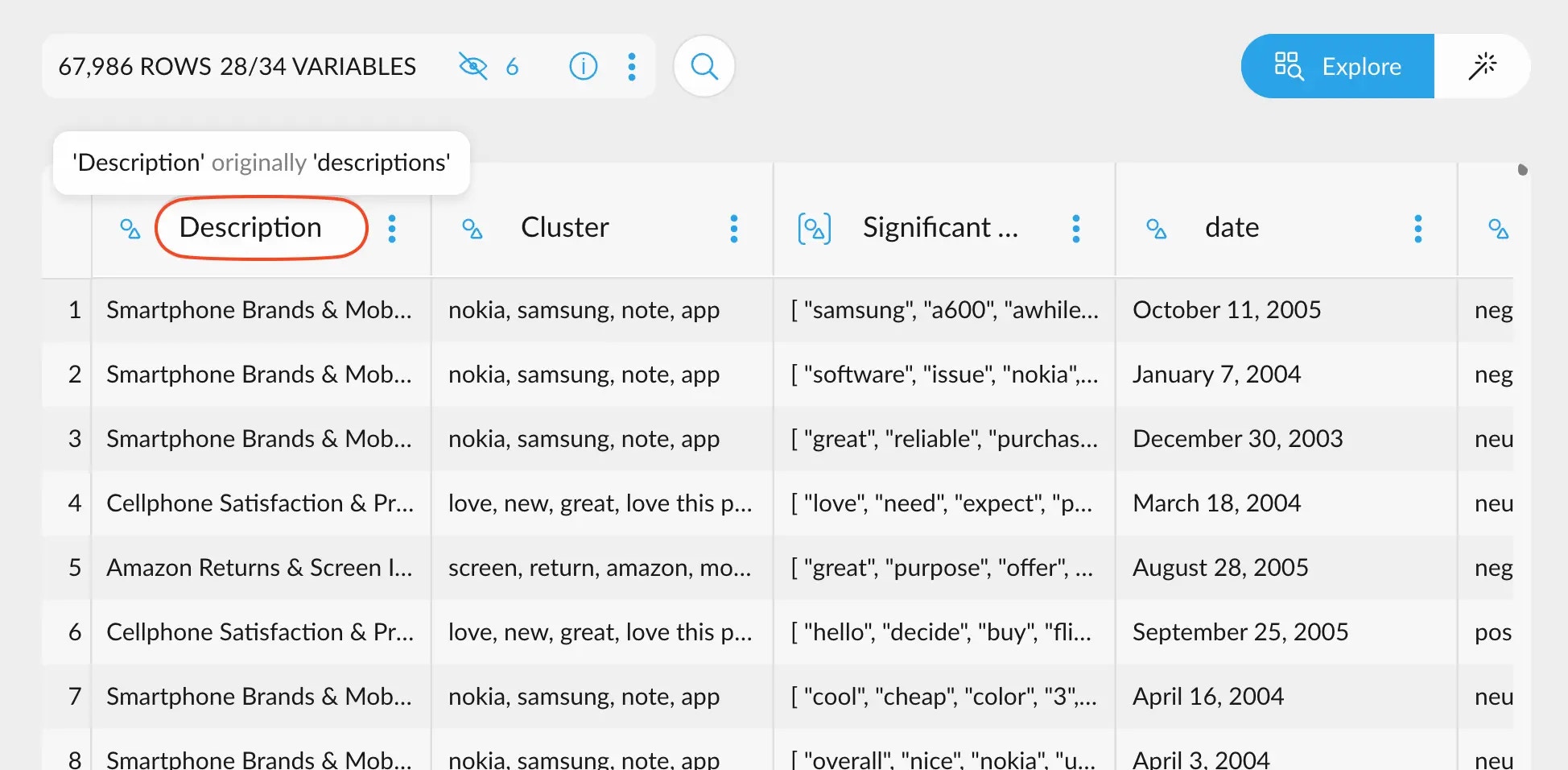 After editing the name, a tooltip will appear when hovering your mouse over
the it, displaying the current name and the original column name when the data
table was initially imported.
## Changing a column name from the Variable Manager
You can also change the name of any column from the variable manager, in much
the same way as with the table. Simply click on the name and edit it to your liking.
After editing the name, a tooltip will appear when hovering your mouse over
the it, displaying the current name and the original column name when the data
table was initially imported.
## Changing a column name from the Variable Manager
You can also change the name of any column from the variable manager, in much
the same way as with the table. Simply click on the name and edit it to your liking.
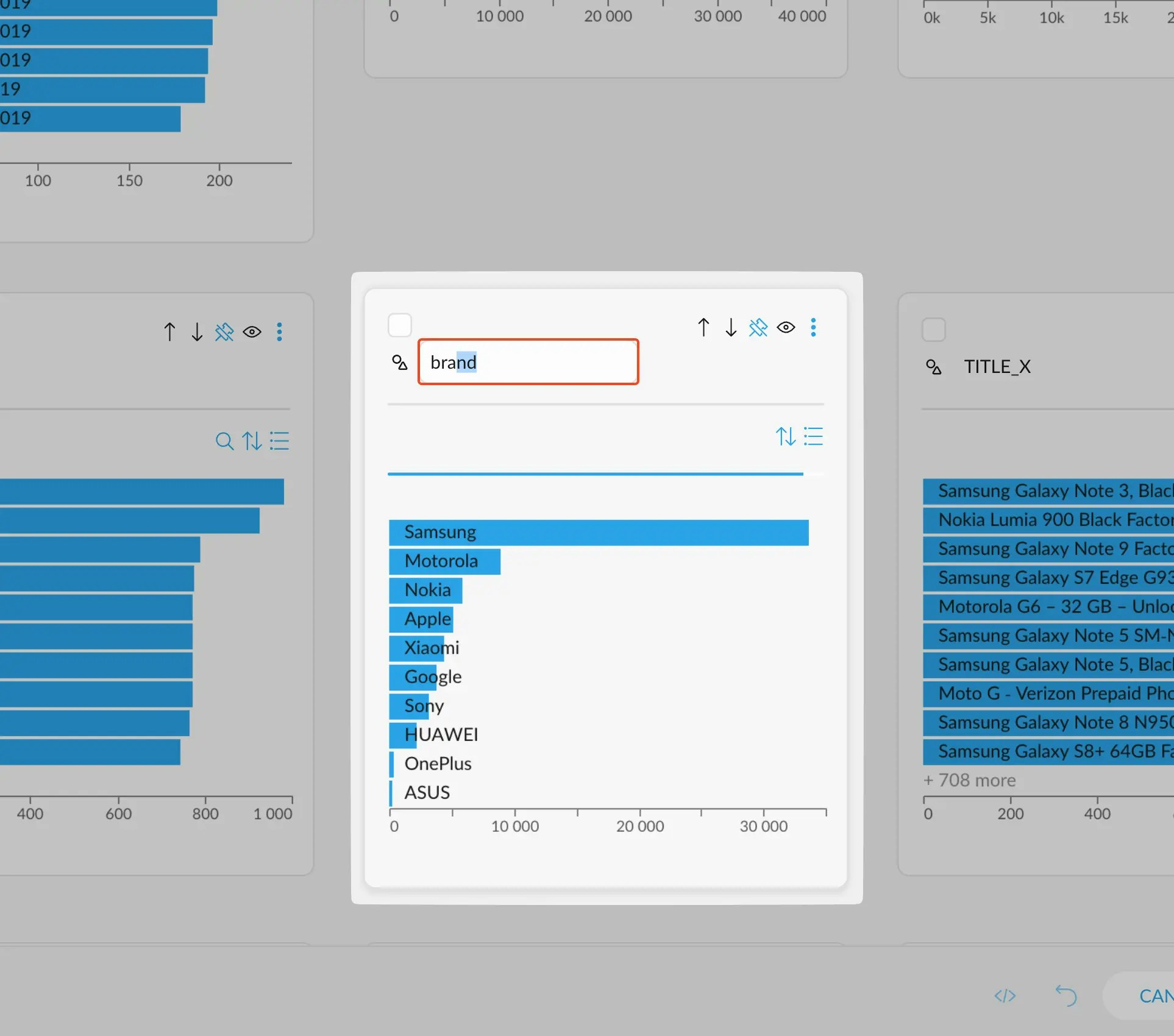 If the variable manager feels "locked" and you cannot edit the variables, it may be because of two things.
* You don't have edit access to the project
* You are in Variable Viewer mode, instead of the Variable Manager mode. In order to continue editing your
variables, return back to "Variable Manager" in this drop down menu on the top left corner.
If the variable manager feels "locked" and you cannot edit the variables, it may be because of two things.
* You don't have edit access to the project
* You are in Variable Viewer mode, instead of the Variable Manager mode. In order to continue editing your
variables, return back to "Variable Manager" in this drop down menu on the top left corner.