> ## Documentation Index
> Fetch the complete documentation index at: https://docs.graphext.com/llms.txt
> Use this file to discover all available pages before exploring further.
# Adding variable descriptions
Descriptions make it much easier to understand what each variable is all about.
There are two ways to adding descriptions to a column in Graphext.
## Adding a description to a column from the data table
### Using the menu
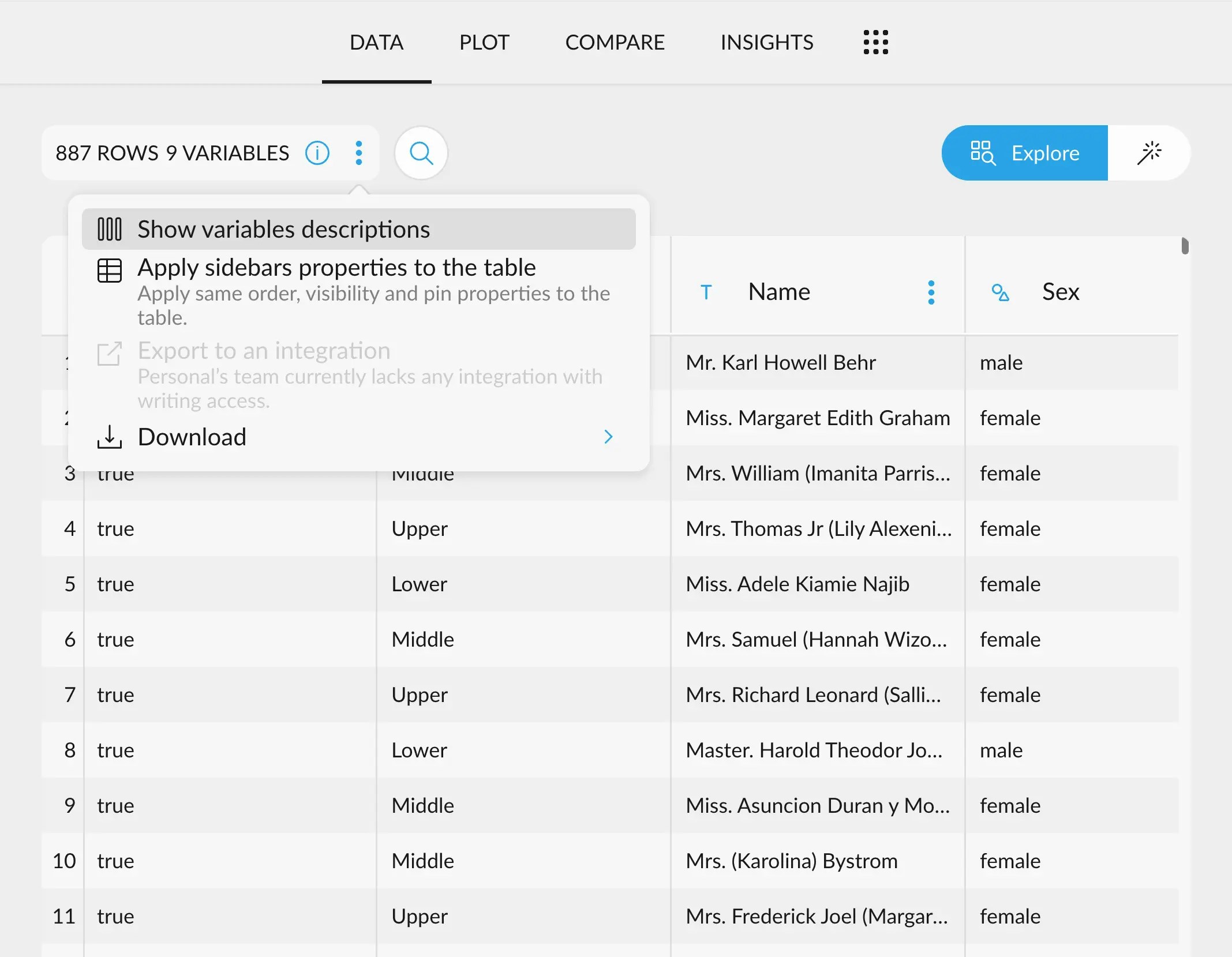
The easiest way to enable the description view is to go to the dataset options, just above the
column names in the data table, and click "Show Variable Descriptions". This will show text
boxes under the column names. These are editable, change the description to your liking.
 ### A quicker shortcut
Another way is to click the blue line under the column name.
When hovering with your mouse, a blue line should appear. This will expand a little
text field, in which you can write freely.
Click on the blue line again, now under the text box, to bring it back to its original position.
## Adding a description to a column from the Variable Manager
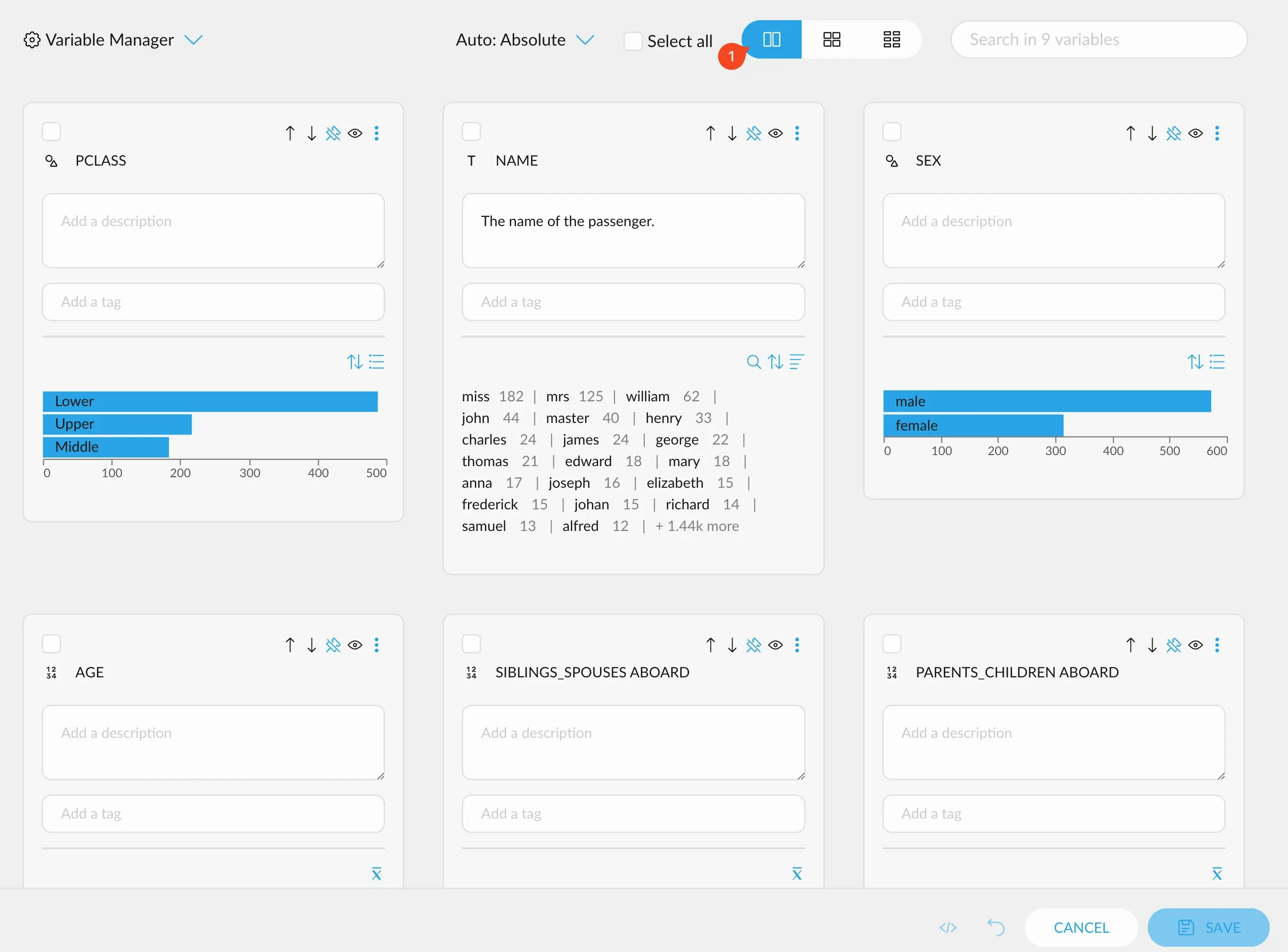
You can also add descriptions to any column by going into the Variable Manager, the gear in the
top right corner of the interface, and enabling the column layout.
You should be able to see a text area in each card displaying "Add a description". Write all the descriptions
you need and click the "Save" button in the lower right corner to save all your changes.
### A quicker shortcut
Another way is to click the blue line under the column name.
When hovering with your mouse, a blue line should appear. This will expand a little
text field, in which you can write freely.
Click on the blue line again, now under the text box, to bring it back to its original position.
## Adding a description to a column from the Variable Manager
You can also add descriptions to any column by going into the Variable Manager, the gear in the
top right corner of the interface, and enabling the column layout.
You should be able to see a text area in each card displaying "Add a description". Write all the descriptions
you need and click the "Save" button in the lower right corner to save all your changes.