> ## Documentation Index
> Fetch the complete documentation index at: https://docs.graphext.com/llms.txt
> Use this file to discover all available pages before exploring further.
# Advanced Filter Queries
> Surgically precise selection and filtering
## Custom Query Selection
Cross filters also allow you to make arbitrary selections, with a specific, but
simple syntax.
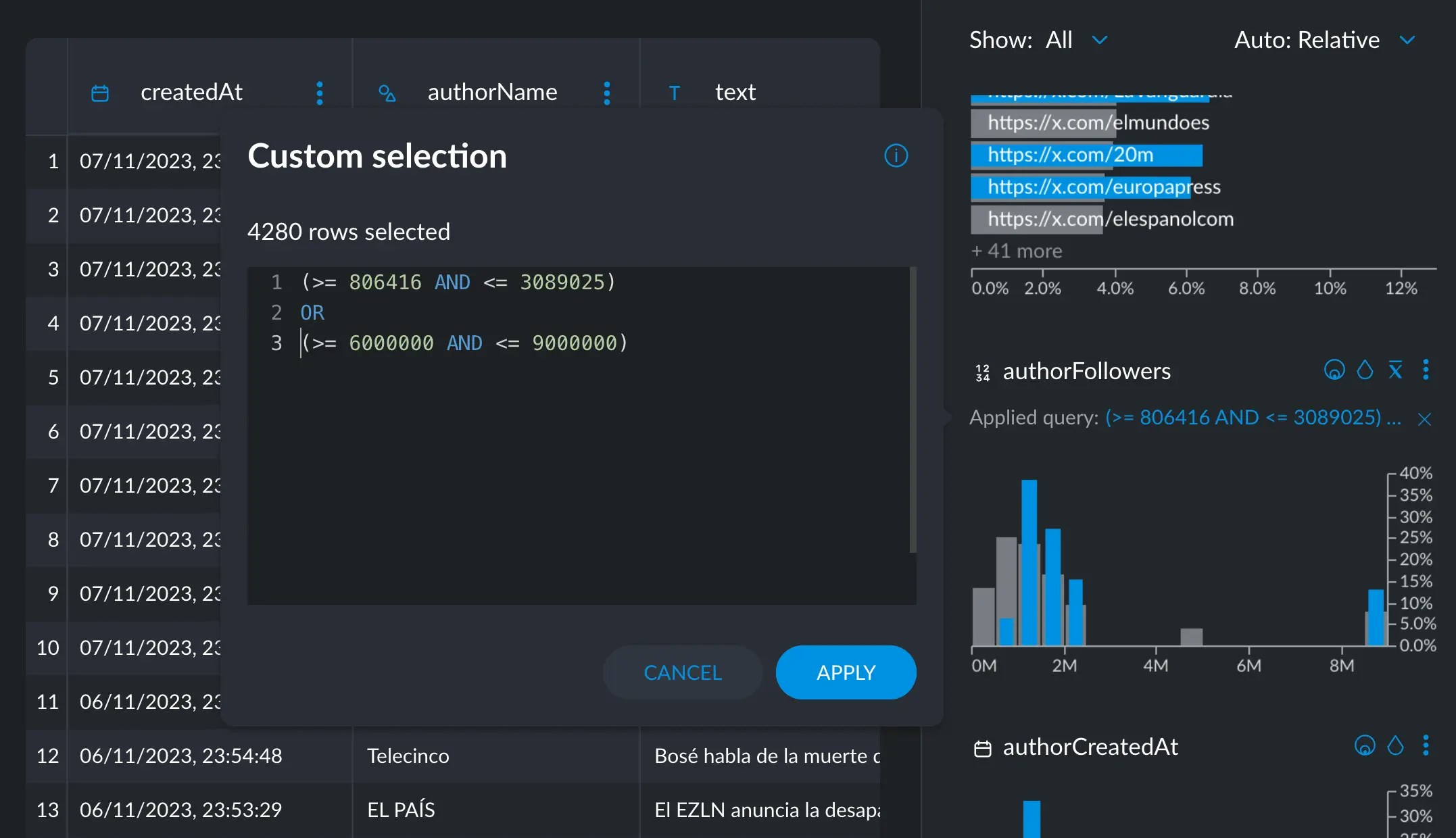 These are the operators you can use:
* logical: `AND, OR, NOT`
* numerical: `<, >, <=, >=`
* text: `REGEX, SUBSTR, FUZZY`
* frequency selection: `TOP, FREQ`
* sorting methods (to be used with `TOP`): `BACKGROUND, FOREGROUND, UPLIFT, TFIDF, ORDINAL`
* null values: `NULL`
* statistics: `MIN, MAX, MEAN, P25, MEDIAN, P75`
The query you build and the syntax available will depend on the type of the variable you are filtering:
* **All** column types accept the **logical** operators to build complex queries using other operators, as well as the `NULL` operator, which exclusively returns null rows.
### Logical operators
Logical operators can concatenate simpler expressions to build more complex
ones.
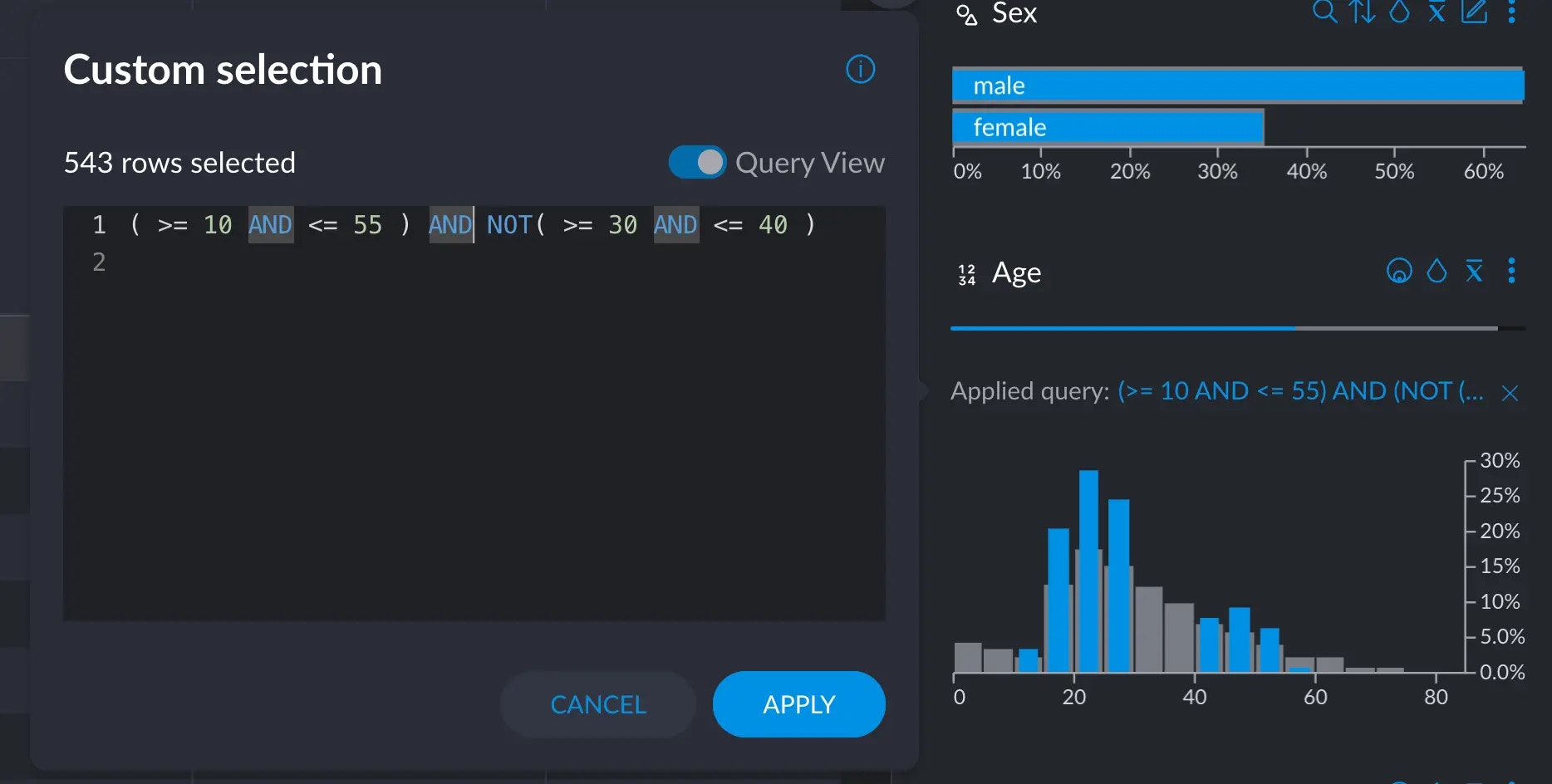
This selects all rows that have a `age` value greater than 10 and less than 55:
```erlang theme={null}
>= 10 AND <= 55
```
we could be interested in two disjoint age brackets, like so:
```erlang theme={null}
( >= 10 AND <= 55 ) OR ( >= 80 AND <= 90 )
```
this will return all rows that are greater than 10 and less than 55 as well as all rows
that are greater than 80 and less than 90, effectively returning two disjoint
age brackets at the same time.
Or we could remove a specific interval within the age bracket:
```erlang theme={null}
( >= 10 AND <= 55 ) AND NOT( >= 30 AND <= 40 )
```
effectively selecting all rows between 10 and 55 but removing all rows between
30 and 40, leaving a "gap" in between.
These are the operators you can use:
* logical: `AND, OR, NOT`
* numerical: `<, >, <=, >=`
* text: `REGEX, SUBSTR, FUZZY`
* frequency selection: `TOP, FREQ`
* sorting methods (to be used with `TOP`): `BACKGROUND, FOREGROUND, UPLIFT, TFIDF, ORDINAL`
* null values: `NULL`
* statistics: `MIN, MAX, MEAN, P25, MEDIAN, P75`
The query you build and the syntax available will depend on the type of the variable you are filtering:
* **All** column types accept the **logical** operators to build complex queries using other operators, as well as the `NULL` operator, which exclusively returns null rows.
### Logical operators
Logical operators can concatenate simpler expressions to build more complex
ones.
This selects all rows that have a `age` value greater than 10 and less than 55:
```erlang theme={null}
>= 10 AND <= 55
```
we could be interested in two disjoint age brackets, like so:
```erlang theme={null}
( >= 10 AND <= 55 ) OR ( >= 80 AND <= 90 )
```
this will return all rows that are greater than 10 and less than 55 as well as all rows
that are greater than 80 and less than 90, effectively returning two disjoint
age brackets at the same time.
Or we could remove a specific interval within the age bracket:
```erlang theme={null}
( >= 10 AND <= 55 ) AND NOT( >= 30 AND <= 40 )
```
effectively selecting all rows between 10 and 55 but removing all rows between
30 and 40, leaving a "gap" in between.
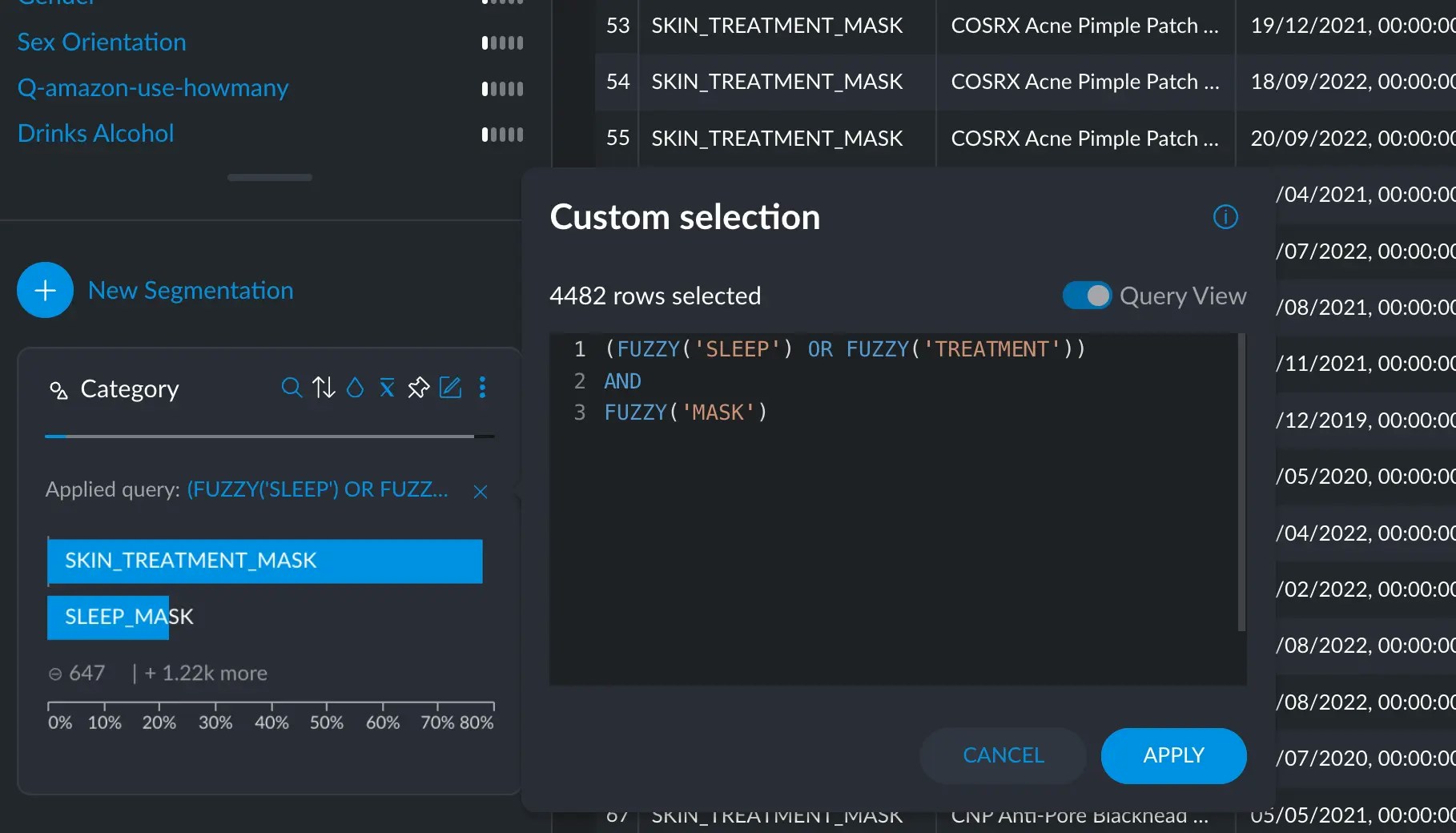
 Logical operators work with any kind of variable, so you can do this too:
```erlang theme={null}
(FUZZY('SLEEP') OR FUZZY('TREATMENT'))
AND
FUZZY('MASK')
```
selecting all rows that contain either "sleep" or "treatment" and also contain the word "mask".
Logical operators work with any kind of variable, so you can do this too:
```erlang theme={null}
(FUZZY('SLEEP') OR FUZZY('TREATMENT'))
AND
FUZZY('MASK')
```
selecting all rows that contain either "sleep" or "treatment" and also contain the word "mask".
 You can focus on null values:
```erlang theme={null}
NULL
```
or exclude them!
```erlang theme={null}
NOT(NULL)
```
### Categorical & Text
In categorical or text columns you can search for specific words (tokens) or categories. You can combine searches using boolean logic (i.e. string together multiple conditions using the AND/OR keywords).
**Categorical** and **Text** variables accept the `TOP`, `FREQ`, `FUZZY`, `SUBSTR` and `REGEX` operators. They work similarly since
both are based on text: categories are just very short expressions, whereas text
tends to present a longer format.
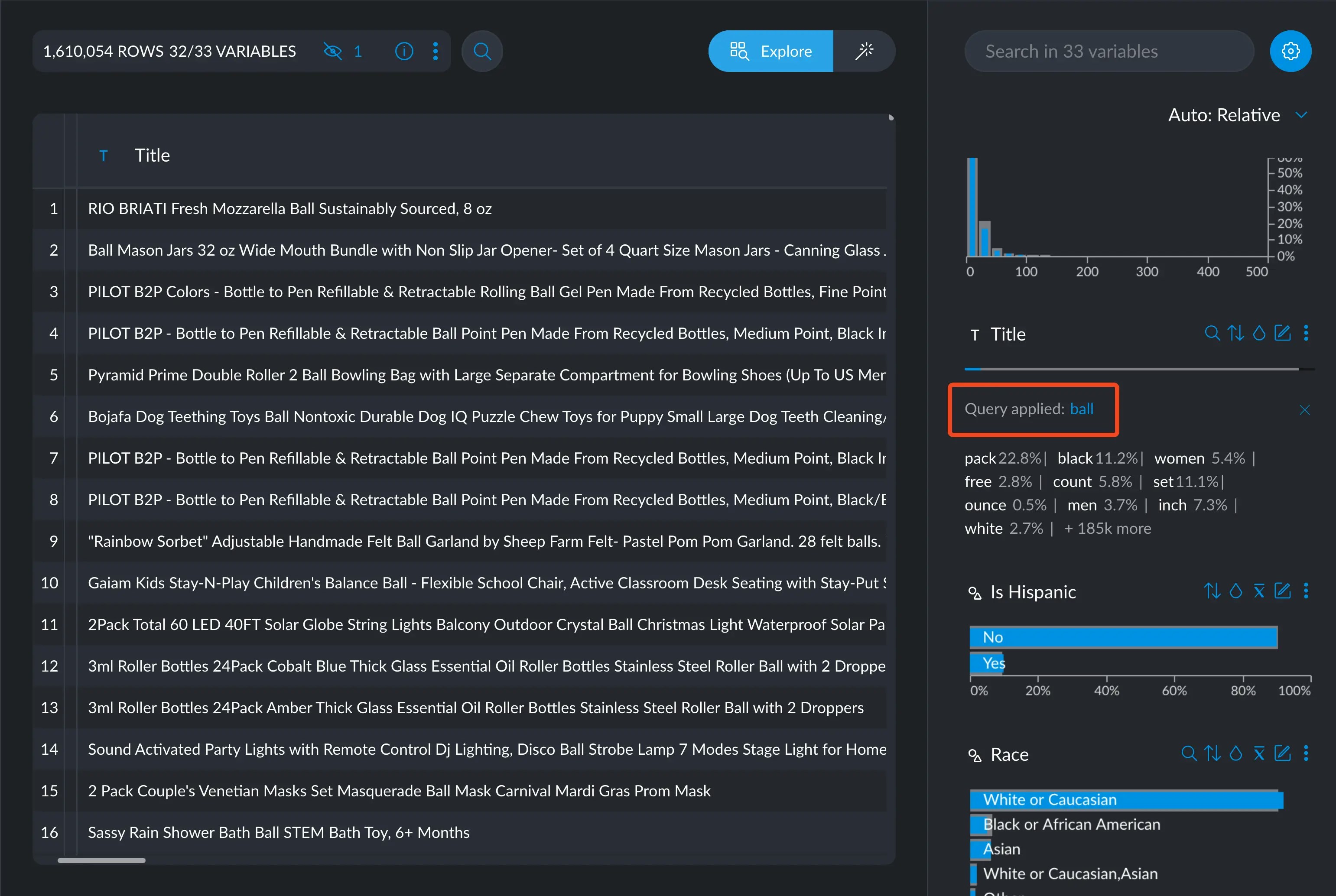
* On any text-based variable, you can simply ask for `ball`, which will return all rows that contain the word `ball` by itself.
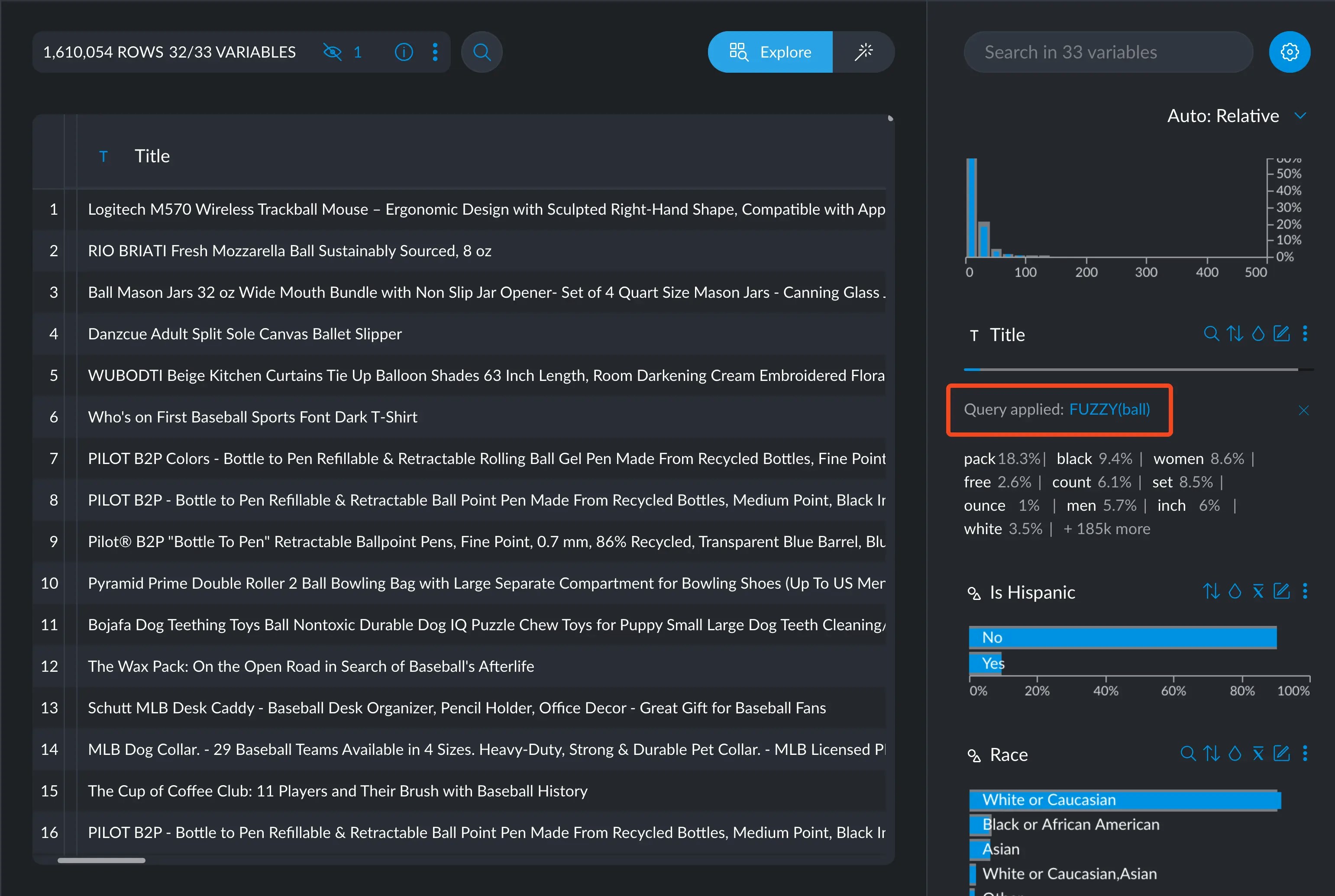
* `FUZZY(ball)` will return all rows that contain the word `ball`, whether `ball` is part of other words or appears by itself.
* `FUZZY` is case insensitive and [normalizes all input (a.k.a ASCII folding)](https://unicode-org.github.io/icu/userguide/transforms/normalization/) before searching.
* `SUBSTR(ball)` will return only rows that contain `ball` as part of a word, but not by itself.
* `REGEX()` will accept a [regular expression](https://en.wikipedia.org/wiki/Regular_expression) string to match more complex patterns.
You can focus on null values:
```erlang theme={null}
NULL
```
or exclude them!
```erlang theme={null}
NOT(NULL)
```
### Categorical & Text
In categorical or text columns you can search for specific words (tokens) or categories. You can combine searches using boolean logic (i.e. string together multiple conditions using the AND/OR keywords).
**Categorical** and **Text** variables accept the `TOP`, `FREQ`, `FUZZY`, `SUBSTR` and `REGEX` operators. They work similarly since
both are based on text: categories are just very short expressions, whereas text
tends to present a longer format.
* On any text-based variable, you can simply ask for `ball`, which will return all rows that contain the word `ball` by itself.
* `FUZZY(ball)` will return all rows that contain the word `ball`, whether `ball` is part of other words or appears by itself.
* `FUZZY` is case insensitive and [normalizes all input (a.k.a ASCII folding)](https://unicode-org.github.io/icu/userguide/transforms/normalization/) before searching.
* `SUBSTR(ball)` will return only rows that contain `ball` as part of a word, but not by itself.
* `REGEX()` will accept a [regular expression](https://en.wikipedia.org/wiki/Regular_expression) string to match more complex patterns.
 * `FREQ` selects those terms whose frequency is greater or equal than `n`: `FREQ(10000)` selects those values whose frequency is greater or equal to 10K.
* `TOP` selects the top `n` terms in terms of frequency: `TOP(10)` selects the top 10.
* we can, however, modify `TOP`'s behavior by saying `TOP(10, FOREGROUND)`, which would select the top 10 **out of the current selection we have made**.
* `TOP(10, UPLIFT)` selects the top 10 after sorting them by how different the frequency is between the selection and the whole dataset. These operators are the same as the ones mentioned in the [sorting](#sorting) section.
Keep in mind that the sorting methods will not visually sort the elements in
the cross filter, but they will just return the relevant elements once they
are filtered and sorted. To sort the elements visually, you can head to the
[sorting](#sorting) section.
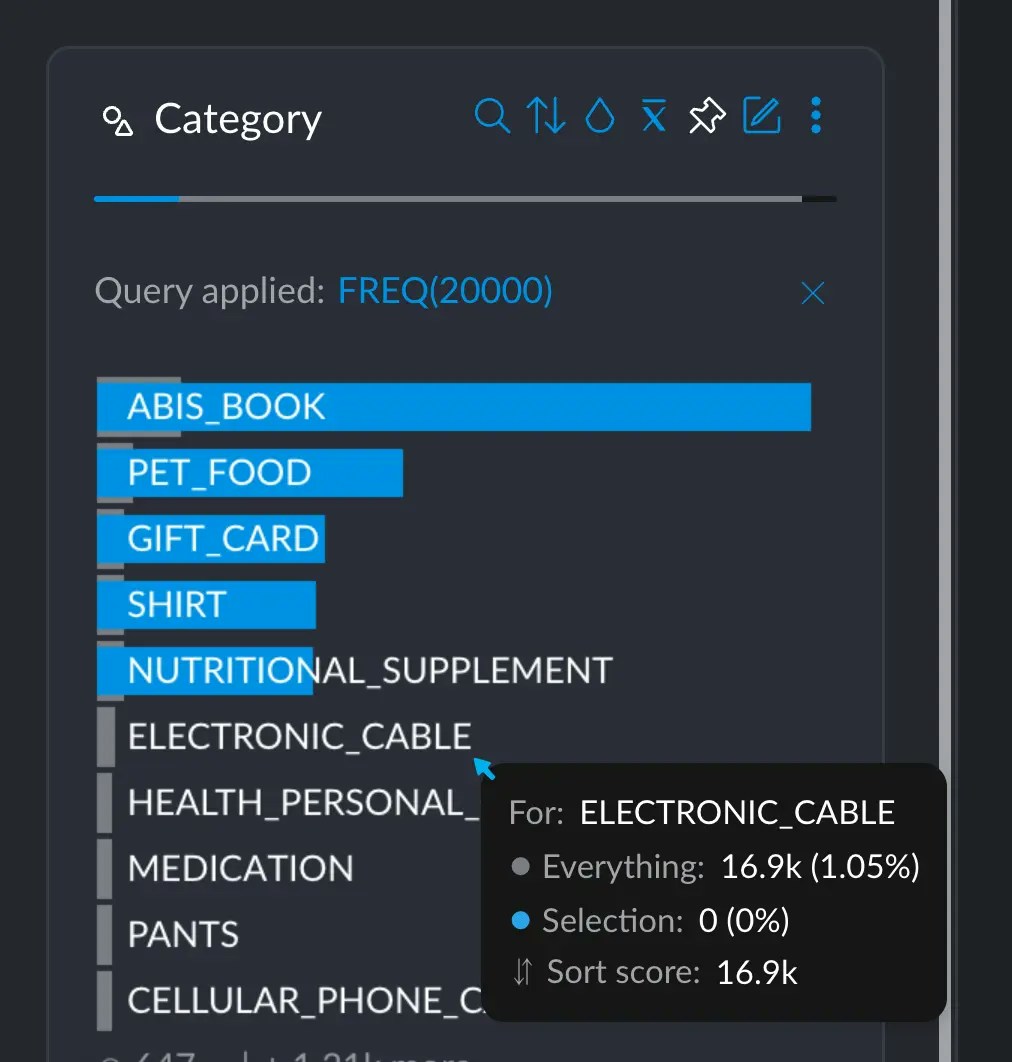
* `FREQ` selects those terms whose frequency is greater or equal than `n`: `FREQ(10000)` selects those values whose frequency is greater or equal to 10K.
* `TOP` selects the top `n` terms in terms of frequency: `TOP(10)` selects the top 10.
* we can, however, modify `TOP`'s behavior by saying `TOP(10, FOREGROUND)`, which would select the top 10 **out of the current selection we have made**.
* `TOP(10, UPLIFT)` selects the top 10 after sorting them by how different the frequency is between the selection and the whole dataset. These operators are the same as the ones mentioned in the [sorting](#sorting) section.
Keep in mind that the sorting methods will not visually sort the elements in
the cross filter, but they will just return the relevant elements once they
are filtered and sorted. To sort the elements visually, you can head to the
[sorting](#sorting) section.
Select rows where the `department` column exactly contains "engineering":
```erlang theme={null}
engineering
```
on the other hand, rows that include "engineering", maybe among other terms:
```erlang theme={null}
FUZZY(engineering)
```
or where the `text` column exactly matches "he" and "she":
```erlang theme={null}
he AND she
```
or filter the top four most frequent categories in the `department` column:
```erlang theme={null}
TOP(4)
```
select all rows that have over 20K occurrencies:
```erlang theme={null}
FREQ(20000)
```
### Numerical & Dates
Numerical and Date columns behave similarly, since, internally, they are just
storing numbers. This section explains valid syntax and examples for each type.
#### Numerical
**Numerical** variables will naturally accept the numerical operators, as well as the statistical operators.
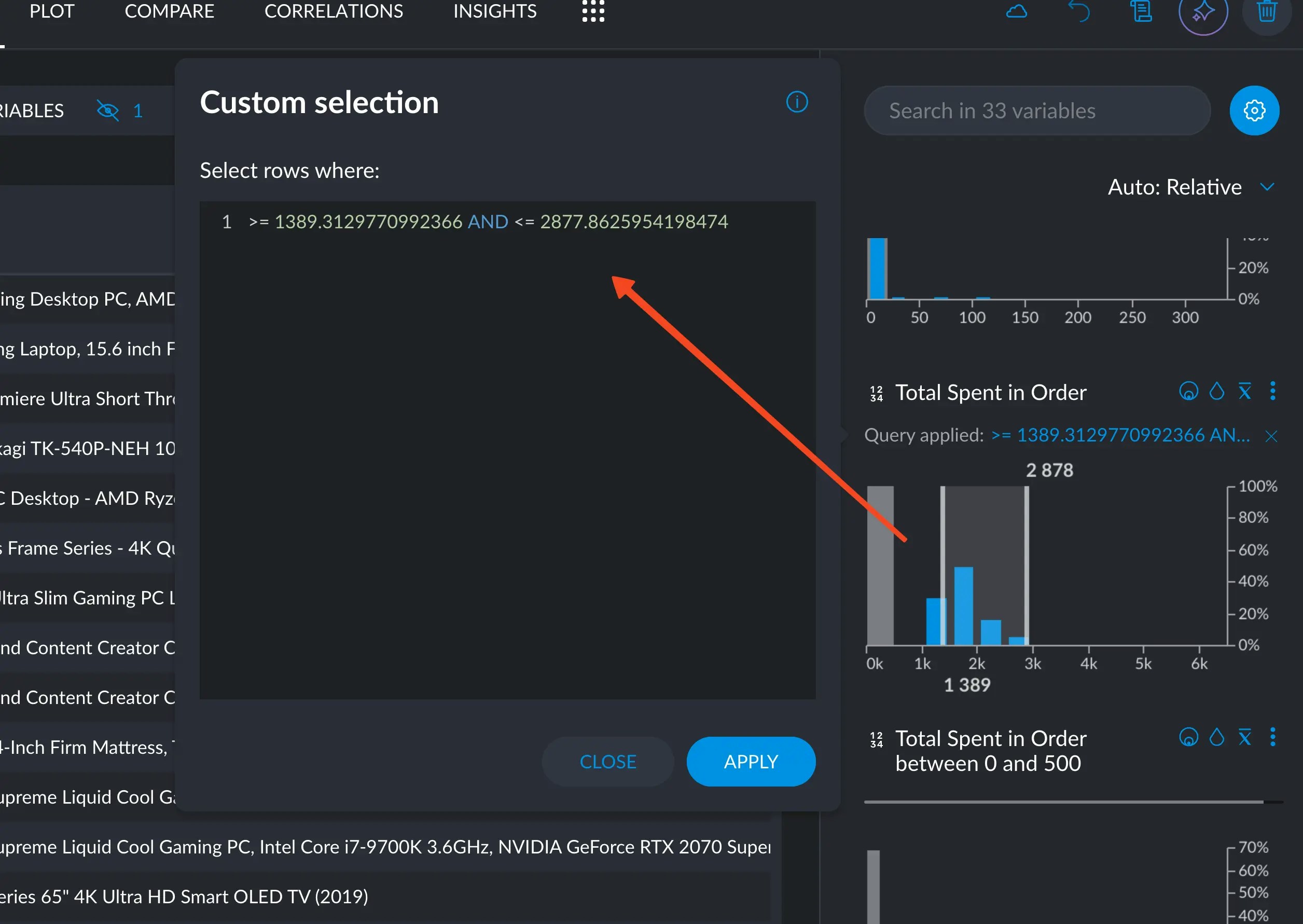 Generally, the statistical operators provide a quick shortcut to the most relevant sections of a distribution:
* MIN: selects all rows that have the same value as the minimum value found
* MAX: selects all rows that have the same value as the maximum value found
* MEDIAN: selects all rows that have the same value as the median
* P25: selects all rows that have the same value as the first quartile
* P75: selects all rows that have the same value as the third quartile
To build a query spanning from the first quartile to the third, you can simply say `>= P25 AND <= P75`, which returns all rows that are both
greater or equal than the P25 and less or equal than the P75. This effectively returns the [the interquartile range](https://en.wikipedia.org/wiki/Interquartile_range).
In numeric columns, numbers can also be specified using scientific notation. The following two numbers are both valid and represent the same number: **145000** and **1.45e5**.
Queries in numeric columns support **=**, **>**, **>=**, **\<** and operators.
To select rows whose age field falls into the range 10 to 55:
```erlang theme={null}
>= 10 AND <= 55
```
To match a specific number:
```erlang theme={null}
12
```
The = operator is implicit in the above query, so the following query produces the same result:
```erlang theme={null}
=12
```
Selecting everything BUT a specific number:
```erlang theme={null}
NOT(12)
```
Include ages from 10 up to but not including 55 (exclusive smaller/greater than):
```erlang theme={null}
>= 10 AND < 55
```
Using scientific notation:
```erlang theme={null}
>= 5.6e-4 AND <= 9.35e-2
```
Using a computed statistic, anything over the 25th percentile:
```erlang theme={null}
>= P25
```
Or anything under the 75th percentile:
```erlang theme={null}
<= P75
```
Retrieving the interquartile range:
```erlang theme={null}
>= P25 AND <= P75
```
Combining both constants and computed statistics:
```erlang theme={null}
>= 5 AND < MEAN
```
#### Dates
**Dates** behave in much the same way as numbers. They are specified in the [ISO format 8061](https://en.wikipedia.org/wiki/ISO_8601) standard, where the date part is required and the time part optional. I.e. both the following dates are valid: **2020-02-23** and **2020-02-23T14:30:00**. In the first example, only year, month and date are specified, while the second includes the time also (hours, minutes and seconds)
We can say things like `>= 2018-06-05T11:33:48.554Z AND <= 2021-06-26T05:56:18.172Z`, which means anything *after* June 5th, 2018 at 11:33:48 **and** *before* June 26th, 2021 at 05:56:18, effectively
returning dates within that time interval. Same as with numbers, simply creating a range in the cross filter will generate this query for you to adjust, in case more precision was needed.
Here are some examples of valid date notation:
To select all rows whose "date" field falls into the year 2019:
```erlang theme={null}
>= 2019-01-01 AND <= 2019-12-31
```
Or to match a specific
```erlang theme={null}
2019-01-01
```
The = operator is implicit in the above query, so the following query produces the same result:
```erlang theme={null}
=2019-01-01
```
Select dates before 2020, January 1st, 12:35 PM:
```erlang theme={null}
<= 2020-01-01T12:35:00
```
Dates before the median date in the same column:
```erlang theme={null}
>= 2020-02-23 AND <= MEDIAN
```
And you may of course also combine constants with calculated statistics:
```erlang theme={null}
>= 2020-02-23 AND <= P75
```
Some steps allow the use of *advanced queries* to filter rows in a dataset.
These are the steps that currently support it:
* [create\_filter\_insight](https://docs.graphext.com/steps/report/create_insight/create_filter_insight/)
* [create\_graph\_insight](https://docs.graphext.com/steps/report/create_insight/create_graph_insight/)
* [create\_plot\_insight](https://docs.graphext.com/steps/report/create_insight/create_plot_insight/)
* [filter\_rows](https://docs.graphext.com/steps/prepare/filter/filter_rows/)
* [segment\_rows](https://docs.graphext.com/steps/prepare/transform/any/segment_rows/)
* [cluster\_network](https://docs.graphext.com/steps/analyse/graph_and_map/cluster/cluster_network/)
* [cluster\_subnetwork](https://docs.graphext.com/steps/analyse/graph_and_map/cluster/cluster_subnetwork/)
Generally, the statistical operators provide a quick shortcut to the most relevant sections of a distribution:
* MIN: selects all rows that have the same value as the minimum value found
* MAX: selects all rows that have the same value as the maximum value found
* MEDIAN: selects all rows that have the same value as the median
* P25: selects all rows that have the same value as the first quartile
* P75: selects all rows that have the same value as the third quartile
To build a query spanning from the first quartile to the third, you can simply say `>= P25 AND <= P75`, which returns all rows that are both
greater or equal than the P25 and less or equal than the P75. This effectively returns the [the interquartile range](https://en.wikipedia.org/wiki/Interquartile_range).
In numeric columns, numbers can also be specified using scientific notation. The following two numbers are both valid and represent the same number: **145000** and **1.45e5**.
Queries in numeric columns support **=**, **>**, **>=**, **\<** and operators.
To select rows whose age field falls into the range 10 to 55:
```erlang theme={null}
>= 10 AND <= 55
```
To match a specific number:
```erlang theme={null}
12
```
The = operator is implicit in the above query, so the following query produces the same result:
```erlang theme={null}
=12
```
Selecting everything BUT a specific number:
```erlang theme={null}
NOT(12)
```
Include ages from 10 up to but not including 55 (exclusive smaller/greater than):
```erlang theme={null}
>= 10 AND < 55
```
Using scientific notation:
```erlang theme={null}
>= 5.6e-4 AND <= 9.35e-2
```
Using a computed statistic, anything over the 25th percentile:
```erlang theme={null}
>= P25
```
Or anything under the 75th percentile:
```erlang theme={null}
<= P75
```
Retrieving the interquartile range:
```erlang theme={null}
>= P25 AND <= P75
```
Combining both constants and computed statistics:
```erlang theme={null}
>= 5 AND < MEAN
```
#### Dates
**Dates** behave in much the same way as numbers. They are specified in the [ISO format 8061](https://en.wikipedia.org/wiki/ISO_8601) standard, where the date part is required and the time part optional. I.e. both the following dates are valid: **2020-02-23** and **2020-02-23T14:30:00**. In the first example, only year, month and date are specified, while the second includes the time also (hours, minutes and seconds)
We can say things like `>= 2018-06-05T11:33:48.554Z AND <= 2021-06-26T05:56:18.172Z`, which means anything *after* June 5th, 2018 at 11:33:48 **and** *before* June 26th, 2021 at 05:56:18, effectively
returning dates within that time interval. Same as with numbers, simply creating a range in the cross filter will generate this query for you to adjust, in case more precision was needed.
Here are some examples of valid date notation:
To select all rows whose "date" field falls into the year 2019:
```erlang theme={null}
>= 2019-01-01 AND <= 2019-12-31
```
Or to match a specific
```erlang theme={null}
2019-01-01
```
The = operator is implicit in the above query, so the following query produces the same result:
```erlang theme={null}
=2019-01-01
```
Select dates before 2020, January 1st, 12:35 PM:
```erlang theme={null}
<= 2020-01-01T12:35:00
```
Dates before the median date in the same column:
```erlang theme={null}
>= 2020-02-23 AND <= MEDIAN
```
And you may of course also combine constants with calculated statistics:
```erlang theme={null}
>= 2020-02-23 AND <= P75
```
Some steps allow the use of *advanced queries* to filter rows in a dataset.
These are the steps that currently support it:
* [create\_filter\_insight](https://docs.graphext.com/steps/report/create_insight/create_filter_insight/)
* [create\_graph\_insight](https://docs.graphext.com/steps/report/create_insight/create_graph_insight/)
* [create\_plot\_insight](https://docs.graphext.com/steps/report/create_insight/create_plot_insight/)
* [filter\_rows](https://docs.graphext.com/steps/prepare/filter/filter_rows/)
* [segment\_rows](https://docs.graphext.com/steps/prepare/transform/any/segment_rows/)
* [cluster\_network](https://docs.graphext.com/steps/analyse/graph_and_map/cluster/cluster_network/)
* [cluster\_subnetwork](https://docs.graphext.com/steps/analyse/graph_and_map/cluster/cluster_subnetwork/)